DockDuck icon

DockDuck

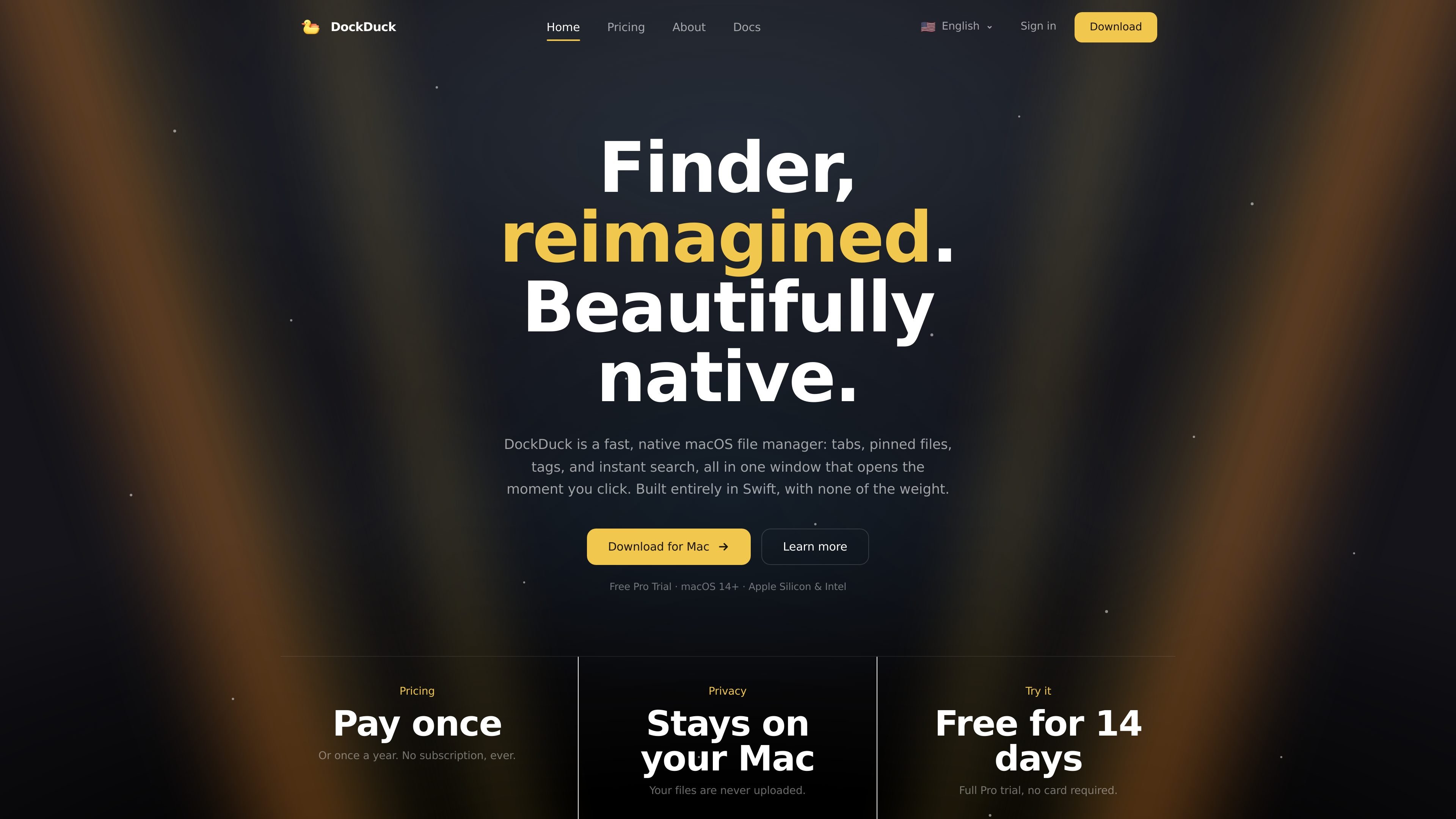
DockDuck is a native macOS file manager with tabs, pinned files, tags, instant search, and a dual-pane workflow. It is built for Mac users who want Finder-style file handling with more power in a single app.

DockDuck

What DockDuck is

DockDuck is a native macOS file manager built to rework common Finder workflows in a single app window. The site positions it as fast, light, and made in Swift, with support for tabs, pinned files, tags, instant search, and a start dashboard that surfaces frequently used items.

It is aimed at people who want more control than Finder provides without moving to a heavy cross-platform app. The published feature set covers dual-pane browsing, folder compare and sync, batch rename, archive handling, and a shelf for staging files while you navigate, while still keeping standard macOS behaviors such as Quick Look, Terminal access, AirDrop, and system sharing.

Core features

Tabs, multiple windows, and dual-pane browsing

DockDuck can open tabs and multiple windows, and it also supports a dual-pane layout for side-by-side file work. That makes it easier to move between locations without constantly opening and closing windows.

Pinned items, recents, and tags

The app surfaces pinned files and folders, recents, and tags from a start dashboard that opens with the app. This keeps common locations close at hand instead of buried in the file tree.

Instant search and smart folders

Search is designed to be immediate, with filtering by file type, sorting by name, size, date, or kind, and saved searches through smart folders. That gives the app a more query-driven workflow than Finder alone.

File operations and batch tools

DockDuck includes batch rename with patterns, plus copy, move, rename, duplicate, trash, compress, and extract actions. The archive support listed on the site includes ZIP, 7-Zip, TAR, and RAR.

Compare, sync, and shelf workflow

The app supports folder sync and compare, with a comparison view that lines up two folders and highlights identical, modified, or one-sided items. It also includes a shelf for staging files while navigating.

Preview, metadata, and system actions

Additional system tools include Quick Look and a live preview panel, Get Info with permissions and metadata, Reveal in Finder, Open in Terminal, AirDrop, system Share, copy as path, and fully remappable keyboard shortcuts.

Practical use cases

  • Daily file navigation

    Use DockDuck when you want a Finder replacement that keeps tabs, pinned items, recents, and tags in one place. The start dashboard is meant to make the files and folders you return to most easier to reach.

  • Side-by-side folder work

    Use the dual-pane view to move, compare, or clean up folders without juggling separate windows. The compare workflow highlights identical, modified, and one-sided items before you copy or sync anything.

  • Bulk organization and cleanup

    Use batch rename, archive extraction, and the shelf when you are organizing many files at once. This is the kind of workflow that benefits from repeating actions with patterns instead of editing files one by one.

  • Search-driven file retrieval

    Use search and smart folders when you rely on saved searches or need to filter by file type and sort by size, date, or kind. That makes it easier to return to the same query-driven view later.

  • Inspecting and handing off files

    Use the preview, Get Info, and system actions when you need to inspect files before moving them on. Quick Look, metadata, path copying, Terminal access, and sharing are all available from the app.

Pros and Cons

Pros

  • Native macOS app built in Swift, with a design that aims to feel at home on the Mac.
  • Single-window workflow with tabs, pinned items, recents, tags, and instant search for faster file access.
  • Dual-pane browsing and folder compare for moving and checking files side by side.
  • Includes practical file tools such as batch rename, archive handling, sync, undo/redo, and a staging shelf.
  • Offers a free 14-day Pro trial and a published 14-day money-back guarantee.

Cons

  • The source does not provide a dedicated pricing page, so plan details are only available from the home page and refund page.
  • The app requires macOS 14 Sonoma or later, which limits compatibility with older Macs.
  • The site does not describe team features, shared licensing, or collaboration tools.

FAQ

What does DockDuck run on?

DockDuck is a native macOS file manager, so it is installed as a Mac app rather than used in a browser. The download page says it requires macOS 14 Sonoma or later and supports Apple Silicon and Intel.

Is there a trial or refund option?

The site says DockDuck includes a free 14-day Pro trial with no card required. The pricing copy also says it offers a one-time lifetime purchase or an annual license renewed by hand, and the refund policy includes a 14-day money-back guarantee.

Can DockDuck replace Finder for everyday file work?

Yes. The home page says DockDuck can be set as your default file manager and includes Finder-style actions such as Reveal in Finder, Open in Terminal, AirDrop, and system Share.

How is DockDuck installed and updated?

The site explicitly lists DockDuck as a Mac app with one universal build for Apple Silicon and Intel. The download page notes that updates install themselves after the app is installed.

Is DockDuck aimed at individual or team use?

The source does not describe team accounts, shared workspaces, or collaboration features. The license copy instead refers to one Mac per license.

Quick Facts

Category
macOS file manager
Platform
macOS 14 Sonoma or later
Supported CPUs
Apple Silicon and Intel
Source domain
dockduck.app
Pricing shape
One-time lifetime or annual license; no subscription auto-renew
Trial
Free 14-day Pro trial, no card required