
Connect an agent
Connect supported coding-agent CLIs through MCP, or install Fluck Agent from the BOSS Toolbox to work with an agent inside the workspace.

BOSS Console is a desktop workspace for running always-on AI agents with browser, terminal, editor, notebook, and plugin access. It helps developers and teams connect agents, control their available tools, and inspect work locally or through supported web and shared-session services.
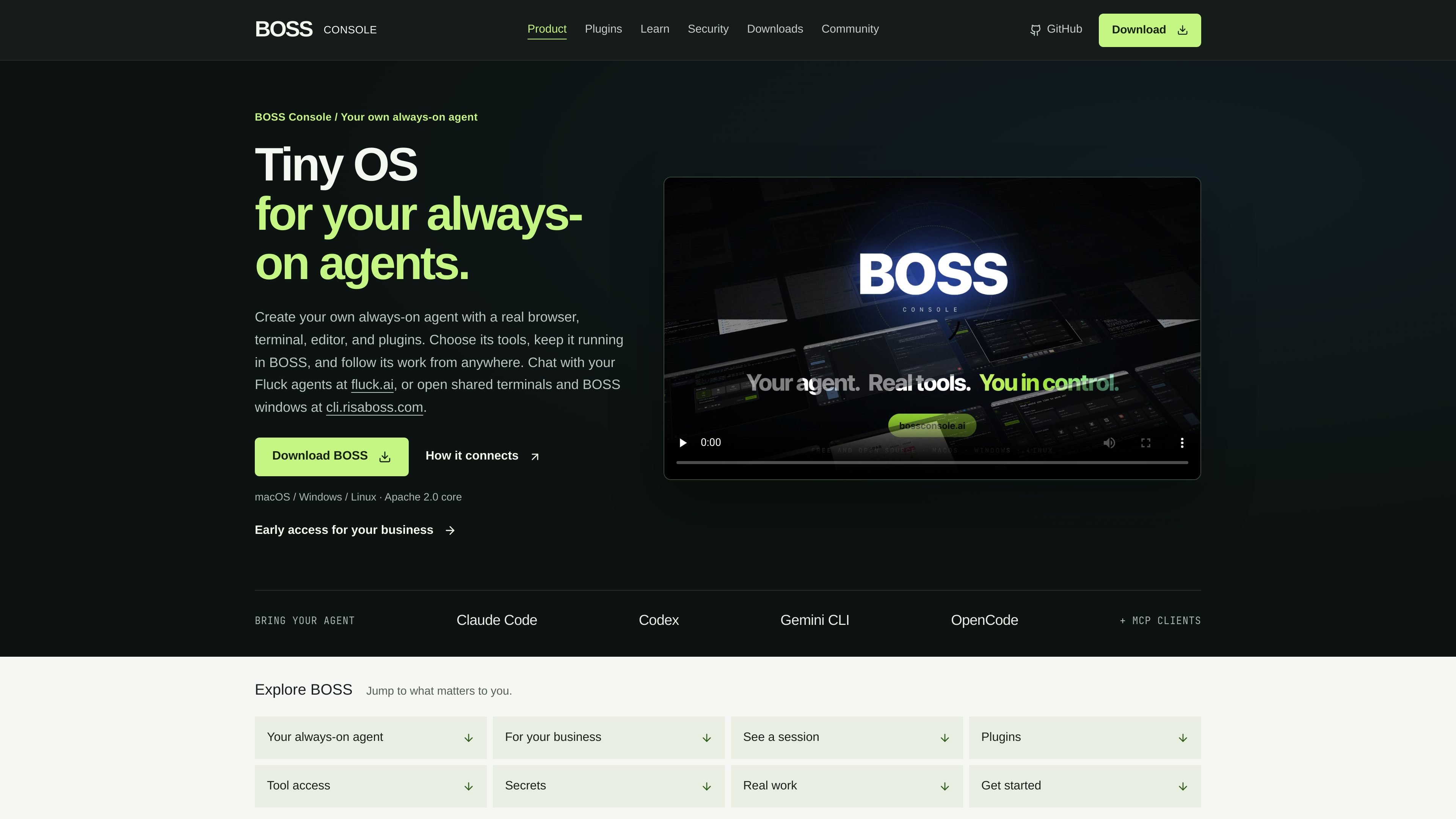
BOSS Console is a desktop workspace and lightweight operating environment for running always-on AI agents with access to practical tools. It brings an agent together with a browser, terminal, editor, notebooks, and plugins, allowing users to inspect work and choose which capabilities the agent can access.
Users can connect coding-agent CLIs such as Claude Code, Codex, Gemini CLI, or OpenCode through MCP, or start with Fluck Agent inside BOSS. A workspace can remain running on an online machine, while Fluck provides web conversations and cli.risaboss.com provides access to shared terminals and BOSS windows subject to sharing settings. The product is also positioned as a foundation for business-specific agents, with Ask Optimist shown as an example built on BOSS.
Connect supported coding-agent CLIs through MCP, or install Fluck Agent from the BOSS Toolbox to work with an agent inside the workspace.
Use a full browser environment to navigate, inspect pages, and automate browser work while keeping the page beside the agent.
Run commands, read output, and keep terminal sessions visible alongside the agent for tasks that require local execution.
Install hot-reloadable plugins that can provide interfaces for people, named MCP tools for agents, and services for other plugins. The documented plugin examples include a code editor and Jupyter.
Configure access with role-based controls, plugin gates, and individual tool settings. Disabled or permission-denied tools are removed from the exposed BOSS toolset.
Use supported stored credentials through scoped browser actions so the credential value is sent to the destination without routinely being placed in the model context.
Connect a coding agent to an editor and terminal, then keep project files, command output, and agent activity visible in the same workspace. Users can begin by enabling only the tools required for a small task.
Attach a public webpage to Fluck Agent, ask it to identify or summarize the page context, and inspect the resulting action and source inside BOSS.
Use a browser and supported scoped credentials for workflows that require entering information into a page, while keeping the stored value out of the model context by default.
Create a custom workspace with plugins that expose human-facing interfaces, MCP tools, or services for other plugins. The site presents an Arcade 2048 interface as an example of a workspace-specific surface.
Keep an agent running on an online machine and return to its conversation from another device through fluck.ai, or inspect shared terminals and BOSS windows through cli.risaboss.com according to the configured sharing settings.
Download and launch BOSS for your operating system, complete or dismiss the setup wizard, then connect a supported coding-agent CLI through Toolbox → MCP or install Fluck Agent from Toolbox → Store. The quickstart recommends beginning with a small, non-sensitive task.
BOSS can connect supported clients including Claude Code, Codex, Gemini CLI, and OpenCode through MCP. Fluck Agent can be installed from the BOSS plugin store; model and provider availability may vary.
A BOSS workspace can include a browser, terminal, code editor, notebooks, and installable plugins. The agent can use only the tools enabled through the configured roles, plugin gates, and individual tool controls.
BOSS is designed for an agent running on a machine that stays online. Fluck provides web access to agent conversations at fluck.ai, while shared terminals and BOSS windows can be opened through cli.risaboss.com according to sharing settings.
Tool access depends on the installed plugins, account, configuration, and connected agent. BOSS controls calls made through BOSS tools, but its policies do not govern every action an external agent may take; revoking access also does not cancel work already authorized.

CreateOS Sandbox is an isolated compute environment for running code and agent workloads inside Firecracker micro-VMs. It is designed for workflows that need machine-level isolation, private networking between sandboxes, and programmatic control through SDK, CLI, or MCP.

GitBot is a local browser-based workspace for creating reusable coding bots powered by Claude Code, Codex, or OpenCode. It helps developers run those agents across repository folders with persistent threads and configurable permissions.

ByteAsk is a terminal-first AI coding agent for C and C++ that edits repositories and verifies changes with the real compiler, debugger, sanitizers, and tests before showing a diff. It offers a free tier plus paid plans, with editor connectors and zero-retention handling described in the source.

hob is an independent workspace for coding agents that keeps agent sessions, terminals, history, and follow-up work organized around the tools and providers you already use. It is aimed at developers who want local control over routing, history, and workspace structure rather than a bundled model stack.

Manta AI is an autonomous web app testing tool for teams that want to map application behavior, catch regressions, and generate tests without writing scripts or maintaining selectors. It works from a URL and supports plain-English test flows, run results with screenshots, and scheduled or deployment-triggered checks.

SonOf connects to your repo and PM tool, audits the codebase and surrounding product context, and turns approved work into shipped tickets with senior engineering review. It is aimed at founders and engineering leaders who need backlog help without hiring a full team immediately.