

AnyDrop
AnyDrop lets you instantly transfer files, photos, and text between Mac, Windows, iOS, and Android browsers via peer-to-peer connections.
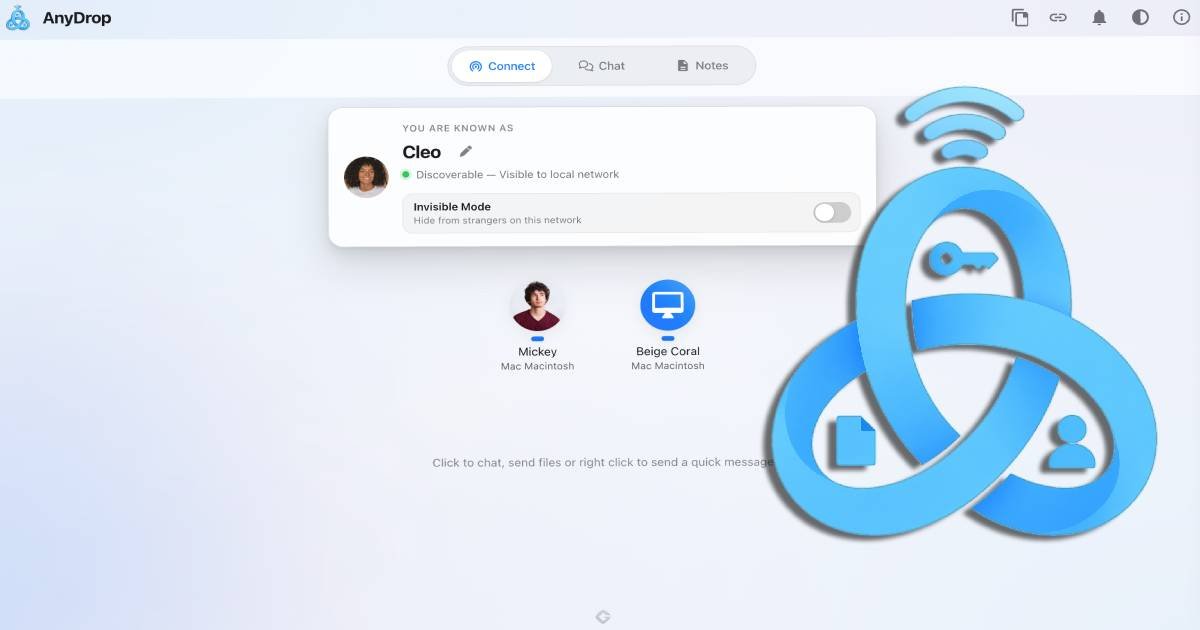
What is AnyDrop?
AnyDrop is a free, peer-to-peer way to transfer files, share text, and sync clipboard snippets between devices in a browser-based workflow. It lets you connect directly to nearby devices on the same Wi‑Fi network, or pair devices over the internet using a Magic Link.
The core purpose is to enable quick, low-friction handoff: you can drop files and share text without setting up accounts, and without cloud storage of the transferred content.
Key Features
- Peer-to-peer file transfers: Files are sent device-to-device rather than being uploaded for storage, so there’s no cloud “file stash.”
- End-to-end encrypted data in transit: The site states that data is encrypted during local and internet connections.
- Local discovery on the same Wi‑Fi: Devices on the same Wi‑Fi network appear automatically, reducing the need to manually search or configure endpoints.
- Magic Link / QR pairing over the internet: A share icon can generate a Magic Link or QR code to connect devices across the internet.
- End-to-end encrypted chat threads: Selecting a discovered device opens an encrypted chat thread; you can send files (paperclip) and quick voice notes (microphone).
- Clipboard Staging (“Paste Anywhere”): Paste text or URLs into the app; the content is captured into a staged snippet area so you can review, copy, or share it without losing context.
- Shared Notes across devices in-session: A Notes tab supports collaborative writing that syncs live between connected devices in the same session.
- Invisible Mode for public Wi‑Fi: A toggle hides your device from strangers; only explicitly paired contacts can discover you.
- No accounts and no passwords: The site indicates zero digital footprint features such as no accounts, no passwords, and no persistent tracking profile.
How to Use AnyDrop
- Connect devices: Open AnyDrop on both devices. On the same Wi‑Fi network, devices are discoverable automatically. For remote pairing, use the Share icon to generate a Magic Link (or QR code).
- Start a conversation: From the Connect tab, choose a nearby device to open an encrypted chat thread. Use the header or chat to add contacts if you don’t see the device you want.
- Send files or content: Use the paperclip icon to send files, share text by opening the chat, or record a quick voice note with the microphone icon.
- Use Clipboard Staging and Notes: Paste text/URLs into AnyDrop to create staged snippets. Optionally use the Notes tab for shared notes that sync within the session.
- Install as an app (optional): Use the Install icon in the top menu or add to your browser’s home screen for an app-like experience.
Use Cases
- Handoff between a laptop and a phone on the same network: Open AnyDrop on both devices connected to the same Wi‑Fi to exchange files and share quick text without configuring an account.
- Send a document over the internet with pairing via Magic Link: Generate a Magic Link/QR code and use it to connect to a trusted device remotely, then transfer files through the chat interface.
- Share a set of links or snippets while chatting: Paste URLs or notes into AnyDrop to store them temporarily as staged snippets, then copy or share them as part of the conversation.
- Temporary collaborative notes during a transfer session: Use the Notes tab to draft checklists or shared references that sync live between connected peers.
- Reduce discovery on public Wi‑Fi: Turn on Invisible Mode so only paired contacts can discover your device when you’re on networks where strangers may be present.
FAQ
Does AnyDrop store my files or chat history on a server?
No. The site states AnyDrop is peer-to-peer. Servers handle signaling so devices can find each other, but they do not store file contents or chat logs.
Are there file size limits?
The page notes that on local Wi‑Fi there is generally no file size limit. For Magic Link / remote (relay) transfers, relay mode is limited to 50MB for stability. For iOS Safari, it recommends keeping transfers under 200MB due to browser memory limits.
What happens if I cancel a transfer midway?
The site says incoming data is buffered in temporary memory (RAM) during transfer. Canceling tears down the connection and destroys in-flight data, leaving no half-written files on storage.
If I receive a file, where do I download it?
Browsers cannot silently save files. After the transfer completes, click the download icon in chat to save permanently. If the app/tab closes before download, the temporary file is removed.
Is AnyDrop appropriate for use on public Wi‑Fi?
Yes. The page describes Invisible Mode, which hides your device from strangers on public Wi‑Fi; only explicitly paired contacts can discover you.
Alternatives
- Local network file sharing (e.g., Wi‑Fi file transfer apps): Similar goal (send files over the same network) but may rely on different discovery/pairing methods and may involve separate app setup.
- Secure messengers with file transfer: Useful when you already communicate in chat apps, but file transfer and clipboard-style staging may not work as directly for nearby/local connections.
- Clipboard/notes sync tools: Focus on syncing text and notes across devices, but they typically don’t provide peer-to-peer file transfer in the same workflow.
- Browser-based peer-to-peer transfer tools (WebRTC-style): Another approach for direct device-to-device sharing; workflows vary by whether they use local discovery or link-based pairing.
Alternatives

FounderStackHub
FounderStackHub uses an always-on AI agent to scan, verify, and match startup perks like cloud credits, AI-tool credits, and SaaS discounts to your stack.

Elvixs
Elvixs is an AI job outreach tool for freshers and students—find HR contacts, generate AI cold emails, send from Gmail, and track opens.

Gossipic
Gossipic tracks how often your brand is mentioned in AI answers, analyzes sentiment, benchmarks competitors, and creates daily action plans. Start 7-day free trial.

SnapSub: Subscriptions Hub
SnapSub: Subscriptions Hub centralizes recurring services so you can track what you pay, upcoming billing dates, and get reports to review spending.

Abakada
Abakada is the Philippines’ curated directory of free, open-source tools—1,000+ verified listings across 45+ categories for students & educators.

Been There Global
Been There Global shares real stories from real travellers to help you “know before you go” and plan trips with more confidence.