

Docky
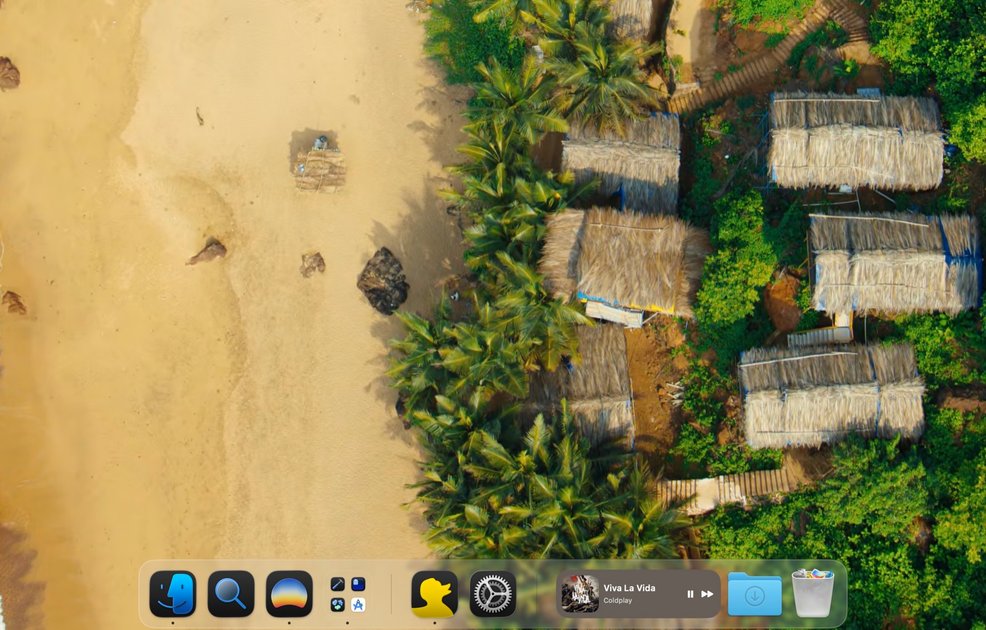
Docky is a configurable, translucent replacement dock for macOS with live widgets, an in-place window switcher with live previews, and a fullscreen launcher entry.
What is Docky?
Docky is a translucent, configurable replacement dock for macOS designed for power users. It replaces or coexists with the system Dock to help you keep frequently used apps and controls closer to your workflow while reducing visual clutter.
The core idea is to make the dock more than a fixed row of icons: Docky supports widgets and groups, provides a fullscreen launcher entry point, and includes an in-place window switcher with live previews to help you switch contexts more quickly.
Key Features
- Configurable dock layout and placement: Place the dock anywhere on screen and configure how it’s displayed to match your workspace.
- Rescalable live widget tiles: Add live widgets directly to the dock using resizable widget tiles.
- App folders and grouped organization: Organize apps into folders and pin items you rely on while grouping the rest for easier access.
- In-place window switcher with live preview: Switch windows and spaces using a window switcher that shows live previews, helping you land on the right destination without extra steps.
- Fullscreen launcher access (Launchpad entry): Reach Launchpad and related launching from the dock, including a fullscreen-style launching flow.
- Scripted actions and curated shortcuts (Pro): In the Pro version, use curated scripted actions for additional dock-driven workflows.
How to Use Docky
- Download Docky and install it on your Apple Silicon Mac.
- Start with the free build to review basic features (no account required).
- Choose how Docky should behave with the system Dock—either replace it, mirror its position, or hide it.
- Configure your dock layout by adding apps, folders, and live widgets; then enable autohide behavior if you prefer a quieter desktop.
- Use the global shortcut to open the fullscreen launcher, and use the in-place window switcher when switching between spaces and windows.
Use Cases
- Daily “open the day” workflow: Press a global shortcut to bring up the launcher/search quickly, then open what you need without navigating through multiple steps.
- Switching projects across spaces: Use the in-place window switcher’s live previews to select the correct window and avoid losing context when you jump between projects.
- Glanceable status checks without extra menus: Rely on the live dock widgets to confirm key information (for example, the next meeting, battery, or currently playing content) without clicking through menus.
- Keeping the desktop quiet: Pin only the apps you use frequently and let everything else autohide until you need it, reducing constant on-screen distractions.
- Organizing apps and tools: Use dock folders and app grouping to keep similar tools together and reduce the need for separate launch surfaces.
FAQ
What Macs does Docky support? Docky runs on Apple Silicon Macs with macOS 26 or newer.
Does Docky replace the system Dock? It’s optional. Docky can coexist alongside the system Dock, mirror its position, or hide the system Dock entirely while Docky takes its place. You can switch modes at any time.
Why isn’t Docky on the Mac App Store? Some Docky features (such as hiding the system Dock, in-place window previews, and Finder automation) are described as outside what App Store sandboxing allows without harming the user experience. Direct distribution is used to ship the full experience while staying notarized and signed by Apple.
What permissions does Docky need? Most features run without special access. Full Disk Access is optional and is only used to render folder previews that macOS protects by default. Finder automation is requested only if you opt into Finder-based scripted actions.
How do updates work? Docky checks for updates in the background and applies them on relaunch.
Alternatives
- Built-in macOS Dock customization (system settings and Dock behavior): Uses Apple’s native Dock features for placement and autohide, but lacks Docky’s described in-place window switcher and live dock widgets.
- Third-party macOS launchers and window managers: These can speed up launching and switching, but may focus on global launch/search and window controls rather than a dock-integrated layout with live widget tiles.
- Desktop widget or launcher utilities: If your main goal is quick access to information, widget-focused tools may meet that need, though they may not replace or integrate with the Dock in the same way.
- Mission Control and built-in switching tools: macOS-native space and window switching can handle project switching, but without Docky’s in-dock, in-place live preview experience.
Alternatives

FounderStackHub
FounderStackHub uses an always-on AI agent to scan, verify, and match startup perks like cloud credits, AI-tool credits, and SaaS discounts to your stack.

Elvixs
Elvixs is an AI job outreach tool for freshers and students—find HR contacts, generate AI cold emails, send from Gmail, and track opens.

Gossipic
Gossipic tracks how often your brand is mentioned in AI answers, analyzes sentiment, benchmarks competitors, and creates daily action plans. Start 7-day free trial.

SnapSub: Subscriptions Hub
SnapSub: Subscriptions Hub centralizes recurring services so you can track what you pay, upcoming billing dates, and get reports to review spending.

Abakada
Abakada is the Philippines’ curated directory of free, open-source tools—1,000+ verified listings across 45+ categories for students & educators.

Been There Global
Been There Global shares real stories from real travellers to help you “know before you go” and plan trips with more confidence.