

Googlebook
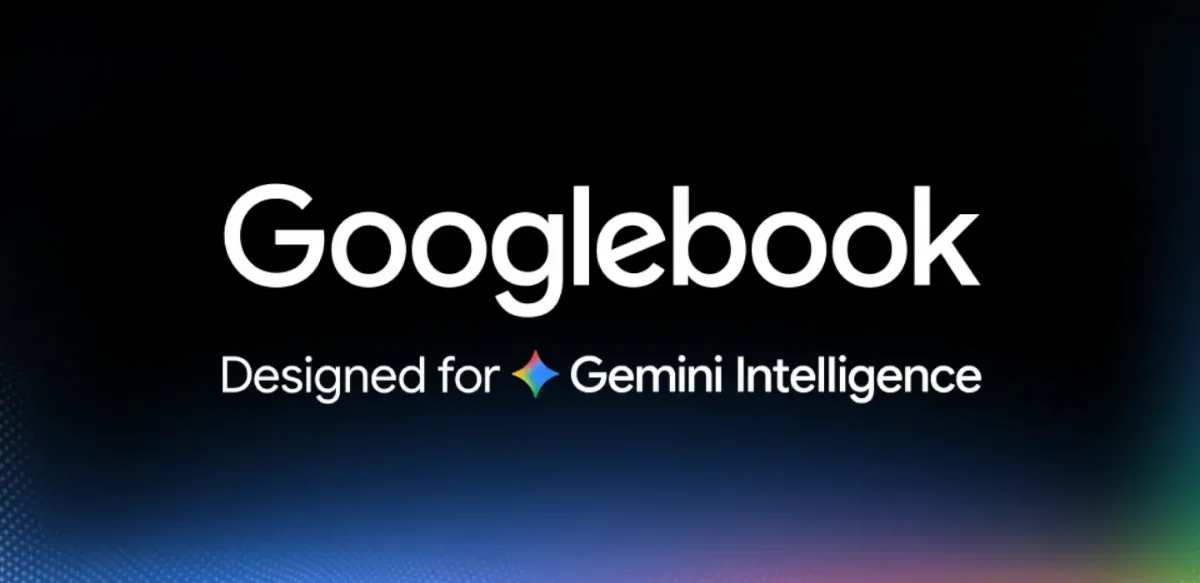
Googlebook laptop designed for Gemini Intelligence, with Magic Pointer interaction and close Android phone app and file access—no installs needed.
What is Googlebook?
Googlebook is a laptop positioned for “Gemini Intelligence,” designed to help users interact with Gemini directly from the device. It’s presented as a close companion to an Android phone, with features intended to connect phone apps and files with laptop use.
The core purpose of Googlebook, based on the page, is to combine laptop functionality with Gemini-driven interaction—such as selecting content to ask, compare, or create—while also providing “quick access” to phone apps and files without installs.
Key Features
- Magic Pointer (Gemini interaction from selection): Select anything and ask, compare, or create with Gemini instantly, focusing the conversation on the content you choose.
- Create My Widget (ask to build a custom widget): Build a custom widget by asking, indicating widget creation is guided through Gemini prompts.
- Cast My Apps (open phone apps on the laptop): Open apps from your Android phone on the laptop without needing to install anything on the laptop.
- Quick Access (access phone files on the laptop): Access files from your phone as if they are available on your laptop.
- “Featherweight design. Heavyweight power.” (hardware positioning): The page describes a lightweight design paired with strong performance, though specific hardware specs are not provided.
- Availability communication (“Unbox it this fall”): The page directs visitors to sign up for updates, with a suggested launch window of fall 2026.
How to Use Googlebook
- Sign up for updates: Use the “Get notified” form to receive announcements about availability.
- Start with Gemini via Magic Pointer: On the laptop, select something on screen and use the Gemini prompt flow to ask, compare, or create based on that selection.
- Create a widget with prompts: Use the “Create My Widget” flow to describe the widget you want, then generate it through the guided interaction.
- Connect your Android phone for apps and files: Use “Cast My Apps” to open phone apps on the laptop and “Quick Access” to view phone files from the laptop workflow.
Use Cases
- Research and comparison based on selected content: When you find text, an image, or another item on screen, select it and ask Gemini to help compare options or summarize details tied to that selection.
- Custom widget creation for a specific layout or function: Describe the widget you need (“a widget that…”) and generate a custom widget through the Create My Widget experience.
- Working across devices without reinstalling apps: Use Cast My Apps to open an Android phone app on the laptop, keeping the app source on your phone rather than installing a separate version on the laptop.
- Editing or reviewing files stored on your phone: Use Quick Access to retrieve phone files directly from the laptop experience, reducing the need to manually transfer files.
- Coordinating phone-based work during travel or at a desk: Keep your workflow centered on your Android phone while using the laptop as the interface for interacting with Gemini and accessing apps/files.
FAQ
-
When will Googlebook be available? The page says “Unbox it this fall” and its title indicates “Coming Fall 2026.” Exact dates are not provided.
-
Does Googlebook require installing phone apps to use them? The page states “Cast My Apps” lets you open your phone apps on your laptop “no installs needed.”
-
What does Magic Pointer do? Magic Pointer is described as a way to select anything and then ask, compare, or create with Gemini instantly based on that selection.
-
How do I create a widget on Googlebook? The page describes “Create My Widget,” where you build a custom widget by asking.
-
How do I get notified about Googlebook? Use the “Get notified” section to sign up with your name and email, confirming you are 18 years or older and accepting Google’s Terms and Conditions.
Alternatives
- Android-to-desktop workflows using remote app access: If your main need is using phone apps on a larger screen, consider remote access or casting-style workflows that mirror or stream Android app experiences to a desktop/laptop.
- Laptops with AI assistant integrations (without dedicated pointer/workflow features): For users primarily seeking AI text and creation assistance, generic laptop AI assistants may offer similar prompting, though the “select anything” Magic Pointer workflow may differ.
- Cross-device file access tools: If your priority is Quick Access to phone files, look for file-sync and cross-device storage solutions that make mobile files available on desktop environments.
- Widget/dashboard builders on mobile or desktop: For creating widgets via prompts, alternatives include widget/dashboard creation features offered by other platforms, though the specific Gemini-led “Create My Widget” workflow may not match.
Alternatives
FounderStackHub
FounderStackHub uses an always-on AI agent to scan, verify, and match startup perks like cloud credits, AI-tool credits, and SaaS discounts to your stack.

Elvixs
Elvixs is an AI job outreach tool for freshers and students—find HR contacts, generate AI cold emails, send from Gmail, and track opens.

Gossipic
Gossipic tracks how often your brand is mentioned in AI answers, analyzes sentiment, benchmarks competitors, and creates daily action plans. Start 7-day free trial.

SnapSub: Subscriptions Hub
SnapSub: Subscriptions Hub centralizes recurring services so you can track what you pay, upcoming billing dates, and get reports to review spending.

Abakada
Abakada is the Philippines’ curated directory of free, open-source tools—1,000+ verified listings across 45+ categories for students & educators.

Been There Global
Been There Global shares real stories from real travellers to help you “know before you go” and plan trips with more confidence.