

Screen Bolt
Screen Bolt is a macOS app to record, edit, and export polished screen recordings with timeline editing, auto-zoom, privacy blur, audio & webcam enhancements.
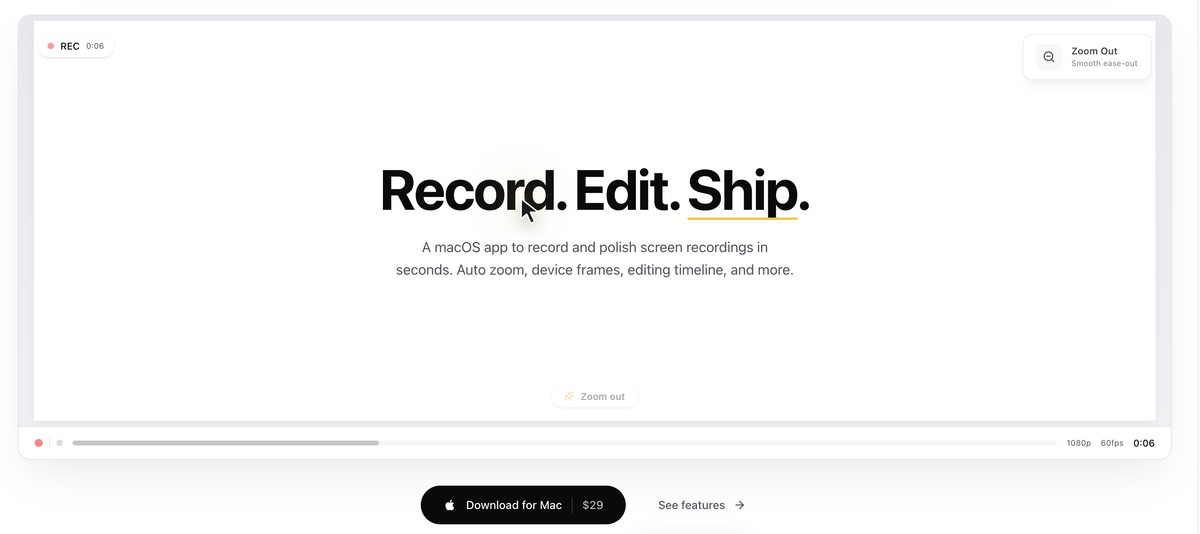
What is Screen Bolt?
Screen Bolt is a macOS app for recording, editing, and exporting screen recordings. It’s designed to help you turn raw captures into polished walkthrough-style videos by automating framing/zoom and providing timeline-based edits.
The app combines capture features (like auto-zoom based on cursor activity and scenes/clips) with editing tools (blur/spotlight privacy effects, annotations, trimming/cutting, speed ramps, and cursor/keyboard styling) so the recording can be prepared without a separate video-editing workflow.
Key Features
- Auto-zoom that tracks cursor sweeps, clicks, and keystrokes to push in on key moments for cleaner framing.
- Cursor effects including highlighting, resizing, smoothing, and animated cursor/click presentation.
- Privacy effects on a timeline, including region blur (gaussian, pixelate, or solid blur modes), to obscure passwords/emails and other sensitive areas.
- Spotlight effect to dim the rest of the screen while emphasizing a selected region.
- Scene/clip-based recording with re-takes: record in segments and re-record a single scene/clip without scrapping the entire take.
- Editing timeline with tools such as drag-to-reorder clips, auto-trim silence, and in/out markers.
- Script-driven teleprompter workflow: paste a script, have it scroll as you talk, and embed director-style cues (pause, b-roll, emphasis, cut) to keep pacing.
- Background and presentation options for recordings, including gradient meshes, solid colors, custom images, padding, and corner radius adjustments.
- Audio processing with one toggle for denoise + EQ + loudness normalization (also presented as a “voice isolation” style chain).
- Webcam features: webcam overlay controls and “iPhone as a Second Camera” via Continuity.
- Export options including MP4, MOV, or GIF, plus presets for different output uses (social, web, and studio quality).
How to Use Screen Bolt
- Download and open Screen Bolt on macOS, then start a recording.
- Use scene/clip recording so you can re-take a specific segment later if needed.
- Add privacy regions (blur) or focus areas (spotlight) and place edits on the timeline as your recording is assembled.
- If you’re delivering a scripted walkthrough, paste your script and use the teleprompter-style scrolling and director cues while recording.
- Apply optional overlays (webcam overlay, background styling) and audio processing, then export in your chosen format (MP4, MOV, or GIF).
Use Cases
- Product or software walkthroughs where you want viewers to stay focused on key UI interactions, using auto-zoom and cursor effects.
- Tutorials that require redaction, using blur and spotlight effects to hide passwords/emails or draw attention to a specific section.
- Tutorial recordings made in multiple takes: capture an intro, a demo section, and a follow-up as clips, then re-record only the parts that need changes.
- Scripted presentations that benefit from pacing cues: paste a script, scroll it during recording, and use director cues like pause, b-roll, emphasis, and cut.
- Presenter-style videos with a webcam and styled composition: add a webcam overlay and replace the default background with gradients, colors, custom images, and adjustable padding/radius.
FAQ
Does Screen Bolt support editing after recording? Yes. The app includes an editing timeline with features like clip re-takes, reordering, trimming tools, privacy effects, and cursor/click styling.
Can Screen Bolt obscure sensitive information in the recording? Yes. It provides privacy blur options and a spotlight effect that work with region selection and are tied to the timeline for real-time updates.
How does scene/clip recording work? You can record in clips and re-take a specific scene/clip without needing to discard the rest; clips can be assembled in order and reordered via drag.
What audio tools does Screen Bolt include? The page describes an audio chain with denoise + EQ + loudness normalization and a “voice isolation” toggle, presented as a one-toggle workflow.
What export formats are supported? Exports are available as MP4, MOV, or GIF, with presets referenced for social, web, and studio quality.
Alternatives
- Video editing apps with screen-capture support (e.g., general-purpose editors): typically offer more granular control, but may require more manual timeline work for zoom/framing and cursor styling.
- General screen recording tools: they may be simpler for capturing, but usually require separate editing steps to add zoom, privacy blur, and multi-clip re-take workflows.
- Annotation- and tutorial-focused recording tools: these focus on walkthrough usability and overlays; compare whether they include timeline-based privacy effects and scene/clip assembly similar to Screen Bolt.
- Multi-camera recording setups (webcam/iPhone capture workflows): if your priority is multi-cam capture, compare how directly your workflow can add webcam overlay controls and iPhone-as-second-camera into the same editing flow.
Alternatives

DeepMotion
DeepMotion is an AI motion capture and body-tracking platform to generate 3D animations from video (and text) in your web browser, via Animate 3D API.

Captions.ai
Captions.ai is an online video editor and app with AI-powered editing, automatic captions, music, and AI avatars for faster video creation.

optimo
optimo is a free, open-source CLI that optimizes and converts images and videos for the web using ImageMagick and FFmpeg compression workflows.

Plask
Plask is an AI motion capture and 3D animation tool that turns uploaded video into character motion, with video renders or 3D asset export.

FlexClip
FlexClip is an AI-powered online video maker and editor with templates and built-in tools. Generate videos, subtitles, translation & more faster.

Virvid
Virvid is an AI shorts generator that creates faceless TikTok, Instagram Reels, and YouTube Shorts from a topic—then helps you edit, add voice/captions/music, and optionally autopost daily.