

SideNotes
SideNotes is a macOS note-taking app with an on-screen side panel for quick capture, Markdown, tasks, images, folders, and iCloud sync. iPhone/iPad separately.
What is SideNotes?
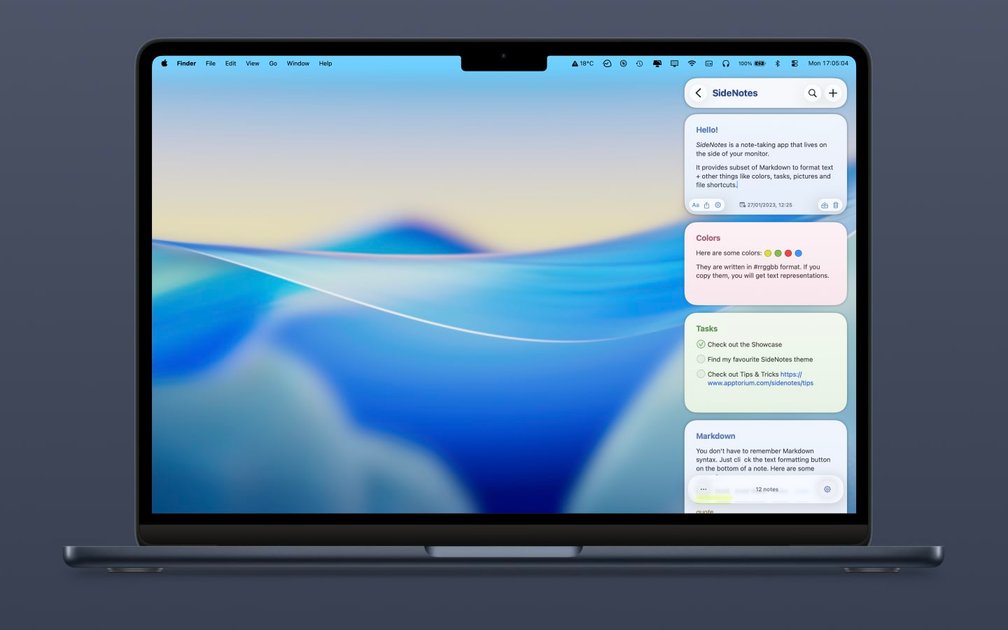
SideNotes is a macOS note-taking app designed to capture and manage quick notes without switching away from your current app. It lives on the edge of your screen: you can slide it in to write, then hide it again so it stays out of the way.
The app supports a keyboard-first workflow and includes features for organizing notes (folders, tasks, search) and formatting (Markdown, colors, images). It also has iPhone and iPad support in a separate iOS/iPadOS app.
Key Features
- On-screen side panel that shows/hides: Capture thoughts instantly and keep notes accessible without taking focus from your main work.
- Keyboard-first workflow: Designed for fast note entry and retrieval without relying on mouse-heavy interactions.
- Markdown formatting: Write notes with Markdown formatting for structured text.
- Tasks and checklists: Add actionable lists inside notes to track to-dos and items.
- Folders and organization shortcuts: Group notes into folders and use shortcuts to navigate and manage them quickly.
- Color customization and preview: Use note colors (including code-style color values like
#rrggbb) to visually organize or highlight content. - Images and snippets: Add images and save snippets of text/code for later reference.
- Search and code-friendly mode: Search across notes and use a code-oriented mode for working with technical content.
- iCloud sync and automatic backups: Keep notes in sync across devices (when enabled) and maintain automatic backups.
- Share extension: Save content to SideNotes via a share extension.
- Automation integrations (Shortcuts + Apple Script API): Create and modify notes and folders, search for notes, and integrate SideNotes with other apps using Shortcuts actions or Apple Script.
- Export as image: Export content as an image (useful for sharing or saving visual snapshots).
- Alfred workflow (downloadable): Use an Alfred workflow to search and take notes faster from within Alfred.
How to Use SideNotes
- Install SideNotes on macOS (macOS 13 or newer) and open the app.
- Show the SideNotes panel when you need to capture something, type using the keyboard, then hide it again to return to your work.
- Create notes and organize them with folders, then use Markdown, tasks/checklists, and colors to structure content.
- (Optional) Enable iCloud sync to keep notes updated across your Apple devices.
- (Optional) Use Shortcuts or Apple Script to automate note creation and retrieval, and use the share extension to save content from other apps.
Use Cases
- Studying and lecture capture: Quickly jot down important ideas during classes or study sessions without switching apps or breaking attention.
- Managing deadlines and reminders: Store deadlines and exam reminders in organized folders, using tasks/checklists to track what needs to happen next.
- Collecting snippets and technical references: Save code snippets and related notes with a code-friendly mode and search for them later.
- Personal knowledge inbox for quick thoughts: Keep notes “always at hand” on the side of your screen for rapid capture of thoughts, links, and short excerpts.
- Automating recurring note workflows: Use Shortcuts actions or Apple Script to create and modify notes/folders and retrieve note content as part of a broader workflow.
FAQ
Is SideNotes a one-time purchase or subscription?
SideNotes uses a one-time purchase for the current major version. The app also provides free updates within the current major version, while future major upgrades are paid separately.
What are the system requirements for macOS?
SideNotes requires macOS 13 or newer.
Does SideNotes have an iPhone or iPad app?
Yes. The iPhone/iPad version is sold separately and requires iOS/iPadOS 15 or newer.
How does iCloud sync work, and are notes private?
SideNotes is designed to be private by design. It stores notes locally on your device, and if you enable iCloud sync, they are stored in your private iCloud account managed by Apple. The app states it cannot view, read, or analyze your note content.
Does SideNotes support Apple Silicon (M1)?
Yes. SideNotes supports M1 as well as Intel.
Alternatives
- Desktop note apps with quick-access widgets: Look for macOS note tools that provide lightweight floating notes or quick capture from the side or overlay, aimed at minimizing context switching.
- Markdown-first personal knowledge tools: Alternatives in this category emphasize Markdown notes, search, and folders, but may not provide the same show/hide side-of-screen capture workflow.
- Task-centric note apps: Tools that combine notes with checklists and reminders can overlap with SideNotes’ task support, though the UI approach (side panel vs full note workspace) may differ.
- Automation-focused text capture tools: For users who rely heavily on Shortcuts and scriptable workflows, consider automation-first approaches that integrate with other apps, even if they lack SideNotes’ side-panel capture model.
Alternatives

dumppp
dumppp delivers fast mobile capture to Notion with quick launch, context switching, and offline-first sync. Type instantly, review via timeline.

Lasso
Lasso is an AI-first PIM for ecommerce teams that enriches product attributes and descriptions, processes supplier data, and monitors competitors via app or API.

Struere
Struere is an AI-native operational system that replaces spreadsheet workflows with structured software—dashboards, alerts, and automations.

garden-md
Turn meeting transcripts into a structured, linked company wiki with local markdown and an HTML browser view. Sync from supported sources.

Falconer
Falconer is a self-updating knowledge platform for high-speed teams to write, share, and find reliable internal documentation and code context in one place.

BookAI.chat
BookAI allows you to chat with your books using AI by simply providing the title and author.