

Snaply
Snaply records meetings on your Mac and generates a full transcript, clean summary, and action items—processed locally for privacy.
## What is Snaply?
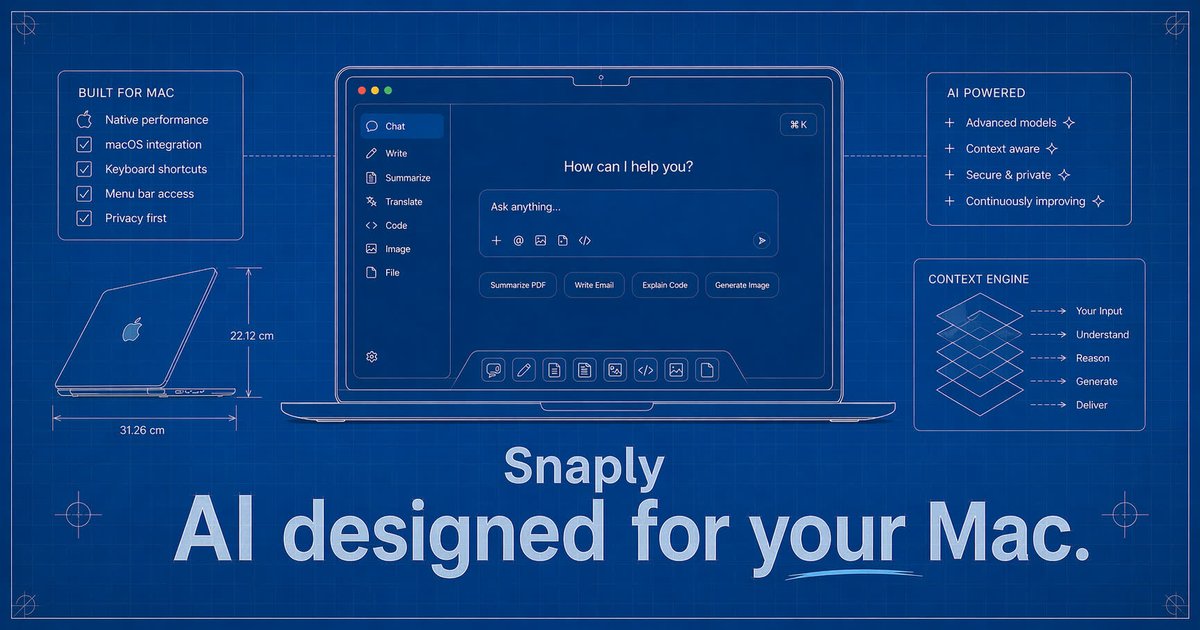
Snaply is a macOS meeting notes app that records meeting audio on your Mac, then generates a full transcript, a clean summary, and action items after the call ends. Its core purpose is to turn spoken conversations into editable notes and follow-ups without requiring you to take manual notes.

According to the page, Snaply captures audio directly from your Mac’s system audio while you use common meeting platforms, and it identifies speakers in the transcript. It is positioned as “100% Private” because transcription and AI summarization run locally on your device.

## Key Features
- **Record meeting audio from your Mac (no bot joins):** Snaply captures audio directly on your computer, so it doesn’t require a third-party bot to enter the meeting room.
- **Full transcript for the entire call:** After the meeting ends, Snaply transcribes the conversation word-for-word and provides the transcript alongside the generated notes.
- **Instant summary and action items:** The app delivers a polished summary and a ready-to-act task list immediately after the call finishes.
- **Speaker identification with editable labels:** Snaply labels each speaker and remembers participant names across future meetings; you can rename or correct speaker labels in the built-in editor.
- **On-device processing for transcription and summarization:** The page states that your audio, transcript, and notes never leave your device and that there is no cloud processing.
- **Runs with multiple meeting apps:** Snaply is described as working with Zoom, Google Meet, Microsoft Teams, Webex, and other apps that play audio through your Mac.

## How to Use Snaply
1. **Download and install the macOS app:** Use the page’s “Download for Mac” option.
2. **Start your meeting as usual:** Join your meeting on Zoom, Google Meet, Teams, Webex, or a similar platform.
3. **Let Snaply capture audio silently in the background:** The app records audio directly on your Mac while you participate.
4. **Review notes after the meeting ends:** When the call finishes, Snaply generates an editable full transcript, a summary, and action items.
5. **Edit transcript, summary, and tasks:** Use the built-in notes editor to correct any transcript text, adjust speaker labels, and refine the action items.

## Use Cases
- **Standup or team syncs:** Capture daily status discussions and turn them into a summary plus action items (e.g., what needs to be shipped and by when) without manual note-taking.
- **Project kickoff and planning:** Convert roadmap and dependencies discussed live into a structured notes view that highlights follow-ups and who is responsible.
- **Client or stakeholder meetings:** Maintain a workflow where meeting audio is processed locally on your Mac, and review an editable transcript and summary afterward.
- **Cross-functional handoffs:** Use speaker-labeled transcripts to quickly identify decisions and commitments from different participants across future meetings.
- **Research or interview sessions:** Produce a detailed transcript and then extract action items for tasks that follow from the conversation.

## FAQ
### Does a bot join my meeting?
No. The page states that Snaply captures audio directly from your Mac’s system audio, so no bot joins the call and no meeting guests need to see a recording bot.

### How soon will I get my notes?
The page says notes are ready within seconds of the meeting ending, since processing happens locally.

### Is my audio sent anywhere?
According to the page, transcription and AI summarization happen entirely on your Mac, and your audio and transcripts never leave your device.

### Can I edit what Snaply produces?
Yes. The page states that you can edit the transcript, summary, and action items in the built-in notes editor after the meeting ends.

### Does Snaply work with my meeting app?
Snaply is described as working with Zoom, Google Meet, Microsoft Teams, Webex, and other meeting apps that output audio through your Mac.
Alternatives
- Cloud meeting transcription and note tools: Alternatives that transcribe meetings via a server can be simpler to set up, but they may involve sending audio off-device depending on the provider’s workflow.
- Local dictation or transcription utilities: General-purpose offline transcription tools can produce text, but you would typically need a separate step to generate summaries and action items.
- Collaborative notes tools with manual capture: Apps used for note-taking and task management can support meeting documentation, but they rely on you to capture notes during the meeting rather than generating them automatically from audio.
- Generic voice-to-text + task workflow: A combination of offline voice transcription plus a task manager workflow can cover the “transcript to tasks” process, but it’s usually less integrated than a dedicated meeting-notes app.
Alternatives

Tactiq
Tactiq is an AI meeting assistant that provides live transcription, AI summaries, action items, and custom AI prompts for Google Meet, Zoom, and Teams.

Scripta
Scripta is a privacy-first AI notetaker that records, transcribes, and summarizes your meetings directly on your device, without requiring bot access.
Speech to Text Converter Online
A free online tool that converts audio and video files into accurate text transcripts in over 45 languages. It supports numerous file formats and requires no downloads or sign-ups.

OpenAI Realtime API
Build low-latency, multimodal voice and realtime audio experiences with OpenAI Realtime API—browser voice agents and realtime transcription.

Pewbeam
Pewbeam listens as you preach, detects Bible verses in real time, and displays them instantly on screen—no typing or clicking for pastors.

Dictato
Dictato is an offline voice-to-text dictation app for macOS that transcribes on-device and inserts into any app you type in. No cloud.