

CodeBreak
CodeBreak is a small macOS companion app that tracks Claude Code runs across every app and window, with on-screen states and sounds.
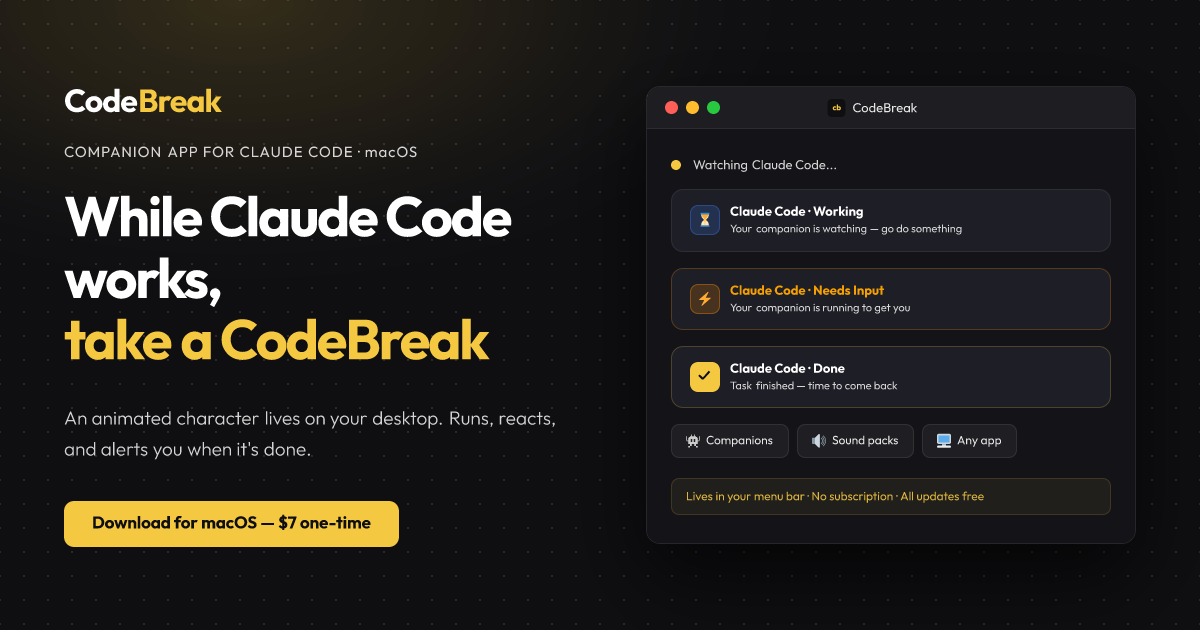
What is CodeBreak?
CodeBreak is a small companion macOS app designed to monitor Claude Code runs. Its core purpose is to keep you informed about Claude Code’s state across your screen—so you don’t have to keep switching back to a terminal to check whether it’s still running, blocked, finished, or hit an error.
While Claude Code works, CodeBreak helps you keep momentum when you step away, switch tabs, or work in other apps. It uses on-screen presence plus distinct audio cues to indicate what’s happening during the run.
Key Features
- Monitors Claude Code across every app and window, so its status is visible without repeatedly checking your terminal.
- Five state animations/icons with corresponding sound cues to represent what Claude Code is doing (e.g., waiting, processing, needs input, task done, error).
- Draggable on-screen companion that you can place anywhere on your desktop while Claude Code is running.
- Show/hide controls for the character and sounds, allowing you to manage what you see and hear.
- Multiple companion character and sound packs included (four companions and eight sound packs), with the ability to mix and match.
- Pause and resume companion animations at any time.
- Semantic sound states for key events: “done,” “needs input,” and “error.”
How to Use CodeBreak
- Download and install CodeBreak for macOS.
- Make sure you’re using Claude Code (CodeBreak is stated as Claude Code only).
- Start a Claude Code run as you normally would.
- Watch the CodeBreak companion while you switch to other apps; place the companion window/overlay wherever it won’t block your work.
- When CodeBreak indicates it needs you (urgent sound and accelerated character), return to Claude Code to provide input. When it signals task done or error, check the results or troubleshoot accordingly.
Use Cases
- Reduce repetitive terminal checking: You start a Claude Code run, then continue working in another tab; CodeBreak’s companion indicates whether the run is still processing or has moved to a new state.
- Catch “needs input” immediately: Claude Code may pause at a decision point; CodeBreak detects that transition and signals it with an urgent audio cue so you can respond.
- Avoid missing completed work after stepping away: If you switch tasks (e.g., step away for coffee), CodeBreak can signal “task done” so you return at the right time rather than discovering completion late.
- Notice silent failures or blocked runs: If Claude Code becomes blocked or errors without clearly notifying you in your current tab, CodeBreak provides an audio/visual signal so you can check what happened.
- Customize what you hear and see while you work: Use the included companion and sound packs, and toggle character and sound visibility to match your environment (quiet work vs. audible alerts).
FAQ
Is CodeBreak a one-time purchase?
Yes. The page states CodeBreak is a one-time purchase with all future updates free.
What macOS versions are supported?
The page lists macOS 12+.
Does CodeBreak work with tools other than Claude Code?
CodeBreak is listed as “Claude Code only,” so support for other tools isn’t indicated.
Can I use it with multiple Macs?
The pricing section states it works on 2 Macs.
How does CodeBreak indicate what Claude Code is doing?
The companion shows distinct states with corresponding sounds, including a “needs input” state (urgent sound), a “task done” state (distinct completion sound), and an “error” state (error sound). There are also controls to show/hide character and sounds.
Alternatives
- Run monitoring via your IDE/terminal output: Instead of an on-screen companion, you can rely on terminal logs and process status (less visual/audio cueing, requires more tab switching).
- Chat/agent UI notifications (within your agent workflow): Some coding/agent tools provide their own notifications or status panels; these are typically integrated into a single app rather than spanning “every app, every window.”
- Desktop notification utilities triggered by CLI events: If you’re comfortable wiring your workflow to status output, you can use general notification tools to alert you on specific signals, though you would need to set up the triggering logic yourself.
- Editor/extension companions (for agent workflows): For those who prefer integration inside the editor, extensions or plugins can provide in-IDE status cues (the CodeBreak roadmap mentions future IDE/editor integrations, but those aren’t presented as available features on this page).
Alternatives

Devin
Devin is an AI coding agent that helps software teams complete code migrations and large refactoring by running subtasks in parallel.

Claude Opus 4.5
Introducing the best model in the world for coding, agents, computer use, and enterprise workflows.

Codex Plugins
Use Codex Plugins to bundle skills, app integrations, and MCP servers into reusable workflows—extending Codex access to tools like Gmail, Drive, and Slack.

AakarDev AI
AakarDev AI is a powerful platform that simplifies the development of AI applications with seamless vector database integration, enabling rapid deployment and scalability.

Whirr
Whirr is a quiet macOS menu bar app that mirrors Claude Code agent activity to your Mac’s notch—so you can glance without watching the screen.

AgentMail
AgentMail is an email inbox API for AI agents to create, send, receive, and search email via REST for two-way agent conversations.