
Threelane
Threelane is a local-first multi-cam screen recorder for Mac and Windows, syncing screen, webcam, and phone, then editing and exporting MP4s.
What is Threelane?
Threelane is a local-first multi-cam screen recorder for Mac and Windows. It captures your screen, a laptop webcam (plus mic), and your phone camera as a second angle in sync, so you can edit and export a single video workflow for product demos, tutorials, and tech reels.
The core purpose is to keep the recording process desktop-centered (no required cloud uploads) while still giving you a multi-angle timeline and per-scene layouts. Record → edit → export is handled inside one app.
Key Features
- One-click multi-cam capture (screen + laptop webcam + mic + phone camera) in sync, designed for short sessions and demos.
- Phone as a second camera via QR code pairing; the phone records a second angle over Wi‑Fi (no cables and no App Store install described).
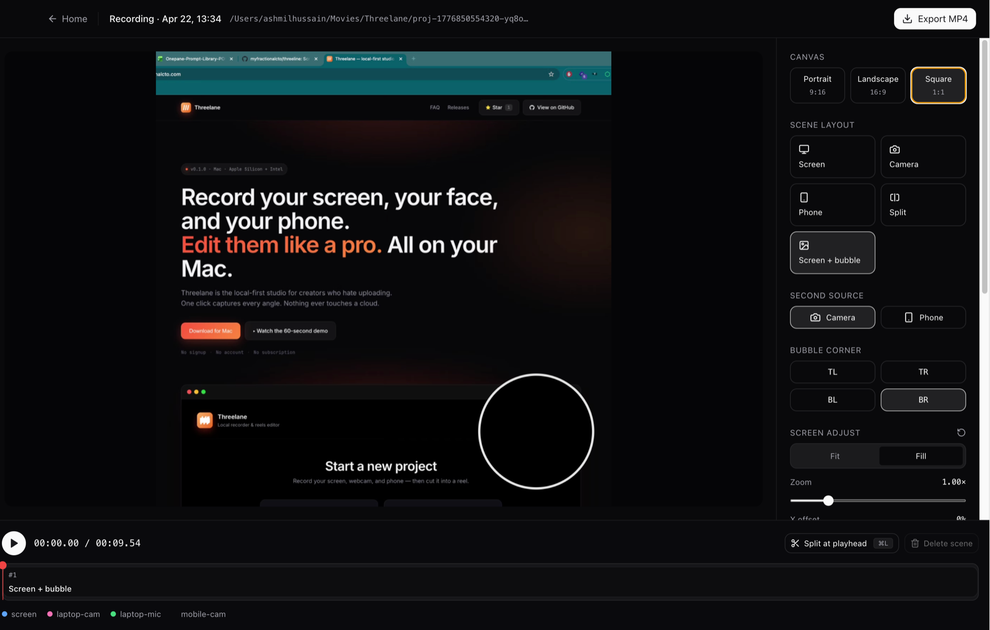
- Multi-track timeline with separate tracks for screen, camera, and phone, so you can re-layout after recording.
- Per-scene editing: split recordings into scenes, choose layouts per scene (screen-only, camera-only, phone-only, split, screen + camera bubble), and trim away the boring parts.
- Cursor-follow zoom for zoomed screens, intended to create a tutorial-style focus effect without re-recording.
- Per-scene audio source selection (mic, camera, or phone) so different parts of the video can use different audio inputs.
- Export to MP4 using ffmpeg with selectable aspect outputs (portrait 1080×1920, landscape 1920×1080, square 1080×1080) and “smart defaults” for formats like Reels/Shorts/TikTok/YouTube.
- Projects saved as plain folders you can inspect or delete; recordings are kept local with “no uploads” and no account/sign-up required.
How to Use Threelane
- Download and open Threelane on your Mac or Windows.
- Click one-click capture to record your screen and laptop webcam/mic while you also pair your phone.
- Scan the QR code with your phone, open the PWA in your phone browser, and start recording from the phone; recordings are timestamp-locked to the same timeline.
- In the editor, split the capture into scenes and choose a layout for each scene; optionally use cursor-follow zoom and select per-scene audio sources.
- Export an MP4 in the needed orientation (portrait, landscape, or square). Projects are stored as folders on your machine.
Use Cases
- Product demos with multi-angle coverage: record your screen while showing your face via webcam, then insert the phone as a second angle for relevant close-ups.
- Technical tutorials and “code walk-throughs”: use cursor-follow zoom and per-scene layouts to keep viewers focused while trimming pauses without re-recording.
- Tech reels and short-form updates: capture a screen + camera + phone setup once, split into multiple scenes, and export portrait or square outputs for different platforms.
- Dev-rel and conference prep: create multiple short exports from one project (“one project, three exports” is described) with different aspect ratios.
- Private recording workflows: when you want screen/face/data to stay on your machine (“nothing ever touches a cloud”), but still need a synced multi-cam timeline.
FAQ
Is Threelane free?
Yes. The page states it is free with no paywall, no trial, and no credit card.
Does Threelane require an account or signup?
No. The page says there is “No signup” and “No account,” and describes no uploads.
Which operating systems are supported?
Mac and Windows are supported. Intel Macs are supported; Apple Silicon is the primary target. Windows shipping is described as of v0.2. Linux is not yet supported.
Does the phone need an app installed?
No. The page describes scanning a QR code and opening a PWA in the phone’s browser, then hitting record.
What file format do I export?
Threelane exports MP4, encoded using ffmpeg, with portrait/landscape/square sizing options.
Alternatives
- Cloud-based screen recording and editing tools: these often rely on uploads or account sign-in, unlike Threelane’s local-first workflow with no uploads.
- Browser-based recorder-and-editor setups: useful for quick sharing, but they may not offer the same multi-track, per-scene layout controls and phone-as-second-camera syncing described for Threelane.
- General multi-track video editors: they can also support multi-cam timelines, but typically require a separate capture workflow and manual project assembly rather than a one-tool Record → Edit → Export flow designed around screen + phone pairing.
- Traditional screen recorders plus separate webcam/phone recording: this can work for basic tutorials, but you would need to handle syncing and editing yourself instead of using Threelane’s synced, timestamp-locked capture.
Alternatives

Dina
Create polished macOS screen recordings with Dina: automatic zoom, smooth cursor motion, captions/transcripts, and timeline-based editing.

CAMB.AI
Turn a single live stream into a multilingual broadcast with real-time AI audio dubbing for YouTube, Twitch, X and more.

Tavus
Tavus builds AI systems for real-time, face-to-face interactions that can see, hear, and respond, with APIs for video agents, twins & companions.

Scriptmine
Scriptmine turns real audience conversations into camera-ready scripts with community questions and trending angles—helping you write, edit, and record faster.

Captions.ai
Captions.ai is an online video editor and app with AI-powered editing, automatic captions, music, and AI avatars for faster video creation.

Bezel
Mirror iPhone to your Mac with wireless AirPlay or USB, plus recording and screenshot tools with bezel and background.