
PDF statement import
The tool imports bank PDF statements, including multi-page, scanned, or digital documents, with no manual setup required.

BankStatementLab converts bank statement PDFs into structured Excel or CSV files using OCR, including scanned documents. It is built for accountants, small businesses, freelancers, and anyone who needs to turn bank statements into usable transaction data.
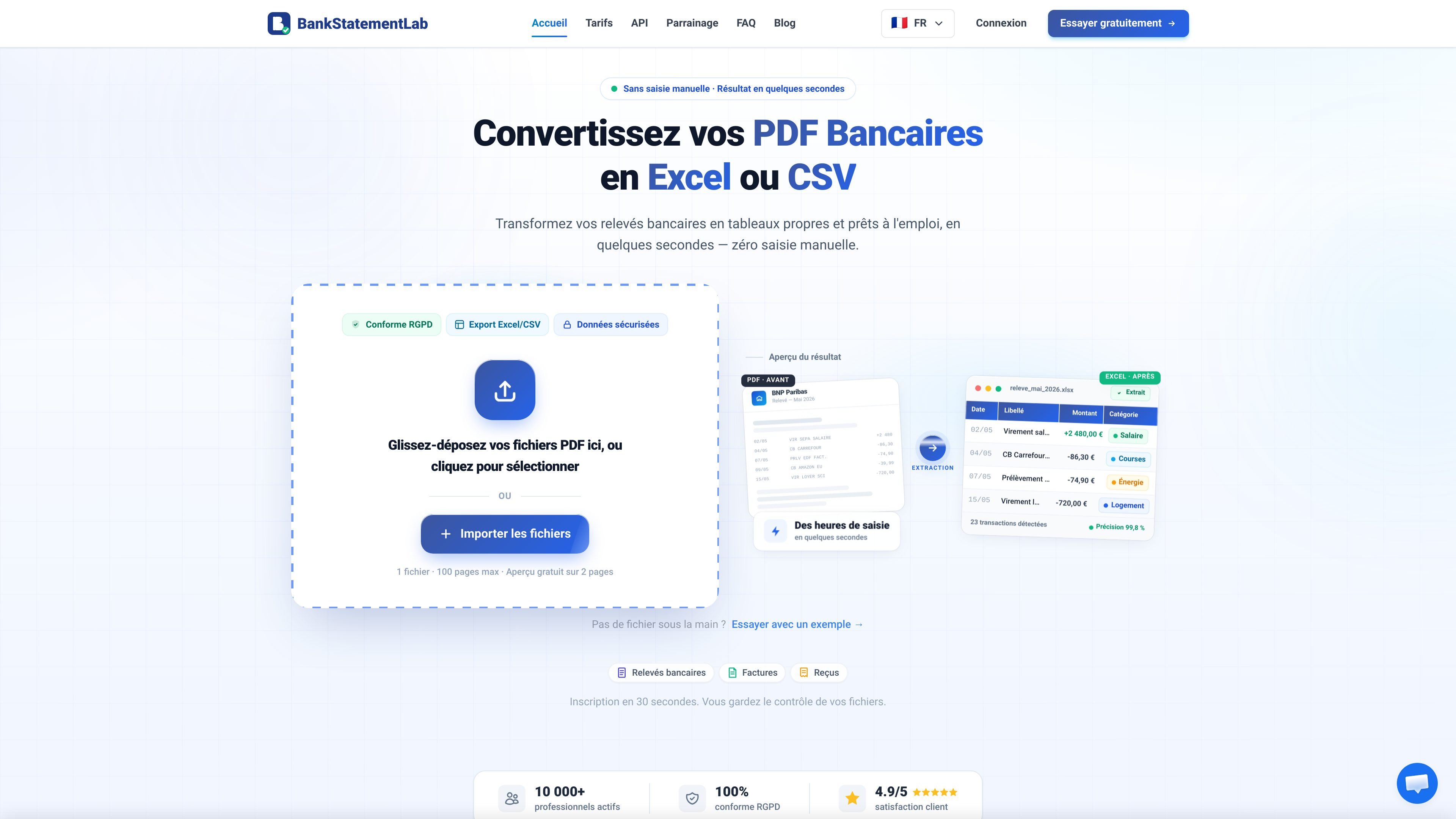
BankStatementLab is an online tool that converts PDF bank statements into Excel or CSV files. It is designed for people who want to extract transactions from digital or scanned documents without manual re-entry.
The site highlights a simple flow: upload a PDF, let OCR analyze the dates, descriptions, and amounts, then download a structured file. The platform also shows a free preview, categorization options, and exports designed for accounting or financial tracking use cases.
The French version of the site lists use cases for accountants, SMEs, freelancers, and personal finance. The pricing page also mentions a free offer, paid plans, and API access on the Pro and Business plans.
The tool imports bank PDF statements, including multi-page, scanned, or digital documents, with no manual setup required.
The OCR engine automatically identifies key statement details, including dates, descriptions, and amounts, then structures them into usable data.
Results can be downloaded in Excel or CSV for use in a spreadsheet, accounting tool, or import workflow.
The product page highlights automatic transaction categorization to filter expenses and generate reports faster.
The site indicates integrations or usage with Sage, Cegid, Xero, Excel, Google Sheets, and other CSV-compatible tools, with API access on certain plans.
The platform offers a free preview of the result, fast processing, and batch file support according to the plan limits shown on the pricing page.
Convert a monthly bank statement into CSV to import it into Sage, Pennylane, EBP, QuickBooks, or another accounting package.
Process multiple client statements faster in an accounting firm, with structured export and API access available on suitable plans.
Clean up statements for bank reconciliation, cash flow tracking, or analysis across multiple accounts.
Turn personal or business expenses into readable tables to prepare a tax return, track a budget, or categorize transactions.
Convert scanned PDFs when only a digitized paper statement is available, as long as the scan quality is sufficient for OCR.
Import your PDF statement into BankStatementLab, then the tool automatically extracts the transactions and lets you export the result in Excel (.xlsx) or CSV.
Yes. The FAQ says native PDFs reach 99%+ accuracy, and good-quality scanned documents usually exceed 95%. For best results, a minimum 300 DPI scan is recommended.
CSV is presented as the most universal format for imports into software like Sage, Pennylane, QuickBooks, Ciel, or EBP. Excel (.xlsx) is suited to manual analysis, while OFX is described as a standardized structured format for automated batch imports.
The security page states TLS 1.3 encryption, automatic file deletion within 24 hours, GDPR compliance, and no sharing or selling of data. Passwords are hashed with bcrypt.
API access is available on the Pro and Business plans. The pricing page also states that 1 credit equals 1 converted page, credits reset each month, and credits are used both through the dashboard and the API.

Extend is a document processing platform for turning PDFs and other documents into structured data. It helps teams parse, extract, split, classify, and route documents through APIs, Studio, Evals, Composer, and Workflows.

Codex Plugins bundle reusable skills, app integrations, and MCP servers into workflows you can install in the Codex app or use from Codex CLI. They help extend Codex with connected-service tasks, reusable instructions, and shared team workflows.

nolainocr is an AI OCR tool that extracts structured data from PDF invoices, receipts, forms, contracts, and bank statements. It helps teams move document data into Excel, Google Sheets, JSON, or CSV without manual entry.

Snapmark is a VS Code extension that lets you annotate clipboard screenshots before pasting them into AI chats. It supports blur redaction, numbered callouts, and automatic resizing for large images.

PDFTools is a browser-based suite of free and premium PDF utilities for editing, conversion, and document handling. It helps users work on PDFs locally in the browser without uploading files to a server.

Open Computer Use is an open-source Computer Use service wrapped as MCP for macOS, Linux, and Windows. It helps AI agents and MCP clients run desktop automation workflows through client setup commands or manual MCP configuration.