
Trackpad volume control
Slide one finger up or down the right edge to adjust volume, and double-tap the edge to mute. The on-screen level identifies whether sound is routed to speakers, headphones, AirPods, or a display.

Haptiker is a macOS menu bar utility that turns the edges of a MacBook or Magic Trackpad into sliders for volume, display brightness, and keyboard backlight. It is designed for Mac users who want quick controls without function keys or separate monitor controls.
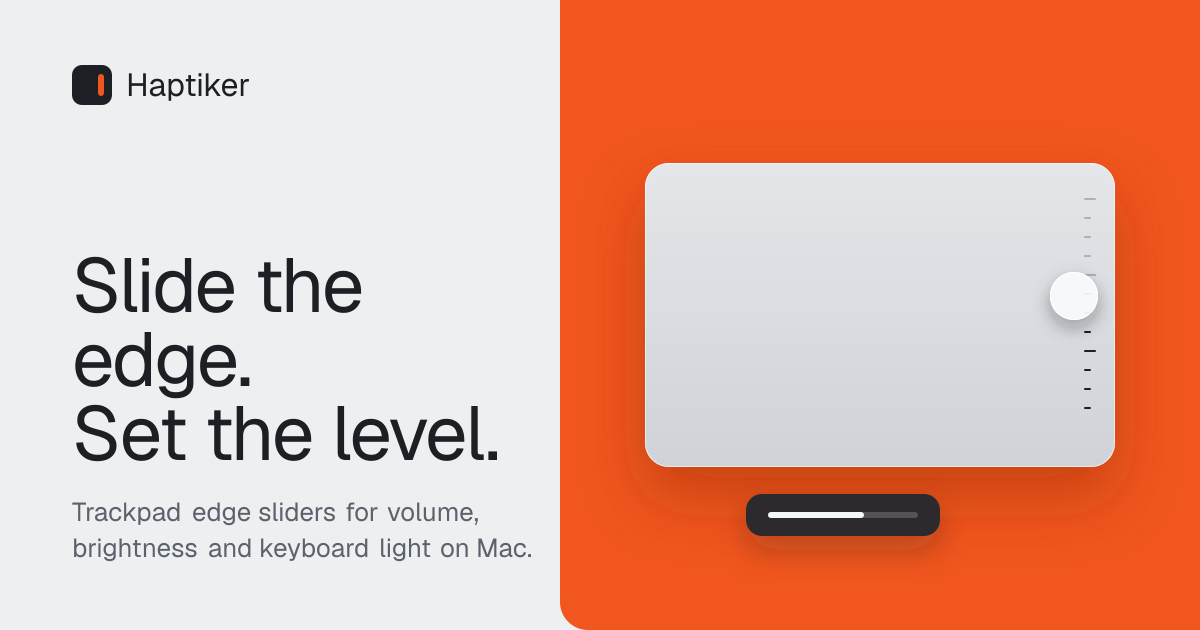
Haptiker is a macOS menu bar utility that turns the edges of a MacBook or Magic Trackpad into controls for volume, display brightness, and keyboard backlight. The right edge handles sound, the left edge handles brightness, and the top edge handles the keyboard light. An optional bottom-edge gesture adds app switching.
The app is designed for quick adjustments without reaching for function keys, monitor controls, or the Dock. It requires Accessibility permission to detect trackpad touches, but says those touches are processed in memory on the Mac and are not stored or sent. Haptiker supports macOS 12 or later on Apple Silicon and Intel Macs, with external-monitor brightness available on Apple Silicon through DDC/CI.
Slide one finger up or down the right edge to adjust volume, and double-tap the edge to mute. The on-screen level identifies whether sound is routed to speakers, headphones, AirPods, or a display.
Use the left edge to change the display brightness under the cursor. On Apple Silicon Macs, external displays can be adjusted through DDC/CI without a separate monitor-control utility.
Slide sideways across the top edge to adjust the keyboard backlight on supported Macs with backlit keyboards.
Optional bottom-edge gestures let you flick to the previous app or open a recent-app switcher. App switching is disabled by default and can be enabled in Haptiker's settings.
Edge width, sensitivity, side assignment, bottom-quarter mode, haptic ticks, fine control, frozen cursor, adjustable step sizes, and on-screen zone previews provide control over how gestures behave.
A menu bar interface shows live sound, display, and keyboard-light levels, provides one-click pausing, and supports automatic updates.
Adjust sound while working in a browser, editor, or other full-screen app by sliding the right trackpad edge. The display indicator helps confirm whether audio is going to speakers, headphones, AirPods, or a monitor.
Move the pointer to the screen you want to change, then use the left edge to adjust its brightness. This is useful for MacBook users moving between the built-in display and a supported external monitor.
Change keyboard illumination from the top trackpad edge on a Mac with a backlit keyboard, avoiding the function keys when working in changing light.
Use the optional bottom-edge app switcher to return to the previous application or browse recently used apps from the trackpad when switching tasks repeatedly.
Tune edge width and sensitivity, preview the active zones, and pause gestures from the menu bar when another workflow needs unmodified trackpad behavior.
Haptiker supports macOS 12 or later on Apple Silicon and Intel Macs with a built-in Force Touch trackpad or a Magic Trackpad. Launch at login requires macOS 13 or later.
Download and install Haptiker, then enable it under System Settings > Privacy & Security > Accessibility. macOS requires this permission so the app can read trackpad touches and detect edge gestures.
Yes, on Apple Silicon Macs. Move the cursor onto the external display and slide along the left trackpad edge. Haptiker communicates with the display over DDC/CI, although some monitors, adapters, docks, hubs, and DisplayLink connections may not support it.
No. A gesture must begin with one finger on the edge and travel along it. Two-finger scrolling, normal pointing, and slides that begin in the middle of the trackpad are ignored.
The app has a 7-day trial with every feature, without an account or card. The launch price is £4.99 paid once, and one license key can activate up to three Macs. Haptiker has no subscription.

Goldfish is an AI memory app for macOS that helps you reply, write, summarize, and continue using the context already on your Mac. It stores memory locally and writes in your tone.

ArtDeck is a visual reference board app for iPhone, iPad, and Mac that lets artists collect mixed reference material on one canvas and study it with ToolBox lenses. It works offline, supports optional iCloud sync, and is sold as a one-time purchase with no account required.

Biji - это универсальная платформа, разработанная для повышения продуктивности с помощью инновационных инструментов и функций.

Malyatko is a baby tracker for logging feeding, sleep, growth, teething, and milestones in one app. It works on iPhone, Apple Watch, and widgets, with no sign-up, offline use, and family sharing through iCloud.

Redline is a budgeting tool for Claude Code that paces sessions to stay within time, token, cost, or plan-percentage limits. It uses Claude Code’s native hooks and statusline to help sessions finish with a usable result instead of stopping abruptly.

Claude Overlay is a Windows desktop overlay for Claude Code that reads your screen so you can ask questions, inspect content, and request edits without leaving the current app. It runs on your existing Claude subscription through the Claude CLI, so no separate API key is required.