
Inline formatting widget
Format selected text with a floating toolbar that appears in the editor. The core styles include bold, italic, bold italic, strikethrough, underline, and case changes.

Post Formatter is a Chrome extension for formatting and previewing social posts in LinkedIn and other supported editors. It offers free core text styles, optional Pro features, drafts, Smart Paste, and AI proofreading.
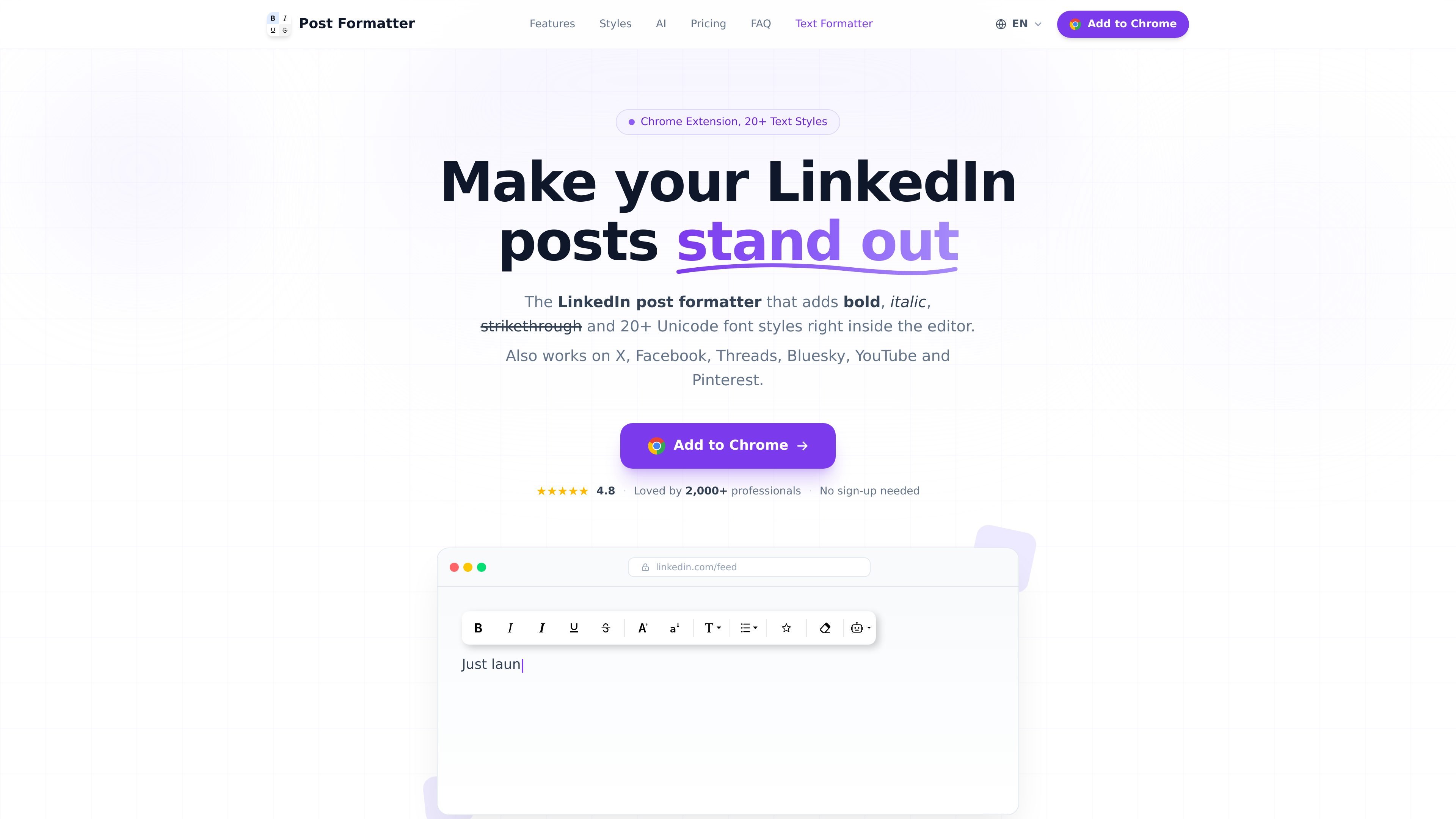
Post Formatter is a Chrome extension for writing and formatting social posts directly inside supported editors. It adds inline text styling, Unicode font variants, previews, drafts, and helper tools for turning pasted content into social-platform-friendly text.
The core formatting tools are free forever, while Post Formatter Pro adds AI proofreading, premium styles, live LinkedIn preview, multi-platform post previews, Smart Paste, and expanded draft features. The product is built for people who write frequently on LinkedIn and other supported social networks and want formatting controls without leaving the post composer.
Format selected text with a floating toolbar that appears in the editor. The core styles include bold, italic, bold italic, strikethrough, underline, and case changes.
Use 20+ Unicode text styles such as monospace, script, fraktur, double-struck, bubble, square, small caps, wide text, reverse, upside down, and zalgo. These styles are meant to copy across social platforms without special rendering.
Create bullet, numbered, lettered, and emoji lists, plus use a symbols and emoji library with search and recently used items.
Preview posts before publishing on LinkedIn, X, Threads, Facebook, and Bluesky, including a LinkedIn live preview that updates as you type. Dark mode is included.
Save drafts, organize them with folders and tags, mark them ready to publish, and reopen them for editing. The extension also supports right-click draft insertion and a side-panel editor.
Paste from Google Docs, Word, Notion, or Markdown and keep formatting by converting it into Unicode equivalents. The extension also includes AI proofreading and auto-styling, with the option to use your own OpenRouter key.
Format LinkedIn posts directly in the composer when you want bold, italic, underline, or Unicode font styles without switching to another app.
Prepare posts for X, Facebook, Threads, Bluesky, YouTube, or Pinterest and use previews to check how the text will render before publishing.
Keep recurring post ideas, drafts, and reusable copy organized with folders, tags, and a ready-to-publish status.
Paste content from Google Docs, Word, Notion, or Markdown and preserve emphasis and list structure in a social post.
Use AI proofreading to catch typos and style issues, or have AI emphasize key phrases with bold and italic in plain text.
Yes. The core formatting tools are free forever with no sign-up, including bold, italic, bold italic, strikethrough, underline, case changes, and opening/editing saved drafts. Pro is optional and adds AI proofreading, premium styles, previews, Smart Paste, and Drafts Pro.
The extension is designed for use inside supported social editors. It works on LinkedIn, X, Facebook, Threads, Bluesky, YouTube, and Pinterest, and the privacy policy lists Chrome side panel support for the preview/editor workflow.
Install the Chrome extension, then select text in a supported editor and use the floating toolbar or keyboard shortcuts to apply formatting. You can also use preview, drafts, and Smart Paste from within the extension.
Pro plans are billed monthly, yearly, or as a lifetime purchase, and the pricing page says all paid plans unlock the same Pro toolkit. There is also a weekly pass for testing Pro.
Drafts are stored locally on your device according to the privacy policy, while optional sign-in, billing, and AI features can send limited data to Google, Stripe, OpenRouter, or the backend needed to operate those features.

ProWritingAid is a writing assistant for storytellers that offers grammar checking, style editing, paraphrasing, and story analysis inside popular writing apps. It includes a free plan, paid tiers, and tools for chapter critique, manuscript review, and collaborative editing.

Dictro is a private AI dictation app for Mac that turns speech into polished text in any editable app. It works on Apple Silicon Macs, processes locally by default, and can also run in an optional cloud Fast Mode.

Rubriq 是一款面向科研写作的 AI 学术论文润色与翻译工具,支持个人订阅、机构方案和论文查重相关服务。它帮助研究人员在上传稿件后快速生成带修订痕迹的可审阅文档。

Goldfish is an AI memory app for macOS that helps you reply, write, summarize, and continue using the context already on your Mac. It stores memory locally and writes in your tone.

Topple.lol is a public pay-to-rank leaderboard where listings start at $1 and their bid balance decays over time and with clicks. It helps makers and marketers buy short-term visibility for product sites or X profiles while tracking live board stats.

SpeakoFlow is a free, open-source desktop voice-to-text app for Windows, macOS, and Linux. It supports dictation into any app, voice-driven writing with Flow, cleanup, translation, and a screen-aware assistant.