
Local storage
Tansei keeps your active shelf on your Mac in Documents/Tansei, so saved items are stored locally instead of in a cloud account.

Tansei is a Mac shelf for saving text, links, screenshots, files, colors, and code while you move between apps. It works offline, stores items locally on your Mac, and does not require an account.
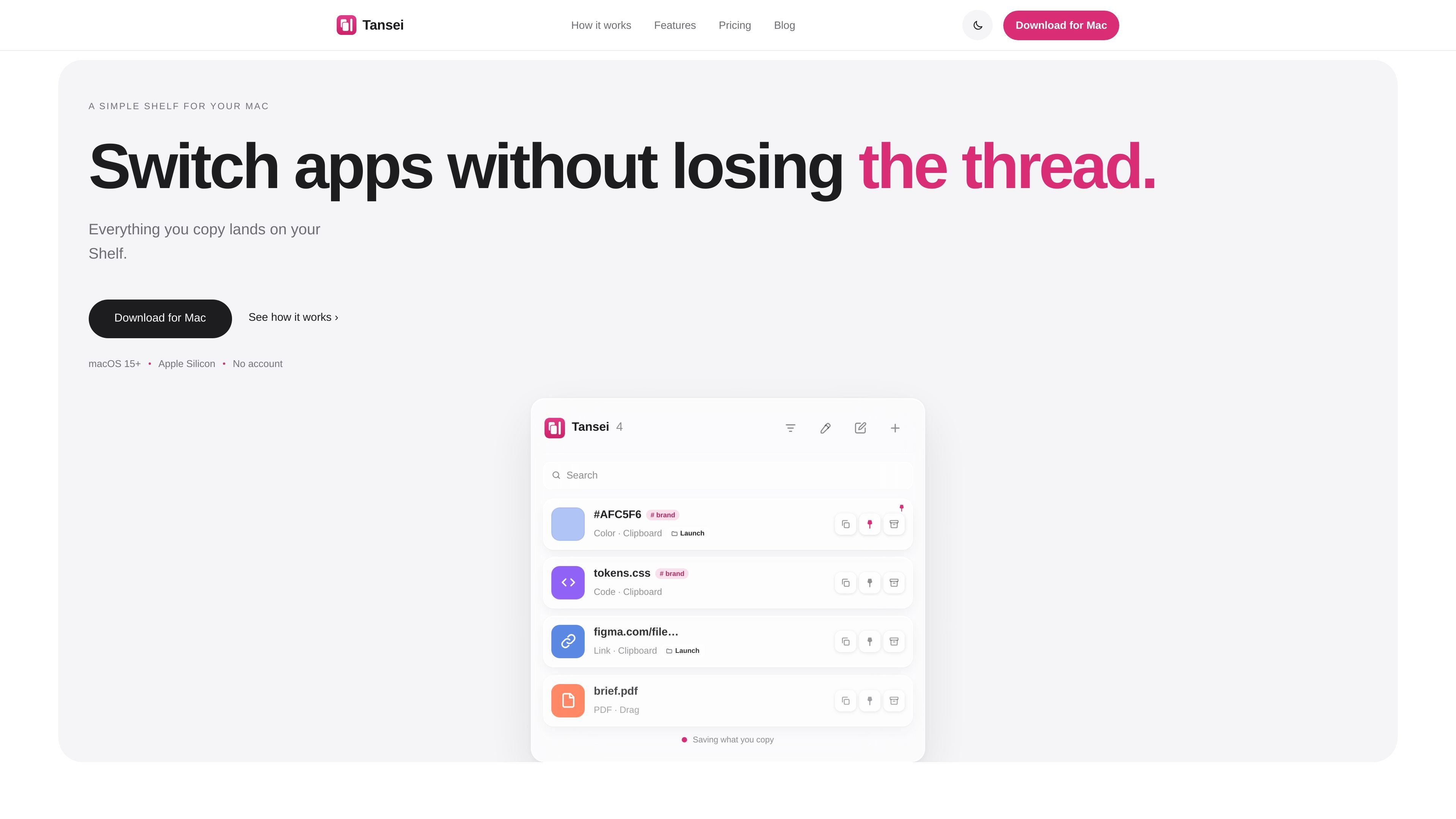
Tansei is a Mac shelf that sits at the edge of your screen and stores the things you want to keep close while you move between apps. It is built for people who copy, reference, and return to many different kinds of content during the day, including text, links, screenshots, files, colors, and code.
The app is private by default, works offline, and does not require an account. Items stay on your Mac, and screenshots and files are saved locally in Documents/Tansei. Tansei uses familiar Mac shortcuts and simple capture actions so you can save something, switch apps, and come back to it without losing your place.
Tansei keeps your active shelf on your Mac in Documents/Tansei, so saved items are stored locally instead of in a cloud account.
Right-click, drag, or press ⌘C to capture text, links, images, screenshots, files, PDFs, notes, colors, and code from other apps.
Use groups, tags, pins, and instant search to organize items and find them again quickly.
Preview, rename, open, archive, delete, and recover items from the shelf when you need to manage what you saved.
Grab colors as swatches and copy values in HEX, RGB, or HSL.
Pause auto-copying from the menu bar or in Settings if you want to stop new items from being captured automatically.
Keep references, snippets, and prompts close while moving between ChatGPT, your editor, browser, and terminal.
Save colors, screenshots, and design references, then drag them back into Figma or other visual work without rebuilding the context.
Capture commands, error messages, and files while you debug, then copy the exact item back when you need it.
Store links, notes, PDFs, and research fragments in one shelf so you can return to them later without searching through tabs.
Use tags, groups, and pins to keep project materials organized when you are juggling many small items at once.
Tansei runs on macOS 15 (Sequoia) or later and requires an Apple Silicon Mac.
No. Tansei is a shelf for the things that matter, not just a log of copied items. It can hold notes, colors, screenshots, files, links, PDFs, and code.
Everything stays on your Mac. The shelf is stored locally, and screenshots and files are saved in Documents/Tansei. Tansei does not require an account or upload your data.
Yes. The shelf works with or without an internet connection.
The free trial includes every feature for 3 days. After that, the app locks until you purchase a license, and your shelf stays on your Mac.

Goldfish is an AI memory app for macOS that helps you reply, write, summarize, and continue using the context already on your Mac. It stores memory locally and writes in your tone.

Dcyde is a decision log for product teams that captures what was decided, the reasoning behind it, and the source in one shared place. It supports pinning decisions from Slack, Figma, or inside Dcyde and keeps the record searchable over time.

Lasso is an ecommerce product data platform for enriching catalog records, processing supplier files, generating product content, and monitoring competitors. It combines a web app with a REST API, SDK, and MCP server for teams and developers.

Biji - это универсальная платформа, разработанная для повышения продуктивности с помощью инновационных инструментов и функций.

Codex Plugins bundle reusable skills, app integrations, and MCP servers into workflows you can install in the Codex app or use from Codex CLI. They help extend Codex with connected-service tasks, reusable instructions, and shared team workflows.

Struere is an AI-native platform for turning spreadsheet data into structured operational software with dashboards, alerts, and automations. It is aimed at teams that want to replace manual spreadsheet workflows without building custom tools from scratch.