
Browser-based video enhancement
Upload MP4, MOV, WEBM, M4V, or GIF files up to 200 MB through an online workflow.

Video Upscaler is an online AI tool that improves the perceived clarity of blurry, noisy, compressed, and low-resolution footage and produces 2x, 4x, HD, 2K, or 4K outputs. It is designed for creators, editors, marketers, and archive or restoration work.
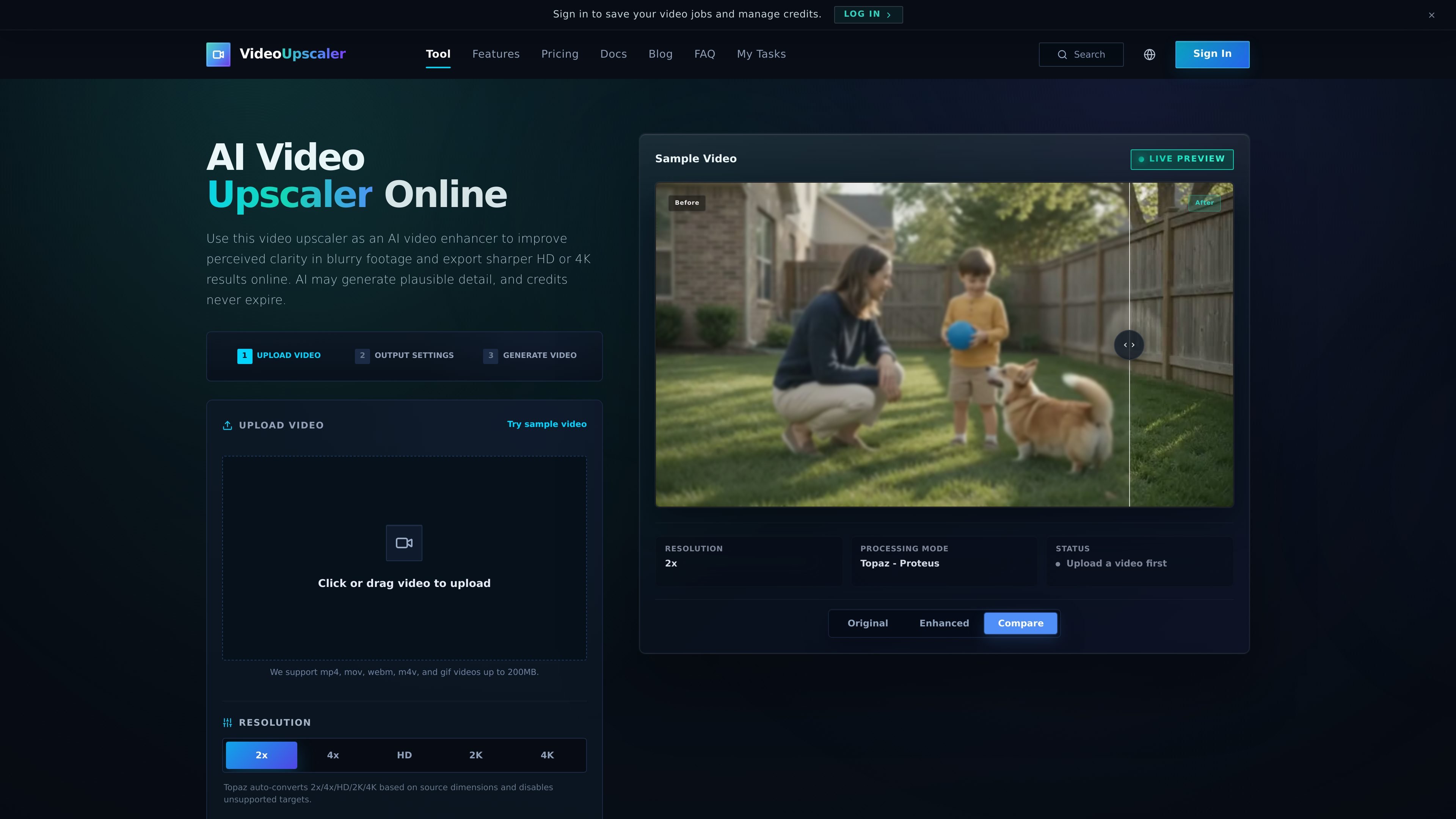
Video Upscaler is an online AI video upscaler and video enhancer for improving the perceived clarity of low-resolution, blurry, noisy, or compressed footage. It can create HD, 2K, or 4K outputs, as well as 2x and 4x scaled versions, using a workflow that analyzes frames and reconstructs plausible detail.
The tool is aimed at creators, editors, marketers, and people working with archived or everyday footage. Users upload a supported file, choose an enhancement model, processing mode, and output target, then generate and compare the result. Because AI-generated detail is inferred from the source, output quality depends on the original video and should be checked against it.
Upload MP4, MOV, WEBM, M4V, or GIF files up to 200 MB through an online workflow.
Create larger exports with 2x, 4x, HD, 2K, or 4K targets. The interface adjusts targets to the source dimensions and disables unsupported options.
Use Topaz enhancement with the Proteus balanced processing mode, described as a general option for most videos.
The workflow is intended to reduce visible blur, noise, compression damage, and soft edges while improving perceived texture and clarity.
Select settings, see the required credit estimate before processing, generate the result, and compare original and enhanced video in the interface.
Improve the perceived clarity of family tapes, archived clips, and low-resolution recordings so faces, clothing, signs, and background texture are easier to inspect. Generated detail should be reviewed against the source.
Prepare vertical clips, reels, and short-form videos for reposting after platform compression. HD can suit quick publishing, while 4K provides more room for cropping.
Polish tutorials, interviews, product shots, gameplay, and b-roll without rebuilding the edit. The workflow focuses on cleaner presentation and sharper output.
Apply enhancement to downloaded, messenger-saved, or heavily compressed clips where noise, blur, and compression blocks reduce readability. Denoise or general restoration guidance may be useful before sharpening.
Upload an MP4, MOV, WEBM, M4V, or GIF file up to 200 MB. Choose the model, processing mode, and output resolution, then generate the enhanced video and review the result.
The service supports HD, 2K, and 4K targets, along with 2x and 4x scaling. Available targets are adjusted according to the source dimensions, and unsupported targets are disabled.
Video Upscaler uses credits based on the uploaded file and selected settings. The pricing page provides an estimator, but the server calculates the final charge from the actual file and settings.
The tool supports MP4, MOV, WEBM, M4V, and GIF uploads up to 200 MB. The provided material does not specify every codec, frame-rate, or duration limit.
AI enhancement can improve perceived clarity, edges, texture, noise, and compression artifacts, but reconstructed detail is plausible rather than recovered source information. Results depend on the quality and content of the original video, so comparing the output with the source is recommended.

Let's Enhance is an online AI image app for enhancing, upscaling, and restoring photos. It helps users clean up images, increase resolution, and process files through free credits, subscriptions, or pay-as-you-go bundles.

EbSynth is VFX software for creative video transformations, retouching, and rotoscopy. It lets users edit keyframes and propagate those changes across a video for tasks like stylized animation, cleanup, and colorization.

SkyReels is an AI video generation platform with a web creative studio and API access. It supports text-to-video, image-to-video, and reference-based workflows for creators and developers.

VideoUpscaler is a free browser tool that enlarges supported MP4/H.264 videos to 2× their source dimensions. It helps people prepare small or mildly soft clips for larger screens, social posts, product presentations, and personal viewing while keeping processing on the device.

Gling is a desktop AI video editing tool for YouTube creators. It automatically removes bad takes, silence, filler words, and background noise, and it also supports captions, YouTube metadata tools, and export to common editing formats.

HitPaw is a suite of AI-powered multimedia tools for enhancing, converting, compressing, editing, translating, and changing video, photo, and audio files. It is aimed at creators, photographers, streamers, and teams that need practical media workflows in desktop or online tools.