
OwnClip icon

OwnClip

OwnClip is a native macOS screen recorder and editor with on-device camera effects, audio cleanup, screenshots, and export tools. It is built for users who want to record, polish, and share video from a local Mac workflow.

OwnClip

Native screen recording and editing for macOS

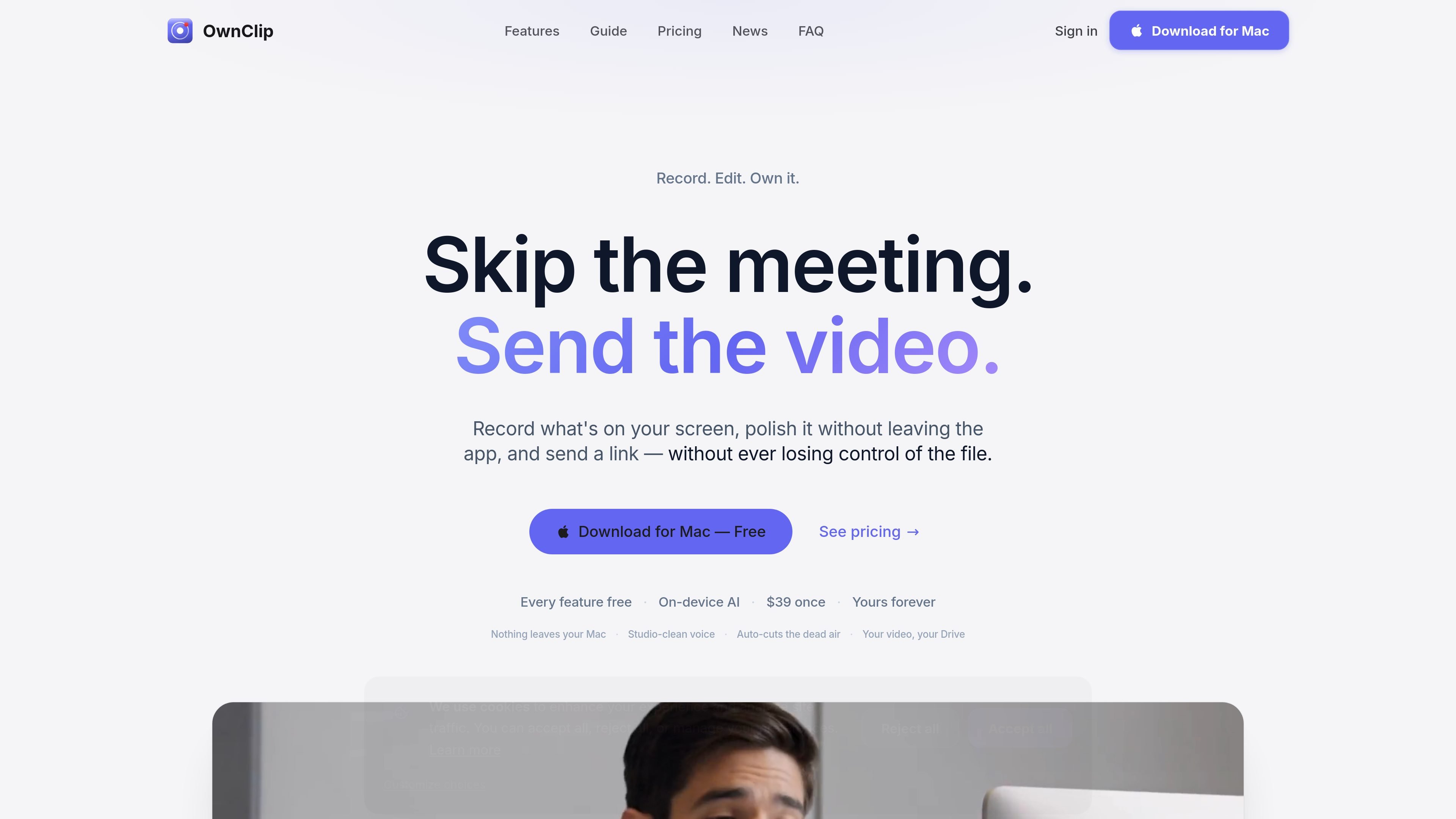
OwnClip is a native macOS screen recorder and editor built for people who want to capture, polish, and share screen content without moving into a separate cloud workflow. It combines screen recording, camera effects, audio cleanup, screenshots, PDF annotation, and video editing in one app.

The product is built around on-device processing: the site says recording, AI features, editing, and transcription stay on your Mac, and sharing goes to your own Google Drive or a branded link page. OwnClip is positioned for users who want local control over their files while still getting features such as live camera effects, transcript search, and non-destructive editing.

Core features

Fast screen recording

Record your screen, a window, or a region from a single shortcut, with system audio, mic input, webcam bubble, and floating controls ready when you start.

On-device camera effects

Use Metal-accelerated camera effects such as background blur, virtual backgrounds, Smart Framing, Auto-Light, and Beauty filter while you record.

Built-in video editor

Edit recordings without leaving the app, including trimming, cutting, redaction, chapters, speed changes, and non-destructive timeline adjustments.

Audio cleanup and captions

Clean up audio with voice-focused noise removal, EQ presets, and on-device transcription, then turn transcripts into editable captions.

Screenshots and OCR capture

Capture screenshots, scroll pages, annotate, sign PDFs, and use OCR to lift text from images or screen content.

Sharing and export options

Export to MP4, HEVC, ProRes, GIF, or interactive before/after embeds, then share through your own Google Drive or a branded page.

Common use cases

  • Async updates and demos

    Record product demos, bug repros, or walkthroughs directly from a Mac, then trim, redact, and share a link without handing files off to another editor.

  • Screenshot and PDF work

    Capture screenshots, annotate them, OCR text, and sign PDFs when you need a document-style workflow that stays on the device.

  • Polished tutorial videos

    Create cleaner talking-head or tutorial videos with background blur, Smart Framing, Auto-Light, and noise removal applied as you record.

  • Captioned recorded content

    Generate editable captions from transcripts, then refine them into text that matches the timing and wording you want before export.

  • Branded sharing for agencies and studios

    Produce branded customer-facing deliverables by exporting before/after videos or sending share pages with your own logo, colors, and domain.

Pros and Cons

Pros

  • Native macOS app with screen recording, camera effects, screenshots, PDF tools, audio cleanup, and editing in one workflow.
  • On-device processing keeps recording, transcription, and AI effects local to the Mac.
  • Supports a range of practical output formats, including MP4, HEVC, ProRes, GIF, and interactive before/after embeds.
  • One-time pricing is clearly stated on the site, with a free-to-try model and a $39 one-time purchase to remove caps.
  • Includes branded sharing options and a workflow that sends files to the user's own Google Drive.

Cons

  • The public FAQ page lists common questions, but the answer text was not available in the provided source, so some setup and policy details remain unclear.
  • The product is limited to macOS 15 or later on Apple Silicon, which excludes older Macs and non-Mac platforms.
  • The site emphasizes local storage and Google Drive sharing, so teams that need a broader built-in cloud collaboration system may need additional tools.

FAQ

Can I use OwnClip on more than one Mac?

OwnClip is designed for use on a single Mac workflow, and the site states it can be used on up to 2 Macs. The guide describes recording, editing, sharing, and live streaming from the app, but the public FAQ page does not provide team-seat details.

What Macs and macOS versions are supported?

The site says OwnClip works on macOS 15 or later and requires Apple Silicon. The guide also lists the app as roughly 150 MB.

Where are recordings stored and how are they shared?

The homepage and guide say OwnClip keeps recording, editing, transcription, and sharing local to your Mac, and that sharing sends the file to your own Google Drive or a branded link page.

What export formats does OwnClip support?

The guide says OwnClip exports to MP4, HEVC, ProRes, and GIF. It also supports interactive before/after embeds for web use.

How does pricing work?

The site presents OwnClip as a one-time purchase with every feature free to try and a $39 one-time payment to remove caps. The FAQ page includes a question about refunds, but the answer text was not visible in the provided source.

Quick Facts

Category
Screen recording and video editing
Platform
macOS 15+ on Apple Silicon
Pricing model
Free to try; $39 one-time purchase
Storage and sharing
Local on-device workflow; share via Google Drive or branded links
Core workflow
Record, edit, transcribe, and export from one Mac app
Source domain
ownclip.io
OwnClip - AI Tool, Features, Use Cases & Alternatives | UStack