
Image and video input
Paste, drop, or choose PNG, JPEG, and WebP screenshots. The editor can also accept MP4, MOV, and WebM screen recordings.

Shotcandy is a free, open-source browser tool for styling screenshots and screen recordings with backgrounds, frames, annotations, and motion effects. It helps creators, developers, and product teams make share-ready visual assets locally without uploading files or adding watermarks.
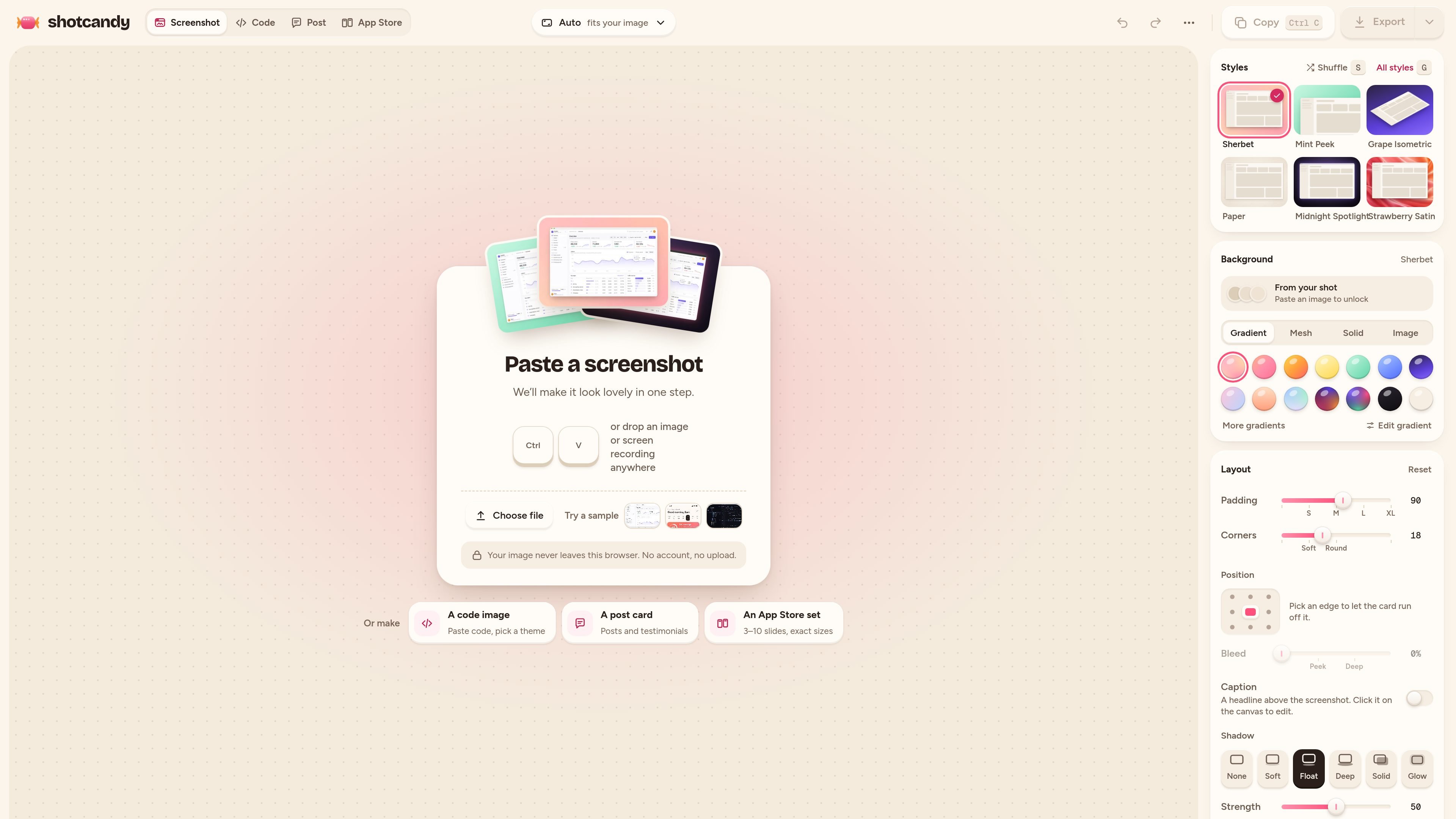
Shotcandy is a browser-based screenshot and screen-recording beautifier. It turns plain captures into share-ready images or videos by combining preset compositions, backgrounds, frames, shadows, annotations, and motion effects. The tool is designed for people who need polished visual assets without sending source files to a server.
A typical workflow is to paste, drop, or select a screenshot or recording, choose a style, make visual adjustments, and export the result. It supports common image and video inputs, platform-specific dimensions, and several still-image and video output formats. Shotcandy is free, open source under the MIT license, and does not require an account or add a watermark.
Paste, drop, or choose PNG, JPEG, and WebP screenshots. The editor can also accept MP4, MOV, and WebM screen recordings.
Apply 42 one-click styles, including tilts, peeks, stacks, prints, device frames, and minimal layouts, with previews on the supplied image.
Customize the presentation with gradients, mesh backgrounds, wallpapers, colors sampled from the image, padding, rounded corners, shadows, blur, annotations, and frames for macOS windows, browsers, phones, tablets, and laptops.
Create platform-oriented exports for Open Graph, X, LinkedIn, Instagram, and App Store sizes, or use the source image's resolution. Image exports support PNG, JPEG, and WebP at up to 4×.
Trim recordings, keep or remove audio, add motion effects such as zoom, float, and 3D sweep, and export video as MP4, WebM, or GIF.
Process files locally in the browser with no account or upload. Users can save styles in the browser, back up projects as files, use keyboard controls, and switch between light and dark modes.
Apply a window, browser, phone, tablet, or laptop frame, then export a consistent image for product pages, documentation, or feature announcements.
Prepare Open Graph, X, LinkedIn, Instagram, and App Store assets from one source capture using the relevant canvas dimensions and image export scale.
Trim a walkthrough, choose whether to retain its audio, add a motion treatment, and export a shareable video or GIF for a release note or demo.
Use sampled colors, gradients, mesh backgrounds, annotations, arrows, highlights, or blur to explain an interface in a presentation, tutorial, or design review.
Paste or select a code image, choose a theme, and create a more presentable visual for technical posts or documentation.
No. Shotcandy processes images and recordings in the browser using the canvas API. It has no server upload flow, and the site states that files never leave the device.
Paste an image with Ctrl+V or ⌘V, drop a file, or choose a file. Then select a style, adjust options such as background, padding, corners, and shadow, and export or copy the result.
Yes. MP4, MOV, and WebM recordings are supported, up to 10 minutes. You can trim the recording, keep or remove its sound, add motion, and export as MP4, WebM, or GIF. Browser codec support can vary; the site suggests re-saving unsupported files as H.264.
The editor can export PNG, JPEG, WebP, MP4, WebM, and GIF. Image exports can be made at up to 4×, and outputs include auto sizing plus formats for Open Graph, X, LinkedIn, Instagram, and App Store screenshots.
Yes. Shotcandy is free, has no account requirement, watermark, paywall, or locked features, and is open source under the MIT license. Optional one-off or monthly support helps fund maintenance but does not change access to the app.

MacSpoof ist ein MAC-Adressenwechsler für macOS: WLAN-MAC ändern oder randomisieren, um Verbindungen zu erneuern und die Protokollierung auf öffentlichem WLAN zu reduzieren.

DemoTV is an audience-ranked station for discovering and comparing independent product demos. Founders can submit videos, embed approved demos on their websites, collect viewer inquiries and optionally commission demo production or labelled promotion without buying ranking.

Ship It: Idle Dev Tycoon is an iPhone incremental simulation game about building apps, managing a software studio, and selling it for lasting progression benefits. It supports offline play, automated builds, adviser collection, and optional in-app purchases.

NomNak ist eine kostenlose Restaurant-Discovery-App für iPhone, mit der du Orte über Empfehlungen von Freunden statt über anonyme Bewertungen findest.
CAPTA is a mobile GPS waypoint app for quickly saving, organizing, and revisiting locations. It supports offline use, camera-based coordinate capture, optional cross-device synchronization, and GPX export for fishermen, explorers, and field professionals.

Ctrl+Shift+3 is a calm, text-first community platform with a chronological feed, profiles, RSS, and private groups called Clicks. It is built for reading, posting, and joining smaller communities without algorithmic ranking or vanity counts.