
Group processes by app
Vitals adds helper processes to the app that launched them, turning a long process list into an app-level view with one figure for CPU, memory, energy, disk, and network.

Vitals is a menu bar system monitor for Mac that groups helper processes under the apps that launched them, making CPU, memory, disk, network, and other activity easier to interpret. It helps Mac users review up to 30 days of history, receive alerts about sustained resource use, and monitor development projects and connected devices.
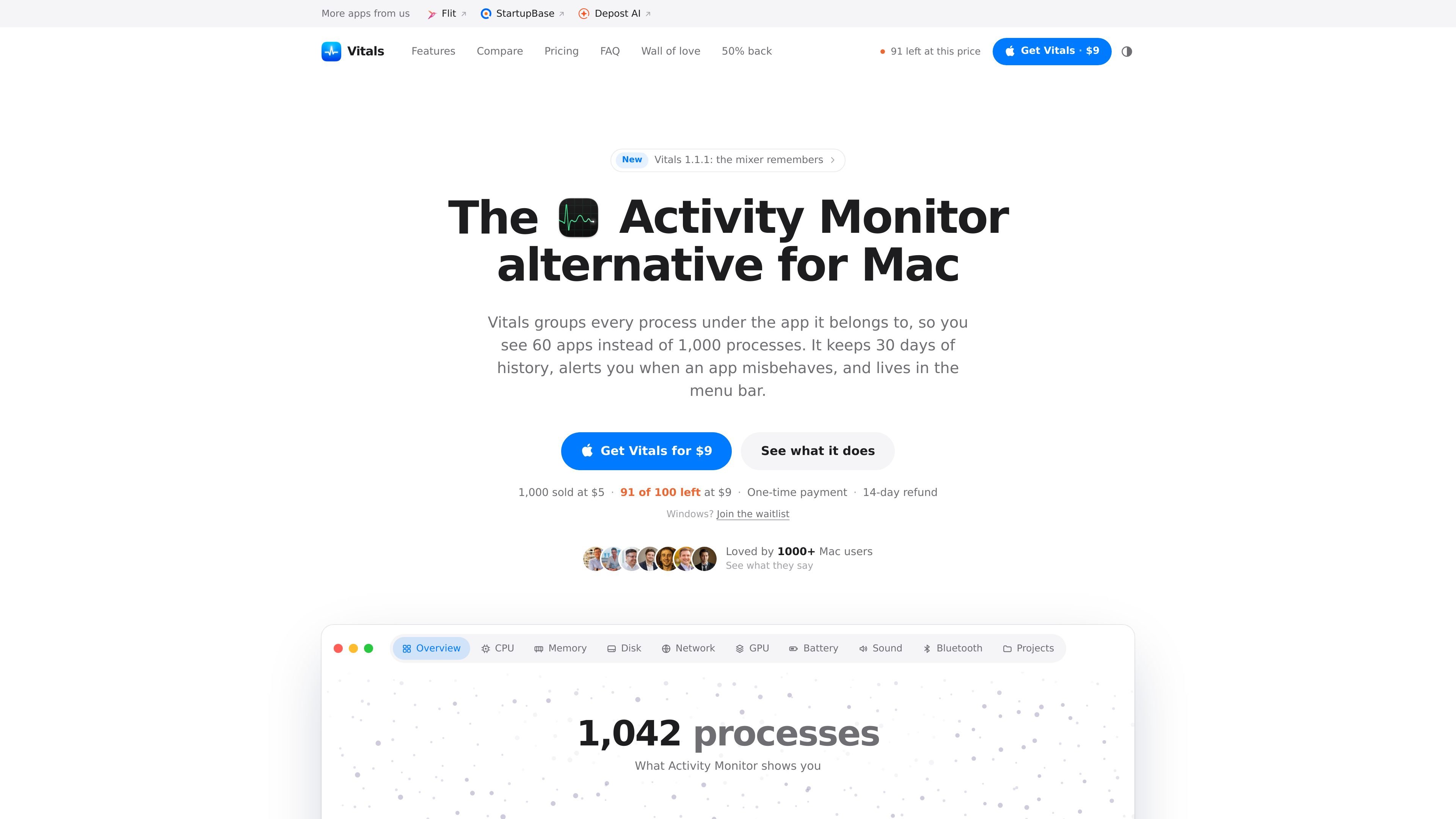
Vitals is a menu bar system monitor for Mac that organizes activity around applications rather than individual processes. It groups helper processes under the app that launched them, so users can see which app is responsible for CPU, memory, energy, disk, and network use without manually adding process entries.
The product is designed for ongoing observation rather than replacing every diagnostic function in macOS Activity Monitor. It keeps up to 30 days of per-app history, can notify users about sustained resource problems, and provides configurable views for everyday monitoring, development projects, sound, Bluetooth devices, and system sensors.
Vitals adds helper processes to the app that launched them, turning a long process list into an app-level view with one figure for CPU, memory, energy, disk, and network.
Review resource use across 12 hours, 24 hours, 7 days, or 30 days, including the apps that used the most. This provides context that a live-only monitor cannot.
Receive a notification when an app keeps the CPU busy, continues growing in memory, or heavily uses disk or network resources.
View CPU, memory, disk, network, GPU, battery, sound, Bluetooth, and project information through separate tabs. The app also reports temperatures and fan speed.
Create menu bar readouts for metrics such as CPU, memory, GPU, network, disk, temperature, or battery. Each can show a value, a graph, or both, and the items can be reordered.
Group development processes by project folder, show listening ports, identify idle development servers, and offer an option to stop them. Vitals also supports quitting an app or a single process after confirmation and exporting a snapshot as an image.
Use the app-level view to identify whether a browser, editor, terminal, container tool, or another application is responsible for high CPU or memory use, without tracing multiple helper processes.
Look back over the workday or previous week to determine which applications affected battery, memory, disk, or network activity while the Mac was unattended.
Monitor local development projects by folder, inspect listening ports, and spot servers that have been idle for days. Vitals can offer to stop idle development servers when they are no longer needed.
Configure only the metrics needed for quick checks in the menu bar, such as CPU, memory, temperature, or battery, while keeping detailed subsystem views in the app window.
Check per-app sound levels and connected Bluetooth device batteries from dedicated tabs when working with media, calls, headphones, keyboards, or trackpads.
No. Vitals is intended for everyday monitoring: identifying which app is using resources, reviewing historical activity, and receiving alerts. Activity Monitor remains the better tool for sampling a process, taking a spindump, and other system diagnostics.
Vitals requires macOS 15 or later. The source describes it as a menu bar application; when opened at login it can stay in the menu bar, and it can also be shown in the Dock if preferred.
Vitals groups helper processes under the app that launched them, then presents app-level figures for CPU, memory, energy, disk, and network. Its history views cover 12 hours, 24 hours, 7 days, and 30 days, with the apps using the most resources identified.
It can send a notification when an app keeps the CPU busy, continues growing in memory, or generates unusually heavy disk or network activity. The notification names the app involved.
The product is sold as a one-time purchase. The site lists an introductory price of $9, a later price of $29, updates for life, and a 14-day refund policy.

PromptScout tracks how ChatGPT, Gemini, Google AI Overviews, and Perplexity mention your brand or competitors, then pairs those results with source analysis and website audits. It helps teams decide what to fix in content, positioning, or site readiness next.

Sleek Analytics is a privacy-friendly web analytics tool with real-time visitor tracking, Core Web Vitals, and revenue attribution. It helps site owners understand traffic and conversions without cookie banners or a heavy setup.

MacSpoof ist ein MAC-Adressenwechsler für macOS: WLAN-MAC ändern oder randomisieren, um Verbindungen zu erneuern und die Protokollierung auf öffentlichem WLAN zu reduzieren.

ClawTick is an AI agent automation platform for scheduling jobs from the CLI, dashboard, or REST API. It is aimed at developers and teams running LangChain, CrewAI, webhook, or custom agent workflows that need monitoring, alerts, and logs.

OpenFlags is an open-source, self-hosted feature flag platform for modern JavaScript teams. It supports local evaluation, targeted rollouts, and controlled launches while keeping flag data in your own infrastructure.

SecAIQ Watch is a local, read-only dashboard for monitoring AI assistants, coding agents, local models, and MCP servers on macOS, Linux, and Windows. It shows network activity, permissions, findings, file access, and token usage without sending observations to a cloud service.