

Chord Identifier
Chord Identifier is a visually rich, context-aware chord and scale detection tool for Windows and Mac that listens to your real-time MIDI performance, identifies complex harmonies, and helps you learn music theory faster.
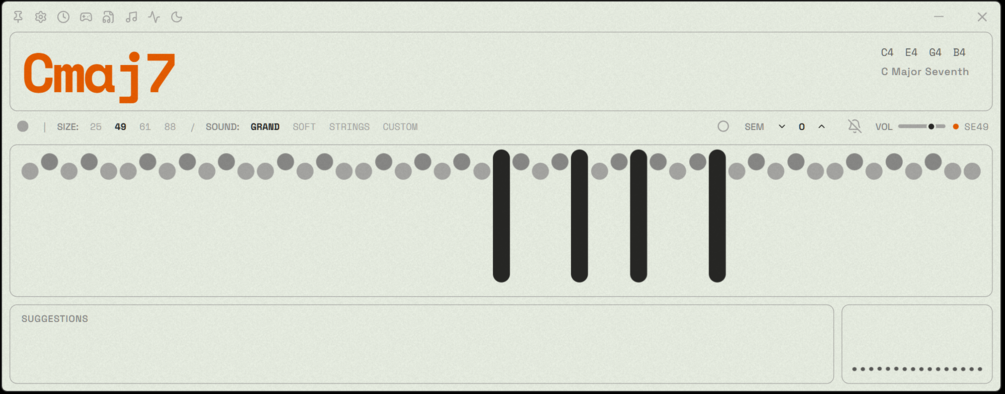
What is Chord Identifier?
What is Chord Identifier?
Chord Identifier is a visually aesthetic, musically accurate music theory companion designed for producers, songwriters, and students who learn best through visual feedback. It listens to your real-time MIDI performance and uses a harmonic gravity engine to instantly identify chords and harmonies in the correct musical context.
At its core, Chord Identifier tells you exactly what chord you are playing as you stack notes on a MIDI keyboard or input device. Unlike simple chord namers, it is context-aware: it understands the key and scale you are in, names chords accordingly, and highlights scale tones and out-of-scale notes in real time. Beyond chord detection, it includes a MIDI/audio recorder, scale mode, chord history and search, a waterfall MIDI player, a native synth, custom instruments, quiz mode, and extensive customization options to support both learning and songwriting.
Key Features
-
Real-time, context-aware chord detection
- Listens to your live MIDI playing and instantly names chords.
- Uses a harmonic gravity engine to prioritize musical, human-friendly chord names over overly complex theoretical labels.
- Takes your selected key and scale into account so that chord names make sense in context.
-
Multiple visual layouts (Dot, Piano, Guitar)
- Default Dot Layout for a clean, abstract view of notes.
- Switch to a traditional piano layout for keyboard-based learning.
- Switch to a guitar fretboard layout, with an option to rotate into a standard vertical chord diagram—ideal for guitarists.
-
Adjustable keyboard size
- Choose the number of visible keys to match your hardware: 25, 49, 61, or 88 keys.
- Keep the interface focused on the range you actually play.
-
Integrated Audio & MIDI Recorder
- One-click recording via the hollow circle icon.
- Records both WAV audio and MIDI simultaneously.
- Export recordings to your favorite DAW for further production, mixing, or analysis.
-
Transpose & Metronome Tools
- Transpose your performance up or down by semitones or octaves.
- Built-in metronome with visual pendulum-style animation and an orange first-beat indicator.
- Right-click the bell icon to set tempo (BPM), choose from 3 metronome sounds, and select time signature.
-
Scale Mode with 50+ scales
- Select a key and scale from over 50 options.
- In-scale notes are highlighted in a pastel green, while out-of-scale notes are shown in bright red.
- Every chord is named relative to the chosen key/scale, reinforcing functional harmony.
- Auto scale detection after about 30 played notes, if you haven’t manually selected a scale.
-
Chord History Panel
- Access a scrollable history of recently played chords via the clock icon.
- View how each chord functions in the currently selected musical context.
- Great for revisiting ideas, studying progressions, and learning new chord shapes.
-
Chord Search (type a chord, see it on the keys)
- When PC keyboard MIDI input is off, you can type a chord name and see how it looks on the keyboard.
- Perfect for learning how to play specific chords or exploring new voicings.
-
Waterfall MIDI Player
- Import any MIDI file: your own compositions, practice exercises, or favorite songs.
- Visual “waterfall” view makes it easy to see notes as they fall onto the keys.
- Control playback: play, pause, skip forward, and loop sections.
- Transpose MIDI or adjust tempo, with automatic tempo detection from the MIDI file.
- MIDI History to auto-save and access your MIDI files from within the app.
-
Native Synth Engine
- "What you see is what you hear" design: sound shaping is visual and intuitive.
- 2 oscillators + 1 noise oscillator for tonal and percussive sounds.
- ADSR envelope, filter with LFO and resonance, and flexible tone-shaping tools.
- Reverb & Delay XY Pad with control over decay, mix, time, feedback, and ping-pong options.
- Drive Pad for bitcrushing and saturation.
- Built-in oscilloscope and spectrogram for real-time visual feedback of your sound.
- Atmos module controls reverb and delay via a visual pad—reverb aura for mix/decay, ripples for delay time/ping-pong, with right-click and Ctrl+drag for fine control.
-
Custom Instruments & Soundfont Support
- Create custom sampler instruments using your own WAV files (single-sample or multi-sample).
- Import SFZ and SF2 soundfont files and use them as playable instruments inside Chord Identifier.
- Manage instruments from the settings menu to add or remove them from the main UI selection.
-
Quiz Mode (Ear Training)
- A built-in quiz game where the app plays random notes or chords based on difficulty.
- You guess the note or chord by ear; replay the sound or play middle C for reference.
- Each round has 5 questions—ideal for systematically improving your ear.
-
Stickers & Personalization
- Add custom stickers/images to the interface via the sticker library in Settings.
- Stickers are window-specific: main UI stickers stay on the main display, synth stickers stay in the synth, etc.
- Lets you personalize the workspace like a real instrument or laptop.
-
UI & Workflow Settings
- Dark Mode and Film Grain visual options for aesthetic customization.
- UI Zoom (default 125%, up to 200%) for different screen sizes and viewing comfort.
- PC keyboard input: use your typing keyboard as a MIDI controller (similar to FL Studio), with mappings like Z=C, X=D, etc.
- Fixed velocity mode to disable velocity sensitivity across the app.
- Sustain mode options: Standard (see held notes) or Let Ring (hear sustain without persistent visual notes).
- Accent color customization for changing the signature orange color.
- Recording folder selector to define where audio and MIDI files are stored.
-
Hardware & Control Support
- Supports sustain pedal, pitch wheel, and modulation wheel.
- MIDI device indicator lets you know when a MIDI device is connected (or not).
-
Platform & Updates
- Version 1.0.0 available for Windows and Mac (Linux support planned).
- All future updates are free for existing users.
How to Use Chord Identifier
-
Install and launch
- Download and install Chord Identifier on your Windows or Mac system.
- Connect your MIDI keyboard or controller, or enable PC keyboard input from Settings if you don’t have external hardware.
-
Select your layout and keyboard size
- Start in the default Dot Layout, or switch to Piano or Guitar Fretboard view using the layout control.
- In the SIZE section, match the displayed key range to your hardware (25, 49, 61, or 88 keys).
-
Set key and scale (or let it auto-detect)
- Enable Scale Mode and select your key and one of 50+ scales.
- Watch as scale notes turn green and non-scale notes appear red, reinforcing your understanding of the scale.
- If you prefer, simply start playing—after about 30 notes, Chord Identifier will attempt to auto-detect the scale based on your performance.
-
Play and see chords in real time
- Play chords on your MIDI keyboard (or typing keyboard if enabled).
- Observe the live chord names and their functional roles within the chosen key and scale.
- Use the Chord History panel (clock icon) to revisit chords you played and analyze your progressions.
-
Record ideas (Audio + MIDI)
- Click the hollow circle to start recording.
- Perform your chords, melodies, or improvisations.
- Stop recording to automatically save a WAV and MIDI file in your selected recording folder, ready to drag into your DAW.
-
Practice timing and harmony
- Enable the metronome via the bell icon and set tempo/time signature by right-clicking it.
- Use transpose controls to shift what you play by semitones or octaves, helping you practice in multiple keys.
-
Study songs with the Waterfall MIDI Player
- Import a MIDI file (from Chord Identifier or external sources).
- Watch the waterfall view to understand voicings and rhythms.
- Adjust tempo and transpose as needed, and use MIDI History to revisit previous files.
-
Shape sound with the Native Synth or Custom Instruments
- Choose the built-in synth and tweak oscillators, ADSR, filter, reverb, and delay via the visual XY pads.
- Or, create new instruments using your WAV samples or imported SFZ/SF2 soundfonts.
- Enhance learning by pairing chord visualization with different timbres.
-
Train your ear with Quiz Mode
- Open Quiz Mode and choose a difficulty level.
- Listen to the note or chord playback and guess the answer.
- Repeat sounds as needed, use middle C as reference, and complete 5-question rounds to build ear training habits.
-
Customize your workspace
- Enable dark mode, adjust UI zoom, set accent colors, and add stickers.
- Configure sustain mode, velocity behavior, and PC keyboard input to fit your playing style.
Use Cases
-
Music Theory Learning & Ear Training
Students and self-taught musicians can use Chord Identifier as a hands-on theory lab. As you experiment with chords and scales, the app labels everything in real time, highlights scale tones, and shows out-of-key notes. With Quiz Mode, you can train your ear to recognize intervals, chords, and tonal centers, turning abstract theory into interactive practice. -
Songwriting & Composition
Songwriters can quickly discover new chord progressions, extensions, and substitutions by simply playing and watching what appears. Chord History helps you recall interesting voicings you stumbled upon, while Scale Mode keeps your ideas cohesive in a chosen key. The MIDI/audio recorder captures sketches instantly, which you can later refine in your DAW. -
Production & Sound Design Workflow
Producers can use Chord Identifier alongside their MIDI keyboard to rapidly prototype harmonic ideas and then export MIDI directly to their DAW. The built-in synth, custom instruments, and soundfont support let you design sounds while seeing their harmonic context. Visual tools like the oscilloscope and spectrogram help you balance tone and spectrum while creating pads, leads, or textures. -
Guitar & Multi-Instrument Practice
With the guitar fretboard layout and rotatable chord diagrams, guitarists can visualize piano voicings and map them to fretboard shapes. Composers who move between instruments can use Chord Identifier to understand how chords look on both keys and guitar, helping them arrange parts for bands or ensembles more effectively. -
Analyzing Existing Songs & Learning Repertoire
Import MIDI versions of songs into the Waterfall MIDI Player to study them visually. You can slow down complex sections, transpose to a more comfortable key, and watch chords and melodies in real time. This is especially useful for learning intricate jazz progressions, classical pieces, or dense pop arrangements.
FAQ
1. Which platforms does Chord Identifier support?
Chord Identifier 1.0.0 is available for Windows and Mac. The developer has indicated that Linux support is planned for the future, but it is not yet available at the time of this version.
2. How much does Chord Identifier cost, and do I pay for updates?
The Gumroad listing shows a price point around $20 (with occasional discounts). All future updates are free for existing customers, so once you purchase, you get ongoing improvements at no additional cost.
3. Do I need a MIDI keyboard to use Chord Identifier?
A MIDI keyboard or controller is recommended for the best experience, but it is not strictly required. You can enable PC keyboard input in Settings to use your computer’s typing keyboard as a MIDI source. Chord Identifier also supports sustain pedal, pitch wheel, and modulation wheel when using compatible MIDI hardware.
4. Can I use the recorded audio and MIDI in my DAW?
Yes. When you record with the built-in recorder, Chord Identifier saves both WAV audio and MIDI files to your chosen recording folder. You can import these files into any major DAW for arrangement, mixing, and further sound design.
5. How accurate are the chord names, especially for complex chords?
Chord Identifier is designed with a "humane" naming philosophy. Instead of generating overly technical or obscure chord names, it prioritizes labels that most musicians actually use in practice. For very complex chords, more than one theoretical name may be possible; the software chooses context-aware names based on the selected key and scale. The developer is actively improving the detection and welcomes constructive feedback to refine naming conventions.
6. Can I create and use my own instruments?
Yes. From the settings, you can create custom sampler instruments using your own WAV files (single or multiple samples), and you can import SFZ and SF2 soundfonts. You can manage these instruments from the "Manage" section to show or hide them from the main UI.
7. Is Chord Identifier still under active development?
Yes. The product is described as currently undergoing development, and users are encouraged to report bugs, glitches, and feature ideas. The developer is open to feedback and conversation about improving the app, expanding platform support, and adding new features.
Alternatives

VForms
VForms enables the creation of interactive questionnaires overlaid directly onto YouTube videos, allowing users to collect highly contextual feedback and deep user insights.

Talkpal
Talkpal is an AI language teacher that helps users learn languages faster through immersive conversations and real-time feedback.

BeFreed
BeFreed is a personalized audio learning platform that transforms knowledge into engaging audio content tailored for individual learning preferences.

Scite
Scite is an AI-powered research tool that helps researchers understand research debates, ensure reliable citations, and improve their writing.

Shengsuanyun
Shengsuanyun offers cloud-based solutions for efficient data management and analytics.

Model Council
Model Council is a multi-model research feature by Perplexity that runs a single query across several top AI models simultaneously to generate a synthesized, comprehensive answer.