

Snap
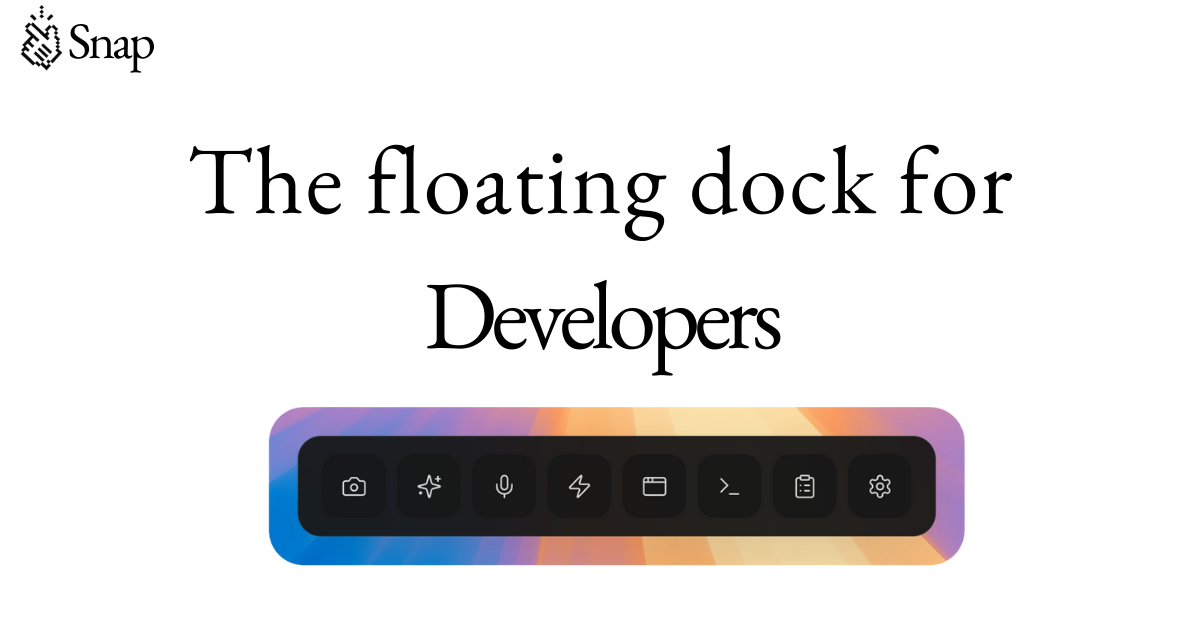
Snap is a floating developer dock designed to streamline AI coding workflows by integrating essential tools like prompt optimization, smart screenshots, voice input, and session management directly on screen.
What is Snap?
What is Snap?
Snap is the essential floating development dock built specifically for modern AI-assisted coding workflows. It eliminates the constant context switching that plagues developers by keeping critical tools—like your AI chat interface, terminal, and project setup—always accessible in a non-intrusive overlay. Used by engineers at leading tech companies, Snap ensures you never lose your flow state while interacting with tools like Claude, Cursor, or custom agents.
This powerful dock centralizes your entire development environment, allowing you to capture application states, optimize prompts before sending them to an LLM, monitor agent activity in real-time, and instantly restore complex setups with a single click. By keeping everything one dock away, Snap significantly reduces the time spent managing windows and rebuilding environments, allowing developers to focus purely on writing and debugging code.
Key Features
- Workspace Snapshots: Save your entire working context—including open editors (VS Code, Cursor), terminals, and AI sessions (Claude Code)—with one click, and restore the full setup instantly, saving up to 10 minutes every morning.
- Agent Session Manager: Monitor all active coding agents (Claude Code, Codex, Cursor Agent) across your projects in real-time. Track costs, token usage (input/output), and context size, with the ability to approve or deny agent actions inline without leaving the dock.
- Smart Screenshot & Preview Window: Use the Preview Window to visually inspect and click elements in your running application. Smart Screenshot automatically numbers every interactive element (buttons, inputs, links) in a selected area, generating precise context for AI prompts.
- Prompt Optimizer: Transform vague instructions (e.g., "fix the sidebar") into clear, structured prompts complete with relevant file paths and expected behavior, powered by Groq for sub-200ms optimization.
- Voice Input: Utilize real-time Whisper transcription to dictate commands and prompts directly into the dock, converting natural speech into clean text instantly, keeping your hands on the keyboard or mouse for coding.
- Educational Shorts: Learn while you wait. Snap plays curated, 15-60 second coding tips (CSS, React, Git) automatically during AI generation times.
- Custom Buttons: Configure one-click buttons to launch specific applications (VS Code, Terminal), run shell commands, or trigger custom scripts, fully customizable with keyboard shortcuts.
How to Use Snap
Getting started with Snap is designed to be immediate and non-disruptive to your existing setup:
- Download and Install: Download the application for macOS. Snap will install as a floating overlay that sits above any application you are currently using (VS Code, Terminal, Browser, etc.).
- Configure Integrations: Ensure Snap recognizes your primary tools. It works out-of-the-box with popular editors and AI interfaces like VS Code, Cursor, and Claude Code.
- Save Your Flow: When you reach a good working state, use the Workspace Snapshot feature to save the configuration. This captures all open windows and their locations.
- Optimize Prompts: Before sending a complex request to your AI, use the Prompt Optimizer to refine your input, or use the Smart Screenshot feature to select UI elements visually and add them directly to your prompt context.
- Monitor Agents: If you are running autonomous agents, keep the Agent Session Manager visible to track their progress, resource consumption, and approve any critical actions they propose.
Use Cases
- Complex Debugging Sessions: When debugging an issue that spans frontend UI, backend logs (Terminal), and AI assistance, use Snapshots to save the exact state of all three windows. When you return to the issue later, restore everything instantly without manual setup.
- Visual UI Refactoring: Use the Preview Window to inspect a component, make visual CSS tweaks, and immediately generate the corresponding prompt for your AI agent to implement the changes across the codebase, ensuring visual accuracy.
- Managing Autonomous Agents: For teams leveraging AI agents for tasks like boilerplate generation or refactoring, the Agent Session Manager provides necessary oversight, allowing developers to monitor token costs and approve potentially destructive actions before they execute.
- Rapid Context Switching: Developers who frequently switch between deep coding (VS Code) and documentation/research (Browser/Claude) can use Custom Buttons to instantly launch their preferred tools or run specific setup scripts with a single click from the dock.
- Voice-Driven Command Entry: During periods of intense focus or when hands are occupied, use Voice Input to quickly dictate complex search queries or prompt modifications without interrupting the flow of thought required for coding.
FAQ
Q: What operating systems does Snap support? A: Currently, Snap is available for download for macOS. Support for other operating systems is planned for future releases.
Q: How secure is the Agent Session Manager data? A: Snap focuses on providing visibility into agent activity (cost, tokens, context). Sensitive data handling adheres to best practices, and you maintain full control over approving or denying agent actions.
Q: Can I customize the tools that appear in the dock? A: Yes, you can fully customize the dock using Custom Buttons to launch any application, run shell commands, or trigger external scripts based on your specific workflow needs.
Q: How fast is the Prompt Optimizer? A: The Prompt Optimizer leverages Groq for extremely fast processing, typically returning a structured, context-injected prompt in under 200 milliseconds, ensuring minimal latency.
Q: Does Snap integrate with my existing IDE settings? A: Snap is designed to float on top of your existing environment. It does not modify your IDE settings; rather, it provides shortcuts and context capture features that work alongside tools like VS Code, Cursor, and others.
Alternatives

Biji
Biji is a versatile platform designed to enhance productivity through innovative tools and features.

Prompty Town
Prompty Town is an innovative platform that allows users to transform their links into virtual buildings, creating a unique and engaging way to share and interact with content.

AakarDev AI
AakarDev AI is a powerful platform that simplifies the development of AI applications with seamless vector database integration, enabling rapid deployment and scalability.

Planndu: Daily Task Planner
Planndu is an intuitive productivity application designed to help users organize tasks, manage projects, build routines, and enhance focus using tools like AI generation and a built-in Pomodoro timer.

Devin
Devin is an AI coding agent and software engineer that helps developers build better software faster.

imgcook
imgcook is an intelligent tool that converts design mockups into high-quality, production-ready code with a single click.