
App mirroring in Mac windows
Open Android apps in separate, resizable Mac windows with low-latency screen and audio. The product also supports trackpad gestures, Spotlight launch, and Handoff-style continuation from phone to Mac.

AndroMeld connects an Android phone to a Mac so you can run phone apps in Mac windows and manage the phone’s storage in Finder. It works locally over USB or Wi‑Fi, without an emulator or cloud account.
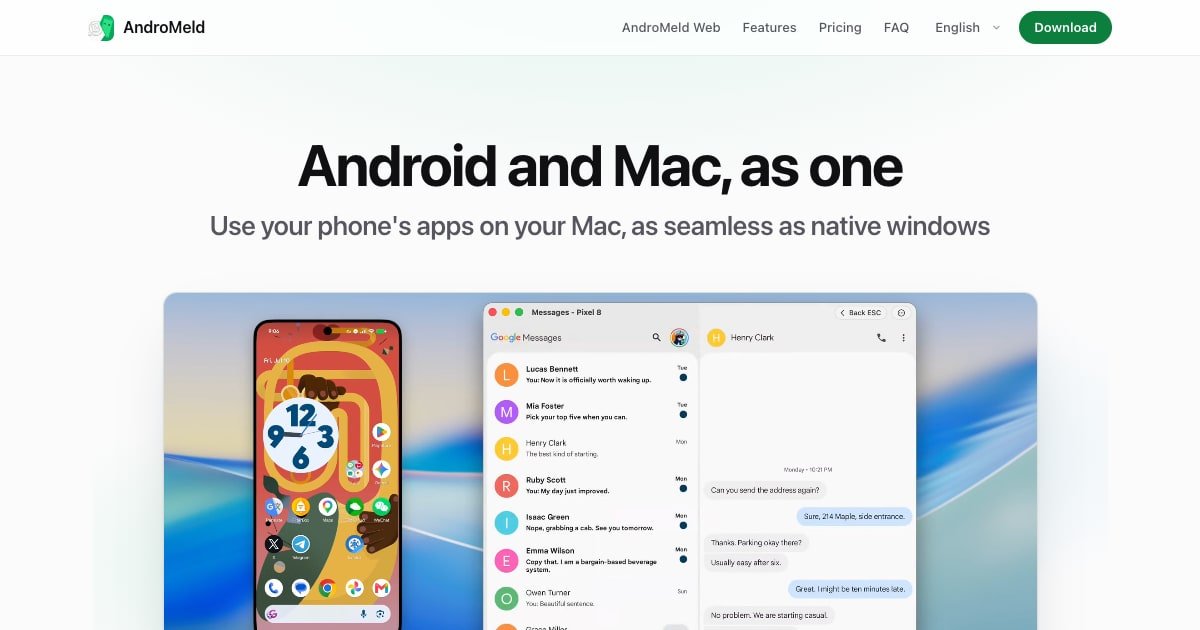
AndroMeld is a Mac app that connects an Android phone to macOS over USB or Wi‑Fi so the phone’s apps and storage can be used from the Mac. Android apps open in their own resizable windows, the phone appears in the Finder sidebar, and notifications, clipboard contents, and files can move between the two devices.
The product is not an emulator. It works with the real phone and its installed apps, uses ADB for local communication, and does not require an account or cloud service. The help center says it is designed for Apple Silicon as well as other modern Macs, with requirements including macOS 15 or later and Android 12 or later for core mirroring and notifications.
Open Android apps in separate, resizable Mac windows with low-latency screen and audio. The product also supports trackpad gestures, Spotlight launch, and Handoff-style continuation from phone to Mac.
Mount the phone in the Finder sidebar so you can browse storage, drag files, rename items, use Quick Look, and manage content with normal Mac file actions. AndroMeld is positioned as a replacement for Android File Transfer.
Keep Android notifications in macOS Notification Center and move text or images between devices with a shared clipboard in both directions.
Send Mac files into an Android app by dragging them onto the app window, and open Android links in your Mac browser. Incoming files are stored on the phone in Download/AndroMeld/.
Open APK-related packages on the Mac to inspect permissions, signature, and compatibility before installing. The help center lists APK, APKS, APKM, and XAPK support.
Use the built-in MCP server so compatible agents can see and operate the phone, with step-by-step replay of what the agent saw and tapped.
Open a messaging, social, or utility app from the phone in a Mac window while keeping the phone available for other tasks. Fusion mode can also keep the phone free while apps run in independent windows.
Connect an Android phone to Finder to browse folders, move files, rename items, and use Quick Look instead of relying on Android File Transfer or MTP tools.
Copy text or images on one device and paste them on the other, then read Android notifications in Notification Center to handle verification codes or message replies from the Mac.
Check the permissions and compatibility of an APK package before installing it, including split package formats such as APKS, APKM, and XAPK.
Connect a compatible agent to the built-in MCP server so it can observe and operate the Android phone for structured automation tasks.
Install AndroMeld from the Mac App Store, enable Developer Options on the Android phone, and connect by USB debugging or Wireless debugging. The help center says USB is plug-and-play after the first authorization, and Wi‑Fi pairing can be done by QR code, 6-digit code, or IP address.
No. The help center says AndroMeld uses your real Android phone and its installed apps, rather than an emulator or compatibility layer.
Android 12 or later is required for screen mirroring and notifications, Android 14 or later is required for Fusion mode, and macOS 15 or later is required on the Mac. A USB cable or a shared Wi‑Fi network is also required.
The free version includes every feature, but it is subject to a weekly allowance. The source says Windows already open stay usable after the allowance runs out, and transfers already in progress finish completely.
Yes. The help center says AndroMeld supports APK, APKS, APKM, and XAPK packages, and lets you inspect permissions, signature, and compatibility before installing an app to the phone.

ArtDeck is a visual reference board app for iPhone, iPad, and Mac that lets artists collect mixed reference material on one canvas and study it with ToolBox lenses. It works offline, supports optional iCloud sync, and is sold as a one-time purchase with no account required.

Goldfish is an AI memory app for macOS that helps you reply, write, summarize, and continue using the context already on your Mac. It stores memory locally and writes in your tone.

Biji es una plataforma versátil diseñada para mejorar la productividad a través de herramientas y características innovadoras.

Codex Plugins bundle reusable skills, app integrations, and MCP servers into workflows you can install in the Codex app or use from Codex CLI. They help extend Codex with connected-service tasks, reusable instructions, and shared team workflows.

MacSpoof es un cambiador de MAC para macOS: cambia o aleatoriza tu MAC Wi‑Fi para reconectar y reducir el registro de identidad en redes públicas.

Redline is a budgeting tool for Claude Code that paces sessions to stay within time, token, cost, or plan-percentage limits. It uses Claude Code’s native hooks and statusline to help sessions finish with a usable result instead of stopping abruptly.