Aurora Notch icon

Aurora Notch

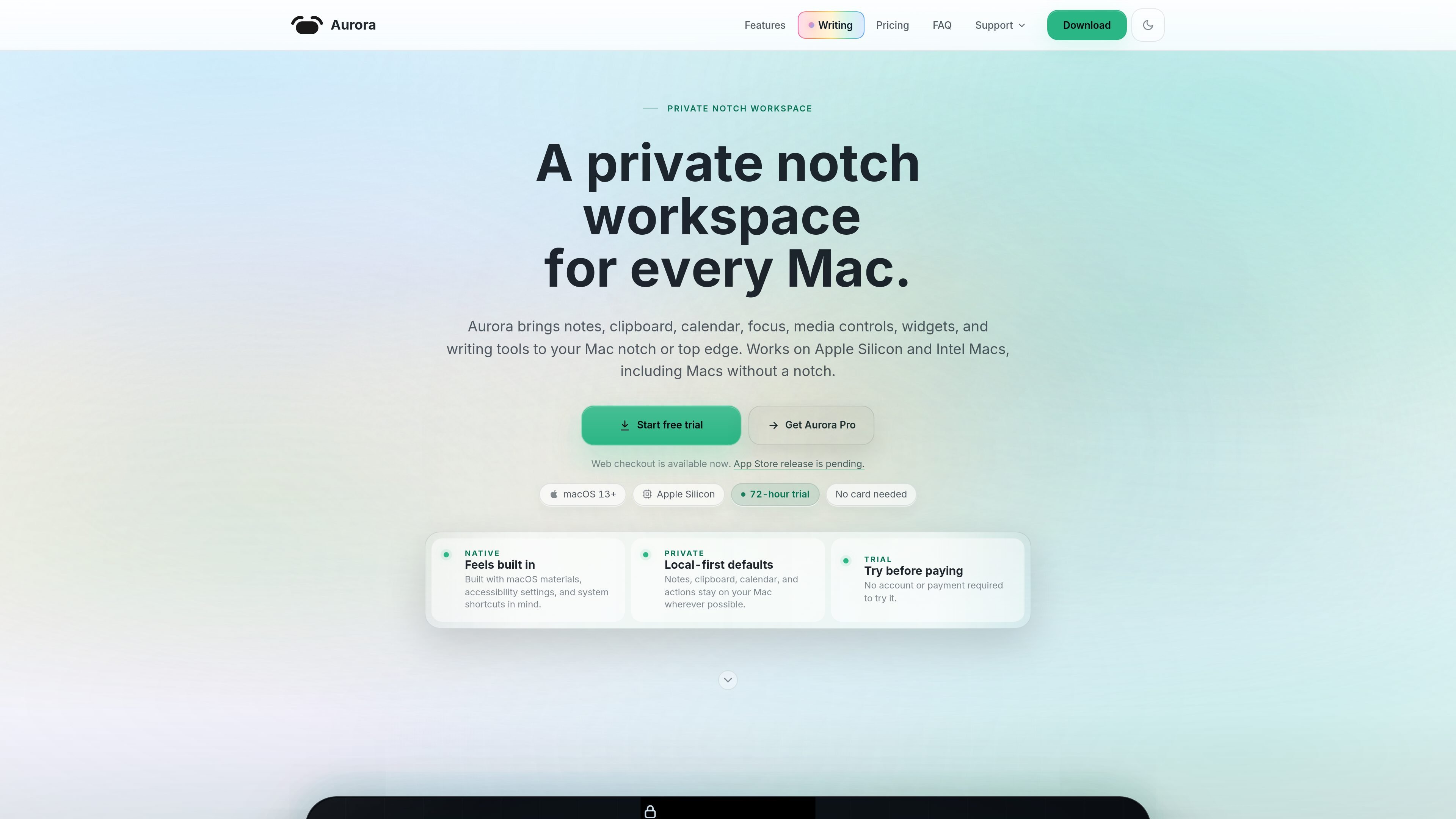
Aurora Notch is a macOS utility that turns the Mac notch or top edge into a private productivity dock. It offers a 72-hour Pro trial and supports Apple Silicon and Intel Macs, including supported Macs without a notch.

Aurora Notch

Overview

Aurora Notch is a macOS utility that turns the notch or top edge of the screen into a private productivity dock. It brings together media controls, calendar access, notes, clipboard history, focus timers, widgets, and writing tools in one native surface.

The product is designed for Apple Silicon and Intel Macs, including supported Macs without a notch. Aurora emphasizes local-first defaults, keyboard shortcuts, and a compact interface that lets users glance at information or expand only when they need more control.

Features

Media controls and expanded Now Playing

Control Spotify, Apple Music, and supported Google Chrome web playback from a compact top-edge surface, then expand into a richer Now Playing view with artwork, progress, transport controls, and source details.

Custom widget shelf

Keep Calendar, Quick Notes, battery, audio, devices, system stats, and other utilities in a customizable widget shelf that can be pinned, reordered, or removed as needed.

Calendar capture and quick planning

Check Google and iCloud calendars together, see the next event, and create new events from the top edge without switching to a full calendar app.

Quick Notes and writing help

Capture notes and use supported writing actions such as summaries, action items, and note titles when the Mac can run them, with graceful fallback when it cannot.

Focus tools and session history

Run a Focus timer or Pomodoro session, use Meeting Mode during calls, and review history after a session ends.

Clipboard history and saved clips

Store copied items, see save confirmations, and return to clipboard history with copy and reuse actions near the top edge.

Use Cases

  • Handle playback while staying in context

    Use Aurora to control music, check the current track, and expand into a fuller player without opening another app or covering your work window.

  • Keep scheduling close at hand

    Use the top-edge surface to review the next meeting, manage Google and iCloud calendars, and create an event when a quick scheduling task comes up.

  • Collect small tasks and ideas quickly

    Capture a thought, save clipboard content, or turn copied text into a note while staying in the app you are already using.

  • Track focused work sessions

    Start a Pomodoro or focus session, keep a timer visible, and review session history after deep work or meetings.

  • Build a personal utility shelf

    Arrange widgets such as audio output, devices, file tray, and system stats into a shelf that fits your workflow.

Pros and Cons

Pros

  • Offers a 72-hour Pro trial with no account and no card required.
  • Combines several everyday Mac utilities into a single top-edge workspace.
  • Supports both Apple Silicon and Intel Macs, including Macs without a notch.
  • Uses the same feature set across Aurora Pro Monthly and Aurora Pro Lifetime.
  • Includes direct Google Calendar support, clipboard history, focus tools, and writing actions when supported.

Cons

  • The trial ends after 72 hours, so continued use of Pro surfaces requires a paid license.
  • Aurora Pro is limited to up to 2 Macs per license unless a custom license is arranged.

FAQ

Do I need an account or card to try Aurora?

No. Aurora’s 72-hour trial starts on first launch and does not require an account or payment card. After the trial, Pro features require either Aurora Pro Monthly or Aurora Pro Lifetime.

Which Macs does Aurora support?

Aurora is built for macOS 13+ and supports Apple Silicon and Intel Macs. The home page also says it works on Macs with or without a notch, including supported Macs without one.

What is the difference between the monthly and lifetime plans?

Aurora Pro Monthly and Aurora Pro Lifetime unlock the same features. The main difference is payment structure: monthly billing versus a one-time purchase.

How does activation and device use work?

Paid licenses activate with your purchase email and license key in Aurora’s Settings > License area. A paid license can be used on up to 2 Macs per license, and custom licensing is available if you need more than two Macs.

What is Aurora’s refund policy?

Refund requests are reviewed case by case. The refund policy says to contact support within 14 days if a technical issue prevents you from using Aurora.

Quick Facts

Category
Productivity
Platform
macOS 13+
Supported hardware
Apple Silicon and Intel Macs
Primary workspace
Mac notch or top edge
Pricing model
72-hour trial, then monthly or lifetime Pro
Website
auroranotch.com