
Context-aware dictation
Invoke Loqua with a global shortcut in most apps and text fields, then insert speech at the cursor as polished text. It removes filler words, repetition, and abandoned phrases while refining wording in real time.

Loqua is a voice-first desktop app for macOS and Windows that turns natural speech into polished, structured text across most apps. It also supports translation, voice editing, screen-based questions, and selected hands-free desktop actions.
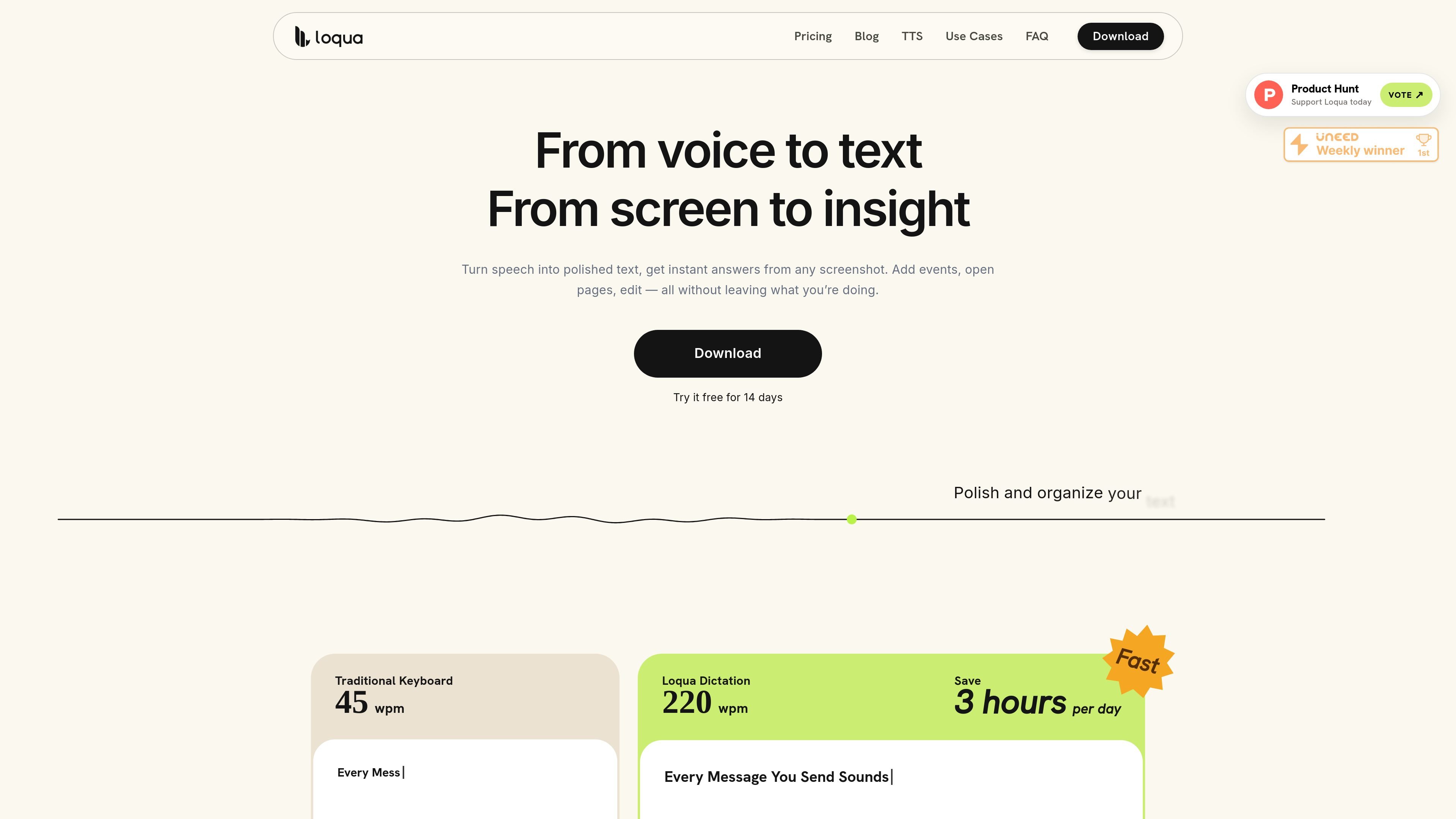
Loqua is a voice-first desktop productivity app for macOS and Windows. It turns natural speech into polished text in most apps and text fields, using a shortcut-activated workflow that places the result at the cursor.
Beyond dictation, Loqua supports translation, voice-based editing, screen questions, and selected desktop actions. Its Capture to Ask feature lets users select part of the screen and request an answer, analysis, translation, or summary without switching applications.
Invoke Loqua with a global shortcut in most apps and text fields, then insert speech at the cursor as polished text. It removes filler words, repetition, and abandoned phrases while refining wording in real time.
Loqua can infer headings, lists, hierarchy, and other structure from natural speech, reducing the need to dictate formatting commands.
Speak in one language and produce text in another, with translation support covering 100+ target languages.
Select text and use your voice to rewrite, rephrase, or adjust its tone, or ask questions and receive answers in a popup without leaving the current app.
Capture a selected area of the screen and ask about text, charts, dashboards, error messages, reports, slides, diagrams, or formulas. Screenshots are stored locally and are only captured when the user triggers the flow.
Use supported voice commands for calendar tasks, app workflows, web navigation, and Read Aloud. Read Aloud works with selectable text across desktop apps; its current in-app language is English.
Draft emails, messages, documents, notes, and long-form text directly in the app where the work is happening, without repeatedly switching to a separate dictation window.
Speak rough ideas, project requirements, status updates, or documentation and let Loqua remove verbal clutter and infer structure for a more usable first draft.
Select a draft, post, note, or other editable text and request a rewrite, rephrasing, or tone adjustment by voice while keeping the selected context in place.
Capture a chart, table, error message, dashboard, slide, or other visible content and ask for an explanation, translation, summary, or analysis without leaving the current workflow.
Use voice actions for supported calendar tasks, app workflows, web navigation, reminders, and Read Aloud when listening is more convenient than reading. Supported actions vary between Mac and Windows.
Loqua supports macOS, including Apple Silicon and Intel Macs, and 64-bit Windows devices. It is not currently available for iOS or Android.
Download the .dmg on Mac and drag Loqua into Applications, or run Loqua-Setup.exe on Windows. Then open the app, sign in with Google or email, and complete onboarding.
No. Loqua currently requires an internet connection for speech processing and related AI features. Dictation history and screenshots are stored locally on the device.
Loqua works with most apps and text fields. Some applications restrict direct text insertion; in those cases, the transcription remains available in Loqua History.
A new account starts with a 14-day Loqua Pro trial. After the trial, it moves automatically to the Free plan, which has a weekly 5,000-word dictation limit. Pro provides unlimited dictation.

SpeakoFlow is a free, open-source desktop voice-to-text app for Windows, macOS, and Linux. It supports dictation into any app, voice-driven writing with Flow, cleanup, translation, and a screen-aware assistant.

Sanota is an app that turns spoken memories, reflections, and interviews into clear written stories. It supports personal storytelling, family history, and shared memories, with guided prompts and subscription pricing.

Carbon Voice is an asynchronous voice messaging app for teams and individuals, with transcripts, AI catch-up, and cross-device access. It helps people and agents communicate without needing a live call.

Dictro is a private AI dictation app for Mac that turns speech into polished text in any editable app. It works on Apple Silicon Macs, processes locally by default, and can also run in an optional cloud Fast Mode.

Goldfish is an AI memory app for macOS that helps you reply, write, summarize, and continue using the context already on your Mac. It stores memory locally and writes in your tone.

Flunkey is a voice-first productivity layer for Windows that converts speech into text, AI-assisted outputs, and remembered context. It is built for users who want to capture ideas and actions without leaving the app they are working in.