
New-tab command center
Replaces Chrome’s new-tab page with a project dashboard so the information you check repeatedly is available the moment you open a tab.

Operations is a Chrome new-tab dashboard for managing multiple projects, with GitHub activity, project links, notes, bookmarks, and a local credential vault. It is built for developers, product managers, founders, consultants, and agency leads who want project context in one place.
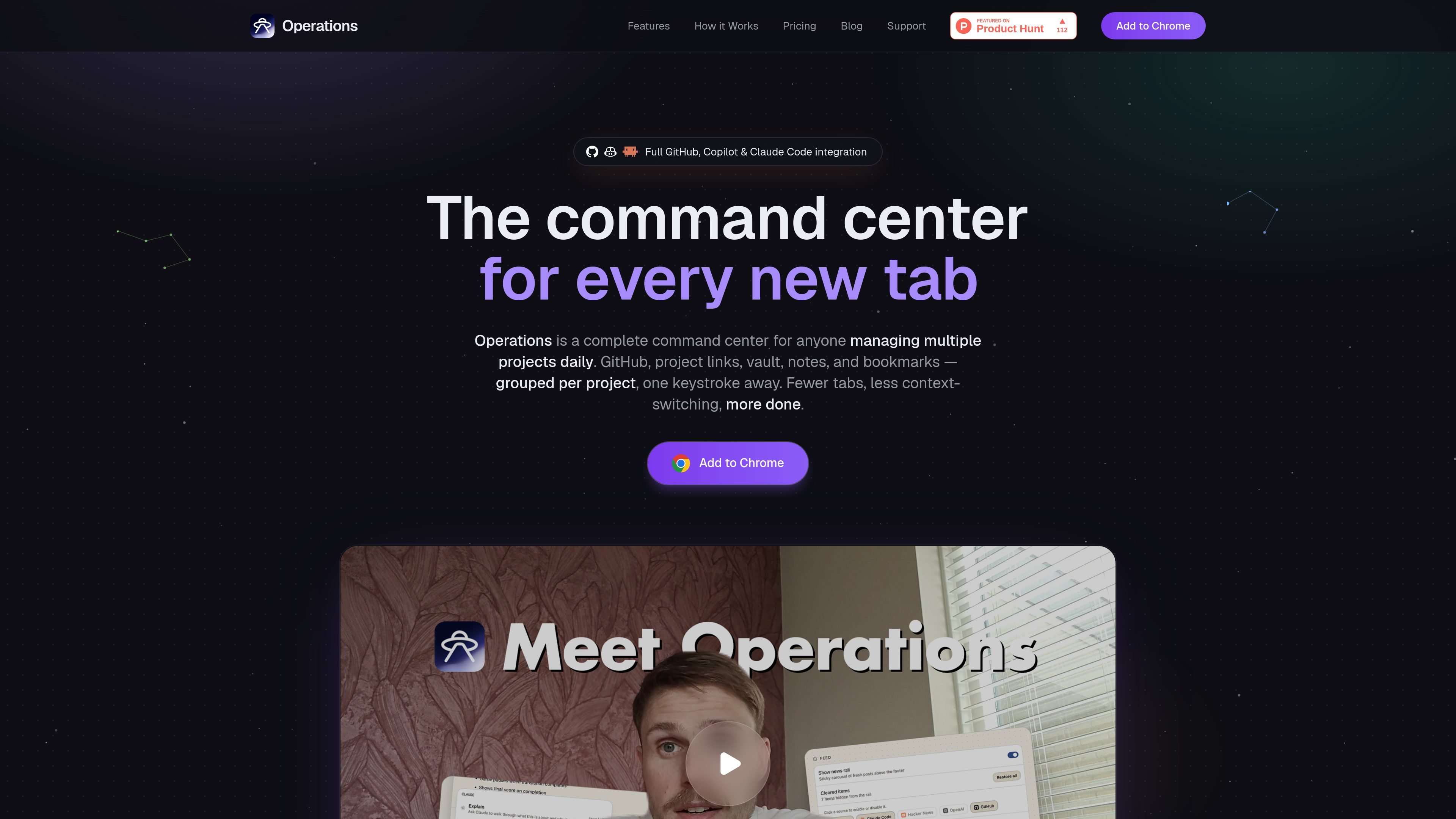
Operations is a Google Chrome extension that turns the new-tab page into a project dashboard for people who manage several initiatives at once. It brings GitHub pull requests and issues, project links, a credential vault, notes, and bookmarks into one place, grouped by project so the next thing you need is available as soon as you open a tab.
The product is aimed at developers, product managers, founders, consultants, and agency leads who need to switch between many workstreams without hunting through scattered tabs. Data stays in Chrome’s local storage on the device, and the dashboard state can be exported or imported as JSON when you need to move it or back it up.
Replaces Chrome’s new-tab page with a project dashboard so the information you check repeatedly is available the moment you open a tab.
Surfaces open pull requests and issues across organizations, plus draft PRs and filters for attention-focused review.
Groups repositories, live URLs, staging links, documentation, notes, and bookmarks under each project so related work stays together.
Stores tokens, passwords, and API keys locally in a per-project vault, with copy actions that do not reveal the secret on screen.
Keeps project notes inside the dashboard, supports basic markdown, and archives notes instead of deleting them.
Provides an export and import path for the full dashboard state, including projects, notes, bookmarks, vault, and preferences, as a single JSON file.
Open a fresh tab to see the pull requests and issues that need attention, grouped by organization and repository instead of scattered across browser tabs.
Keep live URLs, staging links, documentation, notes, and bookmarks attached to one project card so client or internal work is easier to navigate.
Store API keys, tokens, and passwords in a per-project vault and copy them without exposing the value on screen.
Use the bookmarks carousel and toolbar popup to capture a page quickly, then file it under the right project for later reference.
Export the whole dashboard state as JSON when moving between machines or Chrome profiles, or when you want a portable backup.
Operations installs as a Chrome extension. Open the Chrome Web Store listing, choose Add to Chrome, and open a new tab to see the dashboard.
Open the settings panel from the dashboard header and paste a GitHub personal access token. The source says a fine-grained PAT scoped to the repos you care about is enough, and the token stays in Chrome storage on your device.
The extension replaces the new-tab page with a dashboard that shows GitHub activity, project cards, notes, bookmarks, and a vault grouped by project. The toolbar popup adds quick actions such as bookmarking the current page, jumping to a saved project, or opening the vault.
The dashboard state can be exported and imported as a single JSON file. The support pages also say the vault and full Operations state can be restored on another machine or Chrome profile by importing that file.
Operations is designed for individual Chrome profiles, with data stored locally in chrome.storage.local. The pricing page says Personal plans can be used on up to 3 devices per account, while Enterprise is billed to an organization with centralised billing and onboarding support.
runevr is a connected workspace for creative teams that combines boards, media review, chat, recordings, drive, calls, and AI agents in one room-based environment. It is designed to reduce tool switching and keep project context together.

PromptScout tracks how ChatGPT, Gemini, Google AI Overviews, and Perplexity mention your brand or competitors, then pairs those results with source analysis and website audits. It helps teams decide what to fix in content, positioning, or site readiness next.

Goldfish is an AI memory app for macOS that helps you reply, write, summarize, and continue using the context already on your Mac. It stores memory locally and writes in your tone.

Lasso is an ecommerce product data platform for enriching catalog records, processing supplier files, generating product content, and monitoring competitors. It combines a web app with a REST API, SDK, and MCP server for teams and developers.

ArtDeck is a visual reference board app for iPhone, iPad, and Mac that lets artists collect mixed reference material on one canvas and study it with ToolBox lenses. It works offline, supports optional iCloud sync, and is sold as a one-time purchase with no account required.

Biji es una plataforma versátil diseñada para mejorar la productividad a través de herramientas y características innovadoras.