
Live local-server inventory
Scans listening TCP ports every two seconds and groups recognised web servers, databases, containers and services with their project folder, command, PID, uptime, CPU and memory use.

Portlivo is a macOS menu bar app for developers who need to find and manage local servers and TCP ports. It identifies the process and project behind a listener, then lets users inspect, restart, stop, tail logs, or share supported services.
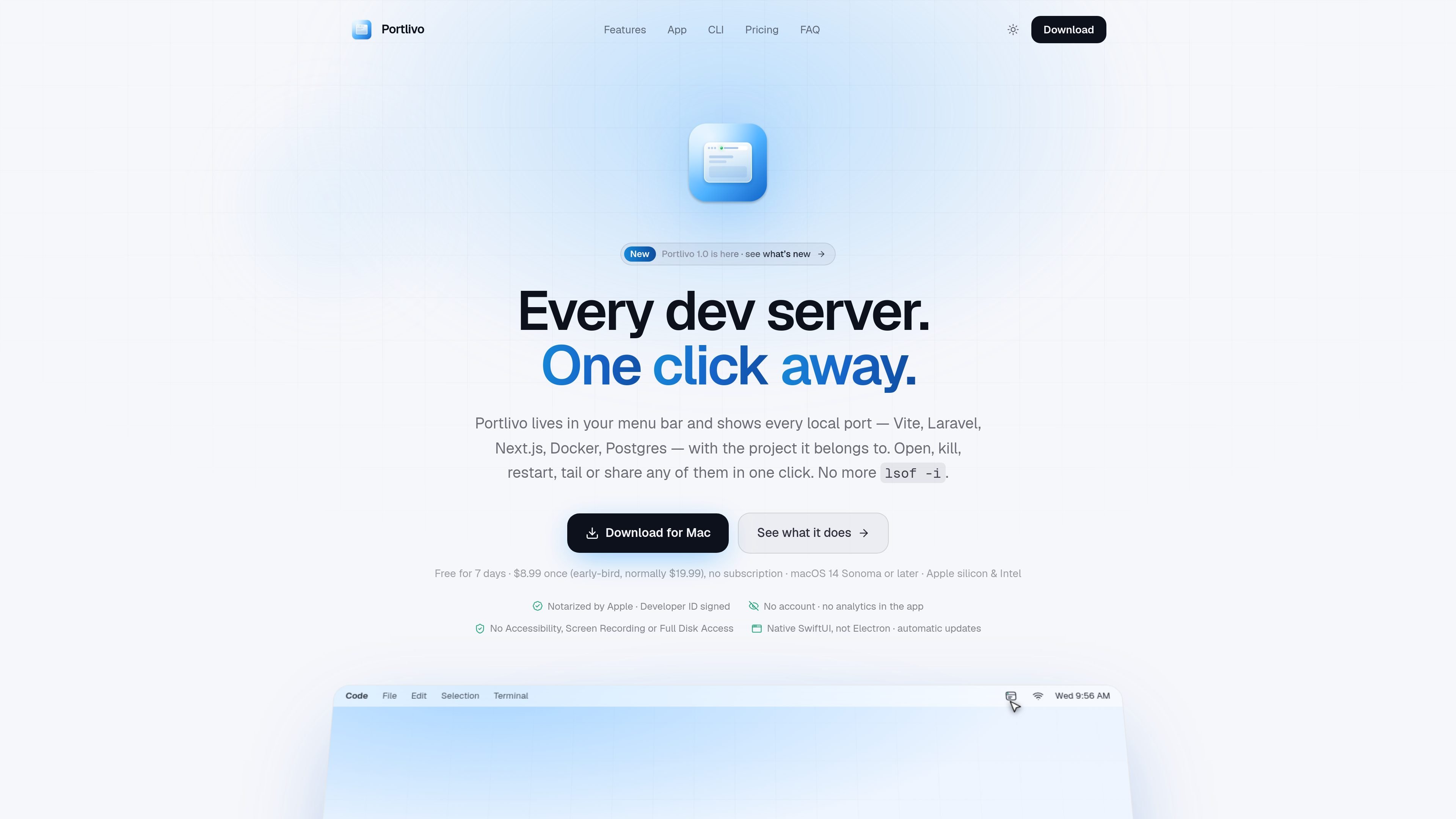
Portlivo is a macOS menu bar app for finding and managing local servers and the TCP ports they use. It turns process-level port information into named entries that can be associated with a project, command, application of origin, status and resource use.
It is designed for developers running several local services at once, including framework servers, databases, Docker containers and Homebrew-managed services. From the menu bar or a full window, users can identify an active listener and open, restart, stop, inspect, tail logs or share it without relying solely on terminal commands.
Scans listening TCP ports every two seconds and groups recognised web servers, databases, containers and services with their project folder, command, PID, uptime, CPU and memory use.
Probe web servers for status and response time, use a custom health path, and view page thumbnails while the main window is open.
Open a server, copy its address, restart it with its original arguments and environment, or stop it after Portlivo re-checks the PID. The command palette requires a deliberate double Return to kill.
Tail application logs, Docker logs, or commands launched by Portlivo in the inspector, with colour-coded output for scanning current activity.
Create stacks from a project folder. Portlivo can identify common project commands and definitions, including package scripts, Procfiles, Rails, Django, Go and Compose, then start the set together.
Share a LAN address by QR code or start a public HTTPS tunnel through cloudflared or ngrok. Network-exposed listeners are marked in the interface.
When a development command reports EADDRINUSE, search the affected port to identify its holder, then stop it or use the notification action to kill the holder and retry the command.
Use project stacks to bring up related web, worker and supporting commands together, then monitor each service's state and logs from one place.
Identify published container ports by container name rather than docker-proxy, inspect streaming Docker output, and act on the container itself.
Open a LAN server on a phone using a QR code, or deliberately create a public HTTPS link through cloudflared or ngrok when remote access is required.
Filter servers started by Claude Code or Codex, or bring Cursor, VS Code, iTerm2 or Warp to the foreground from the server entry that originated there.
Portlivo supports macOS 14 Sonoma or later on both Apple silicon and Intel Macs. It is a native SwiftUI application and is signed and notarized by Apple.
Open the menu bar panel or use the default Option-Command-P shortcut, then search for the port number. Portlivo shows the listening process, project folder and command; it can also stop the current holder and retry a failed start command.
Yes. It identifies published container ports by container name and image, can restart or stop the container, and streams Docker logs in its inspector. It also detects Homebrew or launchd services such as Postgres, MySQL and Redis.
Portlivo offers a 7-day trial followed by a one-time licence with free updates. Licences are available for 1, 3, or 5 Macs, and the multi-Mac licences may be used across a team.

PromptScout tracks how ChatGPT, Gemini, Google AI Overviews, and Perplexity mention your brand or competitors, then pairs those results with source analysis and website audits. It helps teams decide what to fix in content, positioning, or site readiness next.

Sleek Analytics is a privacy-friendly web analytics tool with real-time visitor tracking, Core Web Vitals, and revenue attribution. It helps site owners understand traffic and conversions without cookie banners or a heavy setup.

MacSpoof es un cambiador de MAC para macOS: cambia o aleatoriza tu MAC Wi‑Fi para reconectar y reducir el registro de identidad en redes públicas.

ClawTick is an AI agent automation platform for scheduling jobs from the CLI, dashboard, or REST API. It is aimed at developers and teams running LangChain, CrewAI, webhook, or custom agent workflows that need monitoring, alerts, and logs.

OpenFlags is an open-source, self-hosted feature flag platform for modern JavaScript teams. It supports local evaluation, targeted rollouts, and controlled launches while keeping flag data in your own infrastructure.

SecAIQ Watch is a local, read-only dashboard for monitoring AI assistants, coding agents, local models, and MCP servers on macOS, Linux, and Windows. It shows network activity, permissions, findings, file access, and token usage without sending observations to a cloud service.