
In-app reply drafting
ToneBird drafts replies in readable reply fields in apps such as Gmail, Slack, WhatsApp, iMessage, Discord, WeChat, Lark, and X, so users can work in their existing communication tools.

ToneBird is an AI reply assistant for macOS and Windows that drafts responses in supported email and chat apps using conversation history, relationship context, and connected documents. Users choose, edit, review, and send the draft themselves.
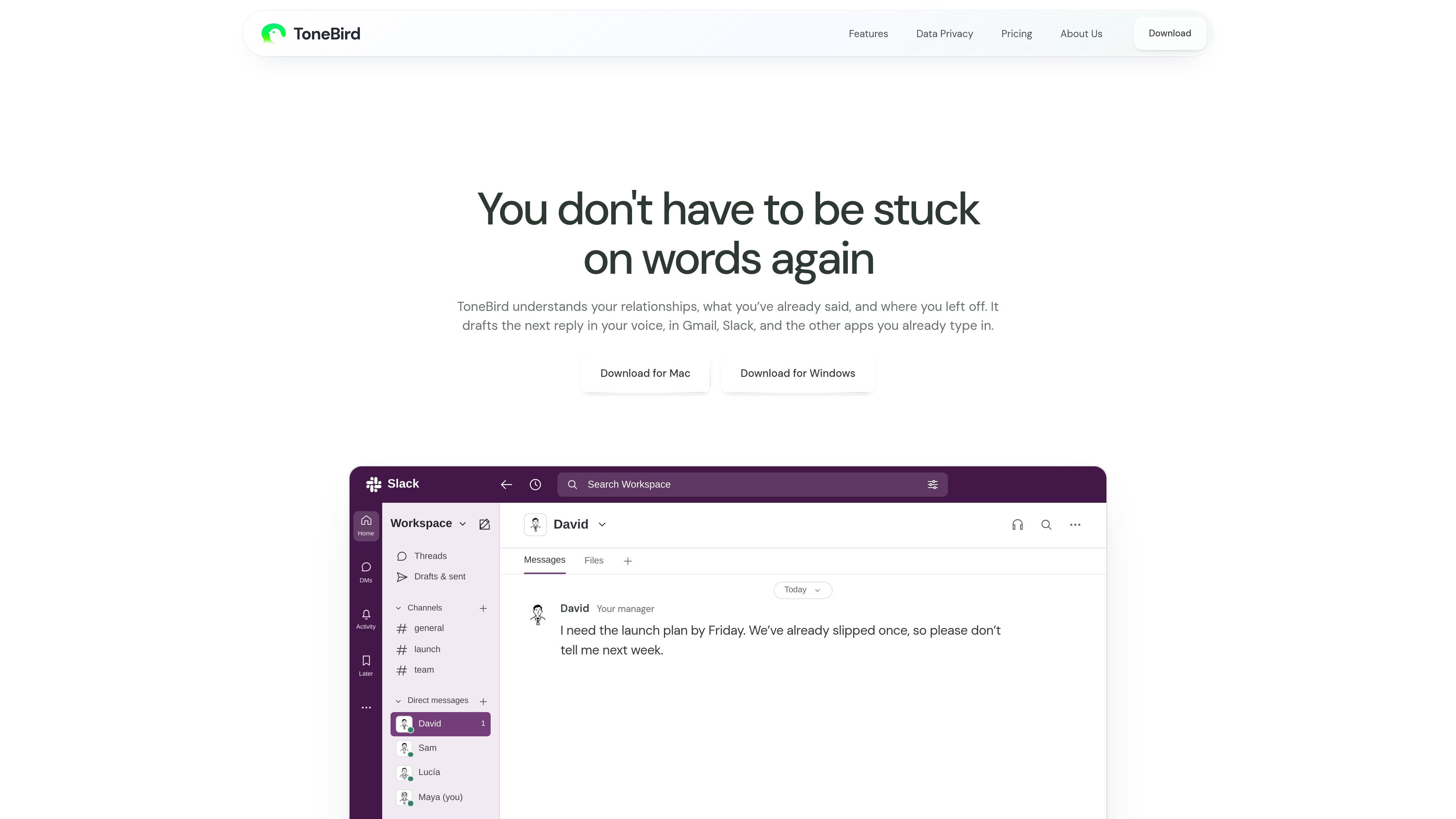
ToneBird is an AI reply assistant for email and chat applications. It drafts suggested responses using the person you are addressing, earlier conversations, relevant commitments, and—when connected—facts from documents or a knowledge base.
The workflow stays inside the communication app: open a readable reply field, invoke ToneBird, choose one of three drafts, edit it if necessary, and insert it into the box. ToneBird does not send messages on the user’s behalf, leaving the final review and send action in the host app. It is available for macOS and Windows and supports multilingual replies, with the expectation that users check names, dates, numbers, and meaning before sending.
ToneBird drafts replies in readable reply fields in apps such as Gmail, Slack, WhatsApp, iMessage, Discord, WeChat, Lark, and X, so users can work in their existing communication tools.
The assistant uses earlier conversations, commitments, preferred forms of address, and the current relationship context to shape a reply for the person and situation.
Connected documents or a knowledge base can provide relevant facts and terms, such as an agreed project price, for inclusion in a draft.
Users choose among three suggested drafts, adjust one with Tweak, and insert it into the original reply field for review.
ToneBird can produce multilingual replies and offers wording adjustments such as more precise, warmer, or humorous alternatives in its drafting workflow.
The tone profile, person cards, learned corrections, and usage counts are stored on the device. Learned adjustments require approval before they change how ToneBird writes.
When a customer raises a renewal concern or reports a recurring problem, ToneBird can use the relationship history and relevant facts to draft an empathetic response with a concrete next step or timing.
For deadline and scope discussions, the assistant can recall earlier commitments and help distinguish the agreed deliverable from an additional request before the user sends a reply.
A user can connect a proposal or other knowledge source so the draft includes a factual detail such as an agreed price or project term, which can then be checked in context.
ToneBird can adapt wording for different relationships and channels, such as a more detailed response to a client and a shorter update to a teammate.
ToneBird is available for macOS and Windows. On a Mac, enable ToneBird under System Settings → Privacy & Security → Accessibility so it can recognize readable reply fields. Then open a conversation, click in the reply box, and use the ToneBird trigger.
Click inside a supported reply field and open the ToneBird bubble, or use the keyboard trigger shown by the app. Choose one of three drafts, use Tweak if needed, and select Insert to place the text in the reply box. Review it and send it with the app’s own send control.
ToneBird can work beside readable reply fields in Gmail, Slack, WhatsApp, iMessage, Discord, WeChat, Lark, and X. Support depends on the specific app and field, and some fields may not be readable.
No. ToneBird inserts a draft into your reply box but does not send messages. You review the wording and use the host app’s send button.
ToneBird supports multilingual replies, but you should review names, dates, numbers, and the meaning of the draft before sending. Reply generation may send the required context to an external model provider, even though the tone profile, person cards, learned corrections, and usage counts are stored locally.

Liam is an AI copilot for managing inboxes, writing replies, prioritizing email, and scheduling meetings. It is offered free for individuals, with custom pricing for teams and enterprise.

Sequenzy is an email marketing and automation platform for SaaS teams, stores, and AI teams. It combines campaigns, event-driven workflows, transactional email, segmentation, and revenue attribution, with developer and AI-agent access.

Dirac is an AI email assistant that prepares a morning brief, prioritizes important threads, and drafts replies in your voice. It is positioned for founders and other busy professionals who use Gmail and want to reduce morning inbox triage.

AgentMail is an email inbox API for AI agents that lets developers create, send, receive, and search messages through REST APIs and SDKs. It supports agent workflows such as threaded replies, verification, customer support, scheduling, and inbox-based approvals.

Volanea is an email platform for transactional email, campaigns, and lifecycle automation. It combines sending, tracking, and deliverability monitoring on one contact graph, with a free plan and paid monthly credit tiers.

roastme.gg is a pay-to-play AI roasting site where users submit their own X handle or website, choose how much to pay, and get a public roast ranked on a leaderboard by amount paid.