FindDiskKiller icon

FindDiskKiller

FindDiskKiller is a native macOS disk activity monitor that helps identify which app, file path, or storage device is behind sustained reads and writes. It combines per-process I/O, file tracing, and drive-health evidence while keeping monitoring local on the Mac.

FindDiskKiller

Overview

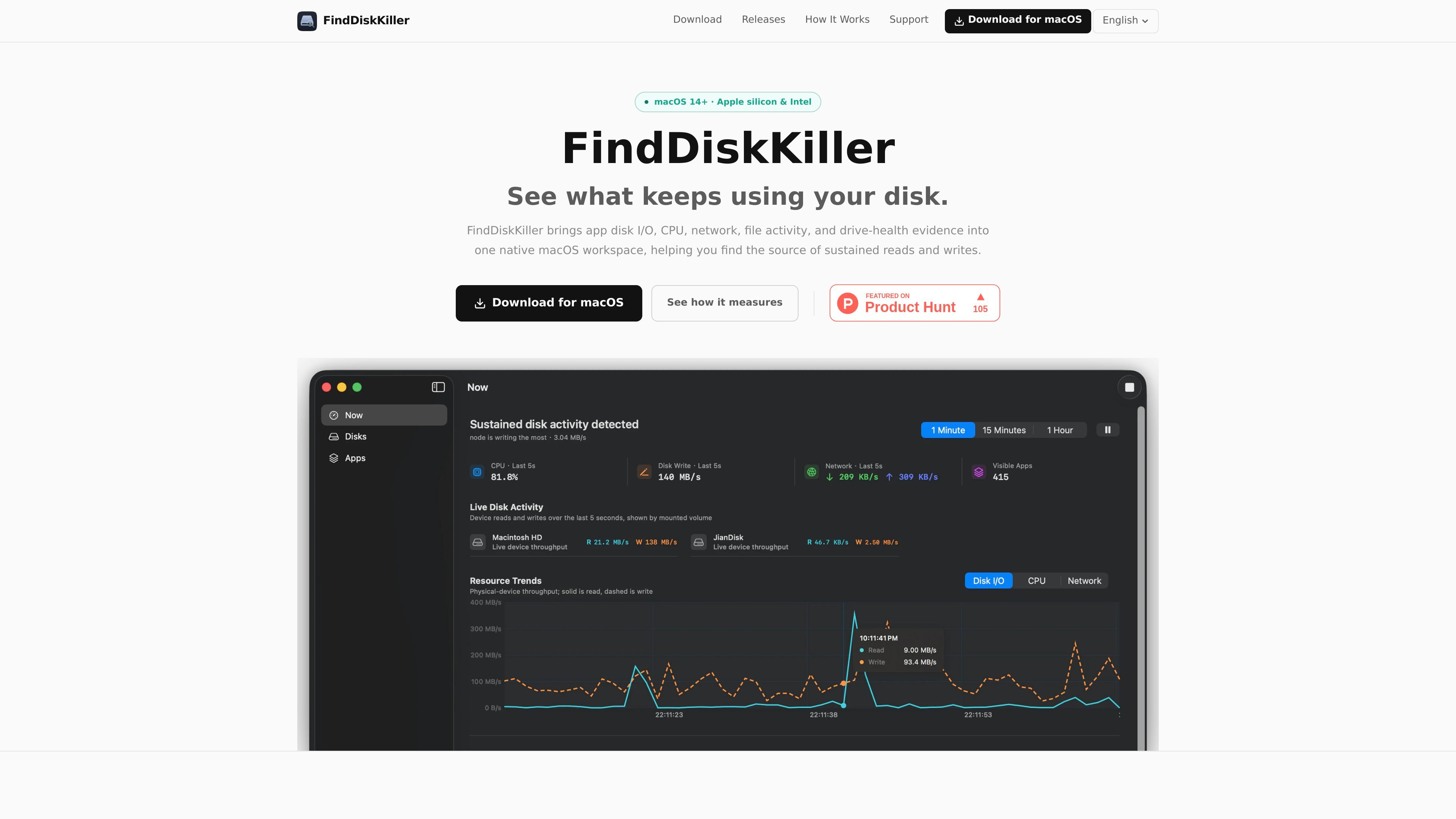
FindDiskKiller is a native macOS utility for identifying what is keeping a disk busy. It brings app-level disk I/O, CPU, network activity, file activity, and drive-health evidence into a single workspace so you can follow sustained reads and writes from the first visible signal to the app, files, and device behind it.

The product distinguishes between process-level I/O, physical device throughput, and file-layer tracing. That separation matters because cache behavior, APFS copy-on-write, snapshots, and other system activity can make disk numbers look different at each layer; FindDiskKiller shows those differences instead of flattening them into one metric.

Capabilities

App activity in one view

See per-process disk reads and writes alongside CPU and network sent and received values, with sortable columns and adjustable widths. This makes it easier to compare one app’s activity across multiple resource types at the same time.

Targeted file activity tracing

Open file locations, inspect recently modified directories, and start on-demand tracing for a specific path to see which process reads or writes it. File tracing ends cleanly when you stop it.

Device and volume throughput

View physical device throughput for mounted volumes using familiar volume names instead of low-level identifiers. The app separates device-level throughput from per-process I/O so the two measurements are not treated as the same thing.

Drive health evidence

Check drive-health fields such as temperature, lifetime reads and writes, wear level, spare capacity, and power-on hours, when the hardware reports them. Unavailable fields are shown explicitly rather than being treated as zero.

Time-range context for activity

Use a 5-second rate, cumulative totals, peak values, and sustained-pattern views to distinguish short spikes from ongoing activity. The product description says it is built to follow sustained disk activity from signal to source.

Local-only monitoring

Work on the Mac itself with local processing and no data upload. The site states that no process names, file paths, disk serial numbers, monitoring history, ads, telemetry, or third-party tracking SDKs are sent off-device.

Use cases

  • Investigate a busy Mac

    Use the app when a Mac feels slow and you want to identify which process is driving persistent reads or writes, rather than chasing short spikes in a general-purpose monitor.

  • Follow activity in a specific location

    Trace a specific folder or file path when you already know the area of interest and want to see which process is touching it. This is useful for logs, databases, media libraries, or other paths that are repeatedly accessed.

  • Assess external-drive activity

    Check mounted external drives when you need to know whether a USB drive or enclosure is actively transferring data. The app shows device throughput and can also surface cases where SMART or NVMe health data is unavailable.

  • Correlate app resource usage

    Compare disk, CPU, and network behavior for one app in a single view when you want to understand whether a background sync, download, or upload is contributing to disk pressure.

  • Inspect reported drive-health data

    Review drive-health fields when troubleshooting a storage device and you want temperature, wear, lifetime writes, or power-on-hour evidence that the hardware exposes.

Pros and Cons

Pros

  • Combines app I/O, file activity, network, CPU, and disk health in one workspace.
  • Shows unavailable data explicitly instead of implying zero activity.
  • Keeps monitoring local on the Mac and does not upload process or file details.
  • Supports mounted external drives at the device-throughput level.
  • Offers on-demand tracing rather than forcing continuous file logging.

Cons

  • File and directory tracing can require a background component and, for protected locations, Full Disk Access.
  • Some SMART/NVMe health fields are unavailable on certain external enclosures or connection types.
  • The app is limited to macOS 14 or later.

FAQ

How is FindDiskKiller different from Activity Monitor?

FindDiskKiller combines per-process disk I/O, CPU, network, and file activity with device health data in one macOS workspace. Activity Monitor shows some of the same process metrics, but it does not combine those signals with targeted file tracing and SMART/NVMe evidence.

Does it work with external drives?

Yes. It can show throughput for mounted volumes, including external drives. SMART/NVMe health fields depend on the drive, enclosure, and connection type, so some external USB enclosures may not expose those attributes.

What permissions does it need?

Basic monitoring works without admin privileges. When you start file or directory access tracing, macOS may prompt for approval of a background component, and tracing protected locations may require Full Disk Access.

Is any monitoring data uploaded?

No. The app says monitoring, analysis, and display happen on your Mac, and that process names, file paths, disk serial numbers, and monitoring history are not uploaded.

How do I remove it completely?

Quit the app, remove the background component in System Settings > General > Login Items & Extensions, and then drag the app from Applications to Trash. The support page also says no kernel extensions, launch daemons, or launch agents are installed.

Quick Facts

Category
macOS disk activity monitor
Platform
macOS 14+; Apple silicon and Intel
Processing
Local only; no data uploaded
Primary use
Finding the source of sustained disk reads and writes
Source domain
finddiskkiller.com
Version shown
1.1.1