
Wireless Mac control
Use an iPhone as a wireless controller for a Mac over the local network. The connection is automatic once both apps are installed and on the same Wi‑Fi.
PhoneDeck turns an iPhone into a wireless controller for a Mac, with tiles for launching apps and triggering selected system controls. It is free, runs over local Wi‑Fi, and requires no extra hardware.
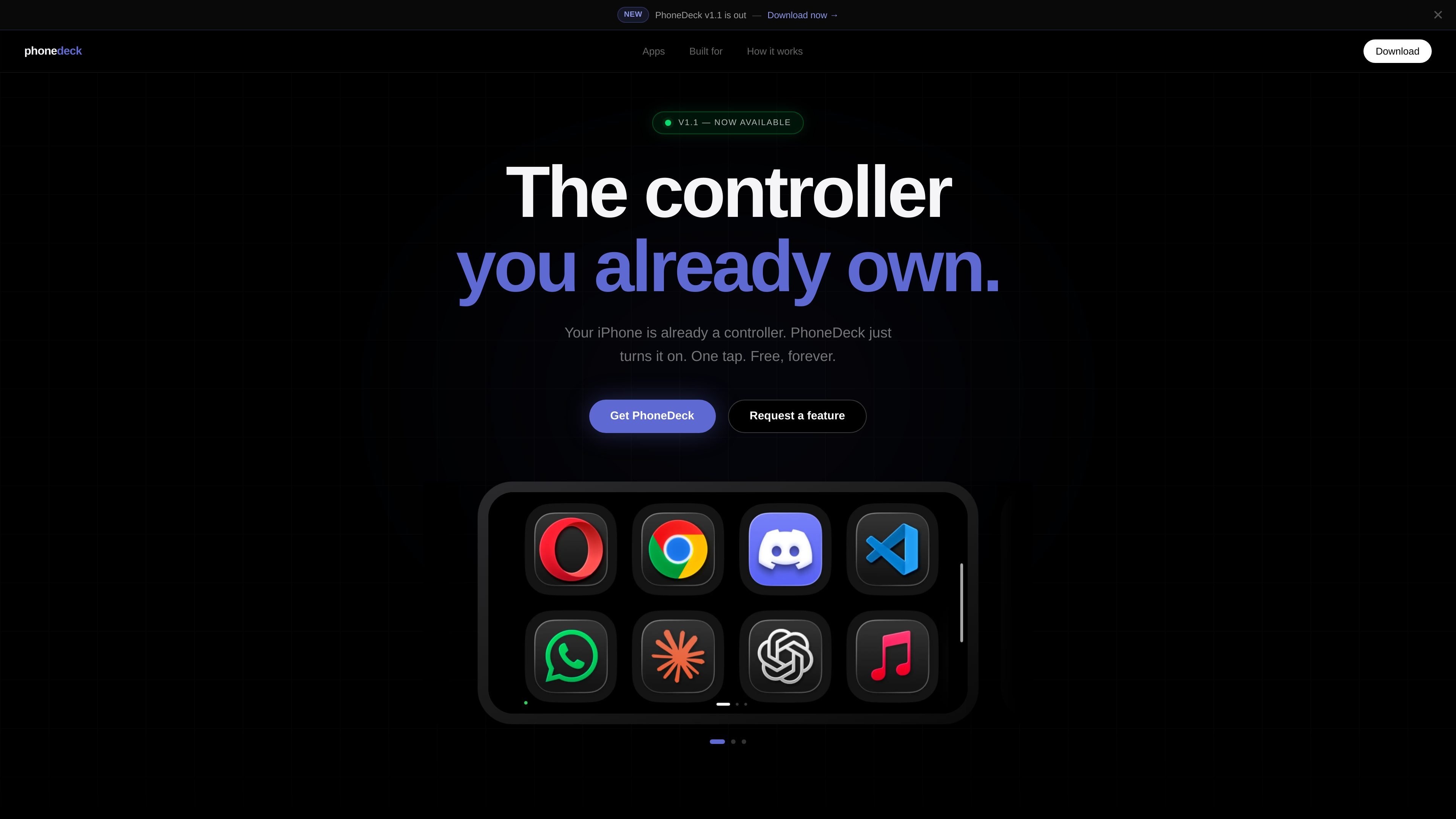
PhoneDeck is a Mac controller app that turns an iPhone into a wireless remote for launching apps and triggering selected system controls. It is positioned as a software-only alternative to dedicated hardware controllers, using the iPhone many people already have.
The workflow is split between a Mac app and an iPhone app. The Mac side acts as the command center for arranging pages, apps, and controls, while the iPhone displays those tiles and sends taps back to the Mac over local Wi‑Fi.
According to the site, setup is intentionally simple: install both apps, keep them on the same network, and connect automatically without a PIN or pairing code. PhoneDeck says the connection stays local, with no cloud account or telemetry, and the core product is free forever.
Current system requirements listed on the site are iOS 17+ on iPhone XS or newer and macOS 14+ (Sonoma and above). The homepage also notes that a Mac App Store version is coming soon.
Use an iPhone as a wireless controller for a Mac over the local network. The connection is automatic once both apps are installed and on the same Wi‑Fi.
Tap a tile on the iPhone to launch a matching Mac app instantly. The Mac app organizes apps into pages and the iPhone mirrors those tiles.
Create separate pages for different workflows such as design, development, or music, and swipe between them on the iPhone.
Drag apps and controls into tiles from the Mac app. The site also says there is a full app library and live iPhone preview while you build layouts.
Place system controls such as volume, brightness, keyboard backlight, media playback, dictation, and screenshots on any page as tiles.
Lay the iPhone flat for a landscape tile layout. The page says the tiles rotate with the device when it is placed beside the keyboard.
Keep frequently used apps on separate pages for design, development, music, or other recurring workflows, then open them from the iPhone without returning to the Mac keyboard and trackpad.
Use tiles for volume, brightness, media playback, screenshots, dictation, and keyboard backlight when you want quick access to system actions from the desk beside your screen.
Place the iPhone beside the keyboard in landscape mode and use it as a compact control surface that stays visible but out of the way while you work.
Set up a minimal controller without buying dedicated hardware, since the product is designed around the iPhone you already own.
Keep the Mac app open as a layout editor with live preview while arranging apps and controls, which is useful when refining page structure before using it day to day.
You install the PhoneDeck app on your iPhone and on your Mac, then connect both devices on the same Wi‑Fi network. The site says PhoneDeck finds your Mac automatically, with no setup, PIN, or pairing code.
PhoneDeck is built to control a Mac from an iPhone. The homepage describes the iPhone as the controller and the Mac app as the command center for launching apps and system controls.
The site says PhoneDeck uses local Wi‑Fi and Apple’s Multipeer Connectivity, with no cloud account, no telemetry, and no internet required.
PhoneDeck requires iOS 17+ and an iPhone XS or newer. On the Mac side, it requires macOS 14+ (Sonoma and above).
The source says core features stay free forever. It also notes that pro features may come later, but no pricing details for those are provided on the pages collected here.

Gemma AI is a phone call reminder app that calls you with scheduled reminders instead of push notifications. It helps people who want a more direct way to stay on schedule, with Google Calendar sync and conversational call interactions.
MealTime est votre compagnon de recettes personnel, conçu pour fonctionner hors ligne, vous aidant à sauvegarder, organiser, planifier des repas et générer des listes de courses intelligentes, tout en garantissant la confidentialité de vos données.

Goldfish is an AI memory app for macOS that helps you reply, write, summarize, and continue using the context already on your Mac. It stores memory locally and writes in your tone.

Biji est une plateforme polyvalente conçue pour améliorer la productivité grâce à des outils et des fonctionnalités innovants.

Liam is an AI copilot for managing inboxes, writing replies, prioritizing email, and scheduling meetings. It is offered free for individuals, with custom pricing for teams and enterprise.

ClawTick is an AI agent automation platform for scheduling jobs from the CLI, dashboard, or REST API. It is aimed at developers and teams running LangChain, CrewAI, webhook, or custom agent workflows that need monitoring, alerts, and logs.