
Live captions and translation
Transcribes and translates live speech across a catalogue of 58 languages, with automatic source-language detection and support for switching languages during a talk.

SCAPTION provides real-time captions and AI translation for conferences, ceremonies, corporate events, and hybrid productions. Attendees access captions and participation tools on their phones by QR code, while organisers can send caption graphics to NDI, HDMI, or browser-based screens.
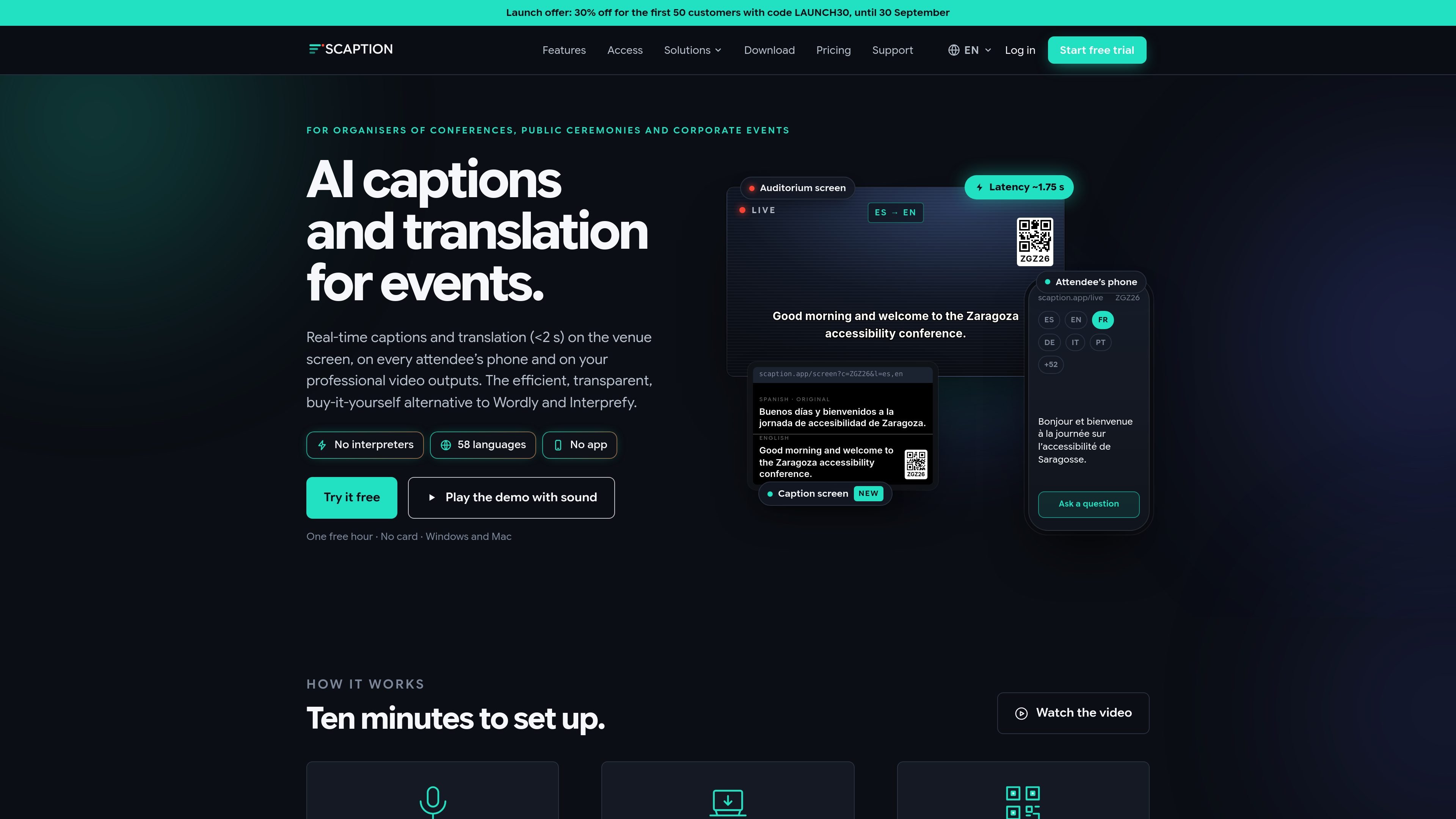
SCAPTION is live captioning and AI translation software for conferences, public ceremonies, corporate events, and other spoken-word programmes. It receives audio on a Windows or Mac computer and produces translated captions in roughly two seconds for venue screens, attendee phones, and professional video workflows.
Attendees join by scanning a QR code and selecting a language; no app installation, login, or per-attendee charge is required. Organisers can also use the same event room for moderated questions, audience voting, transcript export, and—on applicable plans—an AI-generated event summary.
Transcribes and translates live speech across a catalogue of 58 languages, with automatic source-language detection and support for switching languages during a talk.
Delivers a 1080p NDI feed with true alpha transparency, full-screen HDMI output with chroma key, or a browser-based caption screen for a TV. It can connect to production tools including OBS Studio, vMix and TriCaster.
Lets attendees scan a QR code, select a language, and read or listen on their phones without an app or login. Up to 12 target languages can be selected at once on attendee phones.
Provides moderated audience questions and live polls. Attendees can submit and upvote questions or vote in their language, while the moderator chooses what to launch on screen.
Accepts audio from ASIO and WDM devices, USB microphones, a sound desk, the computer itself, and online meeting applications such as Zoom, Teams, Meet and Webex. Plans support between one and four simultaneous microphones.
Includes custom vocabulary, caption styling, transcript export in TXT, SRT and VTT formats, and an AI event summary on paid plans that include it.
Display original or translated captions on an auditorium screen while also giving attendees a phone-based way to follow the programme in a selected language.
Feed transparent captions into a vision mixer or use HDMI chroma key for a clean programme output alongside cameras, presentation slides, and other live graphics.
Run moderated questions and polls from a tablet while attendees submit, upvote, and vote from their phones. The moderator controls which item reaches the room screen.
Reserve separate room codes for plenary sessions and workshops so attendees can select the room they are attending, with room-specific questions, votes, and summaries.
Connect audio from a sound desk, USB microphone, or meeting application to provide captions for an in-person, online, or hybrid session.
SCAPTION runs on Windows or Mac. Audio can come from a sound desk, USB microphone, the computer’s own audio, or conferencing software such as Zoom, Teams, Meet and Webex. The product supports ASIO and WDM audio input.
SCAPTION can provide a 1080p NDI source with true alpha transparency for compositing in a switcher. It also offers full-screen HDMI output with chroma key, and a browser-based caption screen for TVs that do not use NDI.
Captions reach the venue screen in about 1.7 seconds, with a stated latency of under 2.5 seconds at the 95th percentile. Translation-off captioning is described as taking about 0.7 seconds from audio input to output.
The free trial provides one hour of the full captioning and translation product, with no expiry and no card required. The trial supports one microphone and one session of up to one hour, and includes a small watermark on the programme output.
Attendees scan a QR code, choose a language, and read or listen on their phones without installing an app or creating an account. Organisers can also enable moderated questions and polls, with the moderator deciding what appears on the venue screen.

Pewbeam is a church presentation app that listens to sermons, detects Bible verse references in real time, and displays the matching passage on screen. It is built for pastors, projection teams, and church media volunteers who want to reduce manual slide control during live services.

CAMB.AI Streams dubs live audio in multiple languages in real time for broadcasts on platforms like YouTube, Twitch, and X. It plugs into existing live workflows using common streaming protocols and avoids a post-production step.

Tavus is an AI video platform for building real-time, face-to-face agents, digital twins, and AI companions. It combines APIs, custom replicas, and multilingual conversational workflows for developers and teams.

SpeakoFlow is a free, open-source desktop voice-to-text app for Windows, macOS, and Linux. It supports dictation into any app, voice-driven writing with Flow, cleanup, translation, and a screen-aware assistant.

Sanota is an app that turns spoken memories, reflections, and interviews into clear written stories. It supports personal storytelling, family history, and shared memories, with guided prompts and subscription pricing.

Carbon Voice is an asynchronous voice messaging app for teams and individuals, with transcripts, AI catch-up, and cross-device access. It helps people and agents communicate without needing a live call.