
Edge panel with built-in apps
Open a panel from the top or bottom edge of the Mac screen to access built-in apps such as Spotify or Apple Music, Messages or WhatsApp, Calendar, Mail, Safari, Reminders, Notes, Clipboard and Stash.

Tack+ is a macOS productivity panel that opens from the Mac’s notch or screen edge to provide apps, widgets, clipboard history, dictation, file staging and search in one place. It also offers an optional local AI assistant and on-device call transcription for supported workflows.
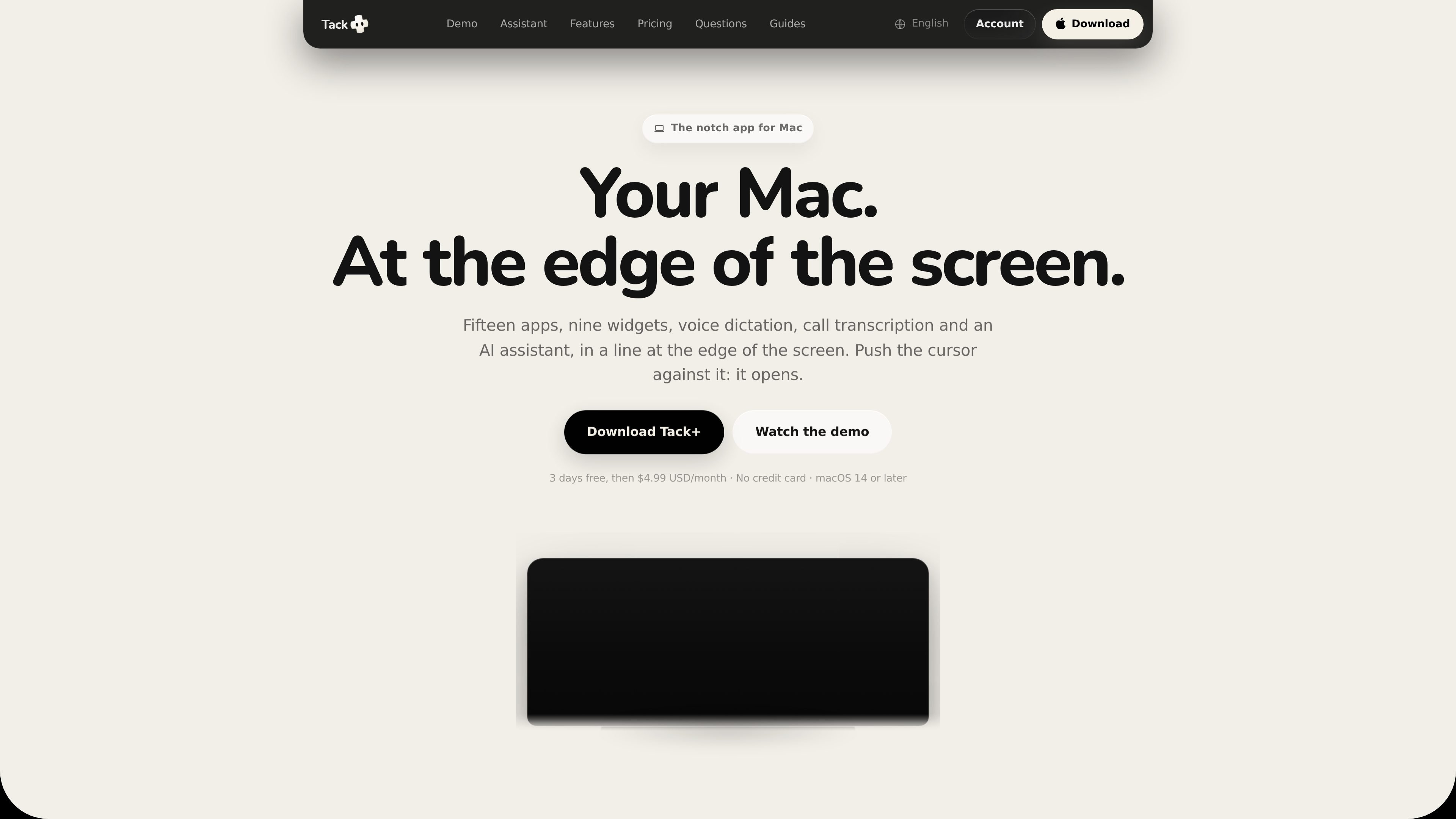
Tack+ is a macOS edge panel that turns the area around a Mac's notch or screen edge into a launcher for small apps, widgets and utilities. It opens when the pointer reaches the edge, and it can also be opened with a configurable keyboard shortcut. The panel can sit at the top or bottom of the display.
Its tools cover common desktop tasks without requiring separate windows: music controls, Messages or WhatsApp, calendar and mail views, clipboard history, file staging, search, voice dictation, widgets and an optional local AI assistant. The assistant runs on Apple silicon and Tack+ can also transcribe call audio on the Mac, with text retained locally according to the product site.
Open a panel from the top or bottom edge of the Mac screen to access built-in apps such as Spotify or Apple Music, Messages or WhatsApp, Calendar, Mail, Safari, Reminders, Notes, Clipboard and Stash.
Keep copied text, links and colors in a local clipboard history, search clipboard entries alongside messages, calendar items, reminders and stashed files, and drag files to the edge for temporary access without copying them.
Use a configurable shortcut or the screen edge to dictate text in nine listed languages. macOS performs the transcription on the device; with Accessibility permission, Tack+ can type into the active field, or otherwise copy the result for pasting.
Use the optional Qwen3.5 4B assistant for short Mac tasks such as organizing files, opening sites, creating notes, changing settings, managing calendar events and reminders, or running Shortcuts. It previews consequential actions and supports undo for the last request.
Add widgets and tools including weather, processor and memory monitoring, to-do lists, GitHub pull requests, Google Calendar, clocks, countdowns, a focus timer, an eyedropper, a notepad and music controls.
Transcribe the microphone and call audio on the Mac sentence by sentence and keep the resulting text locally; the site also describes summarizing transcripts with the local AI model.
Keep frequently used controls and information—music playback, messages, calendar, mail and reminders—available from the screen edge while working in another Mac app.
Use the clipboard history and unified search to retrieve a copied link, color, message, appointment or reminder, while the Stash provides a place to hold files for later dragging.
Dictate short messages or text-field entries with a chosen shortcut. The device-based macOS transcription is suitable when keeping voice input on the Mac matters; Accessibility permission enables direct typing.
Ask the optional assistant to organize a folder, find a document, create a note or adjust selected Mac settings. Review its proposed action before allowing changes, and undo the last request when supported.
Keep a focus countdown, monitor system resources, check weather or calendar information, and view selected GitHub or to-do items without opening separate utility windows.
Tack+ requires macOS 14 or later. The local AI assistant additionally requires a Mac with Apple silicon, such as an M1 or later; it is not offered on Intel Macs.
Tack+ opens from the edge of the screen when you push the cursor against it, and the panel can also be opened with a configurable shortcut. The default shortcut shown on the site is Option-Space, and users can choose another key combination.
The local assistant is optional. It uses the Qwen3.5 4B model, downloads a 2.74 GB model from within Tack+, and runs requests on the Mac. It can act on files, apps, web pages and selected Mac functions, but it asks for approval before changes such as moving, renaming or deleting files, sending a message, or emptying the Trash.
The assistant keeps its model and requests on the Mac and does not send them to an AI service. It needs an internet connection when you ask it to access the web, and the initial model download requires internet access.
The homepage states that Tack+ offers a 3-day free trial followed by $4.99 USD per month, with no credit card required for the trial. The dedicated pricing URL provided on the site currently returns a not-found page, so plan details beyond this offer are not confirmed.

Malyatko is a baby tracker for logging feeding, sleep, growth, teething, and milestones in one app. It works on iPhone, Apple Watch, and widgets, with no sign-up, offline use, and family sharing through iCloud.

Yattayo: Slider To-Do Board is a productivity app that turns tasks into a physical-style slider board with sticky notes, widgets, reminders, and iCloud sync. It helps people who want a more tactile way to manage to-dos and, in Premium, recurring habits.

ConscioussAI is an AI assistant for macOS, Windows, iOS, and Android that helps execute tasks across apps, files, the browser, and messages. It is aimed at people who want permission-based help on both desktop and mobile.

Goldfish is an AI memory app for macOS that helps you reply, write, summarize, and continue using the context already on your Mac. It stores memory locally and writes in your tone.

ArtDeck is a visual reference board app for iPhone, iPad, and Mac that lets artists collect mixed reference material on one canvas and study it with ToolBox lenses. It works offline, supports optional iCloud sync, and is sold as a one-time purchase with no account required.

Biji는 혁신적인 도구와 기능을 통해 생산성을 향상시키기 위해 설계된 다목적 플랫폼입니다.