
Speech-to-text dictation
Press the Fn key, speak, and press it again to place cleaned, punctuated text at the active cursor. The service removes filler words and can retain a spoken correction.

Voicera is a macOS app that turns natural speech into cleaned, punctuated writing at the cursor and provides AI actions for selected text. It is designed for people who want to draft, revise, translate, or ask questions across the apps they use on a Mac.
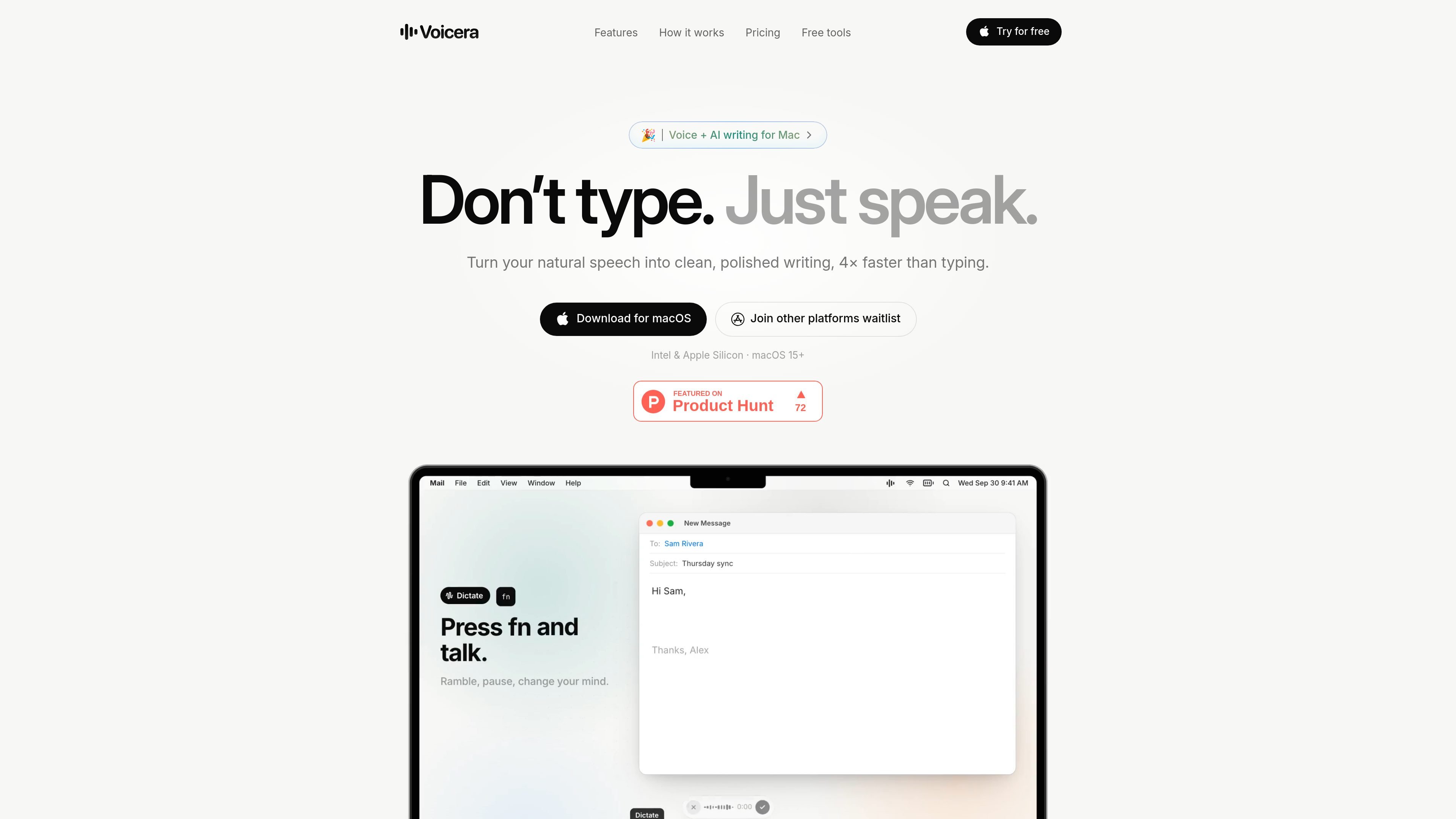
Voicera is a voice-input and AI writing app for Mac. It turns natural speech into polished text at the current cursor instead of leaving users with an unedited transcript, and it also provides actions for revising or translating text that is already selected.
The workflow is built around keyboard shortcuts: Fn starts and stops dictation, Fn + Shift opens text-editing actions, and Fn + Space opens an AI question flow. Voicera supports macOS 15 or later on Intel and Apple Silicon Macs, and the site presents it for writing in everyday apps as well as editors, terminals, and coding agents.
Press the Fn key, speak, and press it again to place cleaned, punctuated text at the active cursor. The service removes filler words and can retain a spoken correction.
Choose Natural, Casual, Formal, or Concise output, or write a custom instruction that tells Voicera how to shape your dictation.
Select text in any app to preview actions such as Fix grammar, Rewrite, Shorter, Longer, Professional, Casual, Translate, Summarize, Bullet points, and Draft reply.
Create reusable actions with your own instructions, such as making text sound like you or converting it to plain English for customers.
Ask a question about selected text or ask a general question with Fn + Space, then copy the response into your work without leaving the current app.
The Mac app is designed to work wherever there is a cursor, with examples including Mail, Messages, Slack, Notes, Safari, browsers, document tools, coding editors, terminals, and other listed apps.
Speak a rough email, message, or note while thinking aloud. Voicera removes filler words, applies punctuation, and puts the finished text into Mail, Messages, Slack, or Notes for review.
Select an existing passage in a document or browser and preview a grammar fix, shorter version, tone change, summary, or translation before replacing or copying the original.
Use dictation in an editor, terminal, or coding agent to explain a change while keeping your hands on the development workflow. The site specifically describes use wherever there is a cursor.
Speak in the languages you use and switch between up to four supported languages in one dictation. Translate selected writing when the target language needs to change.
Ask about selected text or pose a general question with the keyboard shortcut, then copy the answer into the current task without opening a separate chat window.
Voicera is a Mac app that requires macOS 15 or later and supports both Intel and Apple Silicon Macs. The site says setup takes about a minute; downloading the app is the starting point.
Press the Fn key to start dictation, speak naturally, and press it again to finish. Voicera cleans the transcript and inserts it at the current cursor. For selected text, use Fn + Shift to open editing actions, or Fn + Space to ask a question about the selection or another topic.
Dictation produces punctuated writing with filler words removed and corrections such as “no wait, I mean…” handled. Selected text can be previewed before you fix, rewrite, shorten, lengthen, translate, or otherwise process it. You can insert the preview, copy it, or undo a change.
Voicera supports 19 listed languages and can use up to four languages in one dictation, including switching languages mid-sentence. The site also says it can translate selected text into the language you need.
The free plan costs $0, requires no card, and includes 500 words per week. Paid plans provide larger weekly allowances or unlimited words, with priority processing when demand is high. Words are counted across dictation and AI results and reset every Monday.

SpeakoFlow is a free, open-source desktop voice-to-text app for Windows, macOS, and Linux. It supports dictation into any app, voice-driven writing with Flow, cleanup, translation, and a screen-aware assistant.

Sanota is an app that turns spoken memories, reflections, and interviews into clear written stories. It supports personal storytelling, family history, and shared memories, with guided prompts and subscription pricing.

Carbon Voice is an asynchronous voice messaging app for teams and individuals, with transcripts, AI catch-up, and cross-device access. It helps people and agents communicate without needing a live call.

Dictro is a private AI dictation app for Mac that turns speech into polished text in any editable app. It works on Apple Silicon Macs, processes locally by default, and can also run in an optional cloud Fast Mode.

Goldfish is an AI memory app for macOS that helps you reply, write, summarize, and continue using the context already on your Mac. It stores memory locally and writes in your tone.

Flunkey is a voice-first productivity layer for Windows that converts speech into text, AI-assisted outputs, and remembered context. It is built for users who want to capture ideas and actions without leaving the app they are working in.