
Cadran
Cadran is a free macOS app that shows customizable clock faces on your wallpaper behind icons, across every Space, with optional screensaver mode.
What is Cadran?
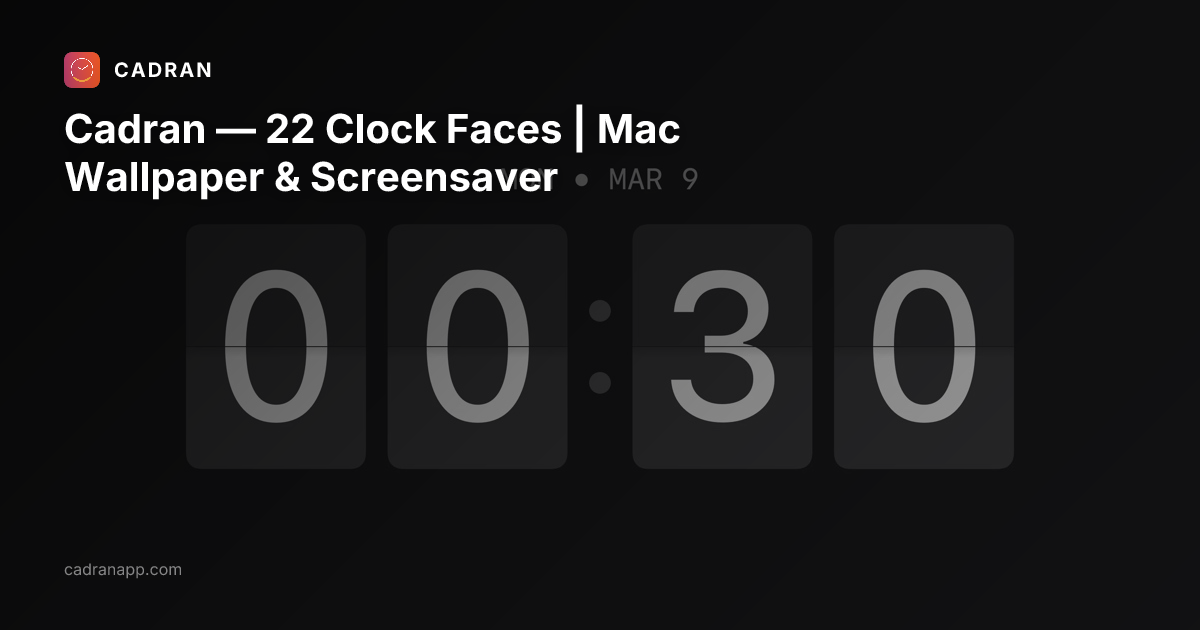
Cadran is a free macOS app that draws customizable clock faces directly on your desktop wallpaper layer—behind your icons, across every Space and display. It provides a desktop clock mode and can also run as a native full-screen screensaver.
The app is designed to work without widgets or windows. It’s controlled from the menu bar, and setup can be completed in under a minute by choosing a clock face and a background.
Key Features
- Wallpaper-layer clock faces: Renders clock faces behind icons across every Space and display, keeping the clock integrated with your desktop.
- Two modes (desktop + screensaver): Use the clock on your wallpaper during active use and switch to a full-screen clock when the Mac is idle.
- Customizable appearance: Adjust size, position, and style, plus text and background colors (in Pro) to match your setup.
- Color adaptation options: Includes features such as per-face color palettes and an option for text readability; weather-aware faces and dynamic backgrounds are available in the Data category and Pro.
- Per-monitor setup (Pro): Assign and configure faces and color per monitor rather than applying one look across all displays.
- Menu bar controls + launch at login: Cadran lives in the menu bar (not the Dock) and can be set to start at login.
- Privacy-first design: No accounts and no telemetry; preferences are stored on your Mac.
- Efficient rendering: Verified low energy impact is mentioned, and the app uses lightweight compositing for wallpaper-layer rendering.
How to Use Cadran
- Download and install Cadran for macOS.
- Open the menu bar controls and choose a clock face from the gallery.
- Select a background preset or switch to transparent mode to keep your own wallpaper.
- If you want a different experience when idle, enable screensaver mode.
- (Optional) Set Cadran to launch at login so the wallpaper clock stays available.
Use Cases
- Always-visible time on a multi-Space desktop: Keep a clock face behind icons while you move between Spaces and displays.
- Desktop theme matching: Use transparent mode or color palettes so the clock works with your existing wallpaper styling.
- Per-monitor customization (Pro): Set different faces and color assignments for each monitor to match different display content or preferences.
- Idle-time full-screen clock: When the Mac is idle, use screensaver mode to show a full-screen clock rather than the wallpaper version.
- Weather-focused clock faces (Data category): Choose Data-category faces that can display temperature and conditions via Open-Meteo (weather content is optional per the description).
FAQ
Does Cadran slow down my Mac?
The FAQ states that you won’t notice it running, with fans staying quiet and battery staying full.
Can I use a different face on each monitor?
Per-monitor setup is listed as a feature (noted for Pro). The FAQ specifically asks this question, so availability may depend on the Pro version.
Is Cadran really free?
The pricing section states it is free to start with a limited set of clock faces, and a one-time purchase is available for all faces.
What macOS versions does Cadran support?
Cadran is listed as supporting macOS Sonoma 14.0+.
Does it work with Stage Manager?
The FAQ lists Stage Manager as a question; the provided content does not include a direct answer.
Alternatives
- macOS desktop clock or widget-based tools: If you prefer widgets instead of wallpaper-layer rendering, look for apps that place clocks in widget panels. These differ by placement (widgets vs. wallpaper layer) and may not stay behind icons across Spaces in the same way.
- Screensaver-focused apps: If your priority is an idle full-screen clock experience, consider screensaver tools that focus on the lock/idle state rather than desktop wallpaper integration.
- Wallpaper customization apps: Category alternatives that let you modify wallpaper visuals may offer backgrounds and overlays, but Cadran’s specific approach is a clock drawn on the wallpaper layer behind icons.
- Menu-bar utility time displays: Some utilities show time in the menu bar only; they differ because they don’t render a clock across wallpaper/Spaces behind icons.
Alternatives
FounderStackHub
FounderStackHub uses an always-on AI agent to scan, verify, and match startup perks like cloud credits, AI-tool credits, and SaaS discounts to your stack.

Elvixs
Elvixs is an AI job outreach tool for freshers and students—find HR contacts, generate AI cold emails, send from Gmail, and track opens.

Gossipic
Gossipic tracks how often your brand is mentioned in AI answers, analyzes sentiment, benchmarks competitors, and creates daily action plans. Start 7-day free trial.

SnapSub: Subscriptions Hub
SnapSub: Subscriptions Hub centralizes recurring services so you can track what you pay, upcoming billing dates, and get reports to review spending.

Abakada
Abakada is the Philippines’ curated directory of free, open-source tools—1,000+ verified listings across 45+ categories for students & educators.

Been There Global
Been There Global shares real stories from real travellers to help you “know before you go” and plan trips with more confidence.