
Surface organization
Keep selected applications visible in the menu bar while Blenny manages their placement. Surface order is retained after Stop or Quit.

Blenny is a free, open-source menu bar organizer for Apple silicon Macs running macOS 27 or later. It separates applications into always-visible Surface, temporarily revealed Reef, and always-hidden Deep areas while preserving a reversible, application-level workflow.
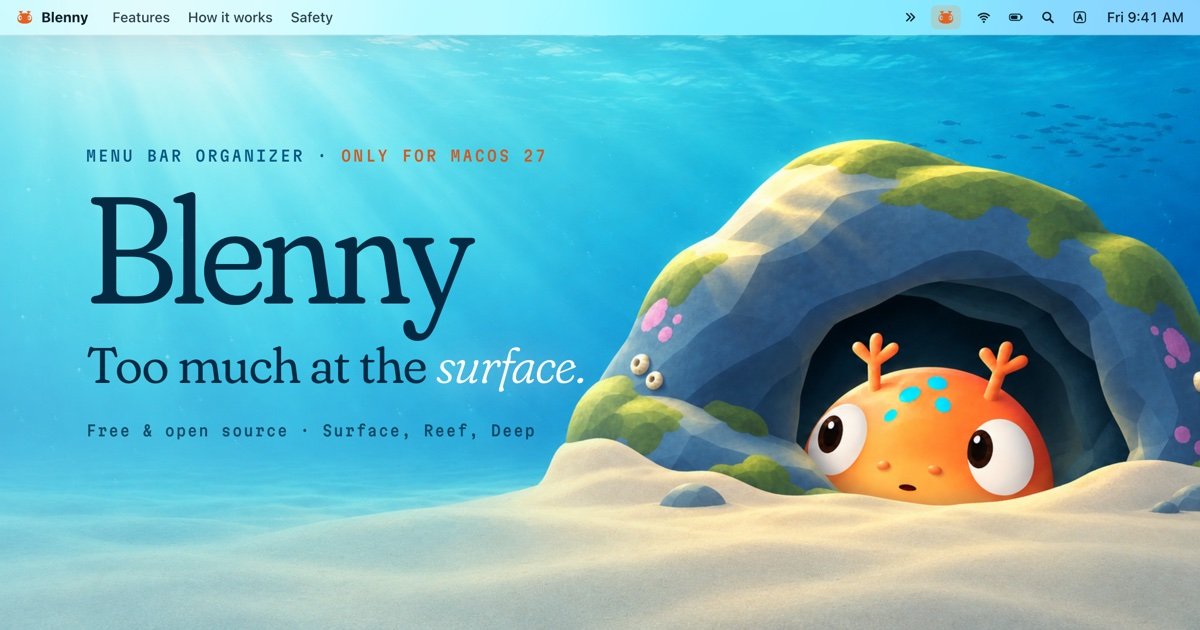
Blenny is a native macOS menu bar organizer for Apple silicon Macs running macOS 27 or later. It assigns menu bar applications to three areas: Surface for items that should remain visible, Reef for items revealed temporarily, and Deep for applications that should stay hidden while continuing to run.
The app is designed for deliberate, reversible organization rather than cursor automation. Users can draft a layout, apply it, undo the last change, stop management to release Blenny’s restrictions, and recover an interrupted operation from its saved recovery record.
Keep selected applications visible in the menu bar while Blenny manages their placement. Surface order is retained after Stop or Quit.
Assign occasional-use applications to the Reef. They remain out of the way until you click the fish for a short reveal session, then hide again.
Place applications in the Deep to keep them out of the menu bar and every reveal session while they continue running. Move them back whenever needed.
Draft changes by dragging applications between Surface, Reef, and Deep. Nothing changes in the menu bar until Apply, and Undo Changes reverses the last applied visibility and order change.
Organize whole applications rather than individual icons. Each icon owned by an application moves together, and every icon offers context-menu and accessibility actions for moving it.
Changes pass through a single queue with a saved recovery record, verification, and at most one retry. If the menu bar changes unexpectedly, Blenny stops rather than writing again.
Keep frequently checked items such as Wi‑Fi, battery, or a timer in a stable Surface order while moving less-used applications elsewhere.
Put occasional utilities in Reef when you want access without giving them permanent space. Click the fish for a temporary reveal, then let the group hide again.
Move background applications that do not need direct menu bar access into Deep. They continue running without appearing in the menu bar or reveal sessions.
Use the draft-and-apply workflow when reorganizing a crowded setup: compare the proposed placement, apply it once, and undo the last change if the result is not right.
Use Stop or Recover Changes when an operation is interrupted or when you need Blenny to release its menu bar restrictions before troubleshooting or uninstalling.
Blenny is free and open source under the Apache-2.0 license. The site mentions GitHub Sponsors and Ko-fi for optional support; no paid plan is described.
Blenny supports macOS 27 or later on Apple silicon. The site states that there is no macOS 26 or Intel version.
Download the disk image from GitHub Releases, drag Blenny to Applications, eject the disk image, and open the installed copy. Because the app is self-signed and not notarized by Apple, macOS may require choosing Open Anyway in Privacy & Security. Blenny also asks for Device Control permission. It does not require Screen Recording or SIP changes.
Reef apps appear during a short reveal session when you click the fish, then hide again. Deep apps remain hidden during reveal sessions and return to the menu bar only when moved to another area.
Choose Stop to release Blenny's restrictions. For an unfinished change, use Recover Changes and retain the recovery data until the operation completes. The site directs reproducible problems to GitHub Issues.

Goldfish is an AI memory app for macOS that helps you reply, write, summarize, and continue using the context already on your Mac. It stores memory locally and writes in your tone.

ArtDeck is a visual reference board app for iPhone, iPad, and Mac that lets artists collect mixed reference material on one canvas and study it with ToolBox lenses. It works offline, supports optional iCloud sync, and is sold as a one-time purchase with no account required.

Biji - это универсальная платформа, разработанная для повышения продуктивности с помощью инновационных инструментов и функций.

Malyatko is a baby tracker for logging feeding, sleep, growth, teething, and milestones in one app. It works on iPhone, Apple Watch, and widgets, with no sign-up, offline use, and family sharing through iCloud.

Redline is a budgeting tool for Claude Code that paces sessions to stay within time, token, cost, or plan-percentage limits. It uses Claude Code’s native hooks and statusline to help sessions finish with a usable result instead of stopping abruptly.

Claude Overlay is a Windows desktop overlay for Claude Code that reads your screen so you can ask questions, inspect content, and request edits without leaving the current app. It runs on your existing Claude subscription through the Claude CLI, so no separate API key is required.