
Multi-bot chat workspace
Run multiple bots in parallel on your own machine, with each bot assigned a job, provider engine, model, and optional working folder.

MausBot is a free, open-source chat-style workspace for running multiple AI bots on macOS, Windows, or Linux. It supports scheduled routines, connected apps, approval-based tasks, and optional Cloud or team hosting; AI usage requires a supported account or API key.
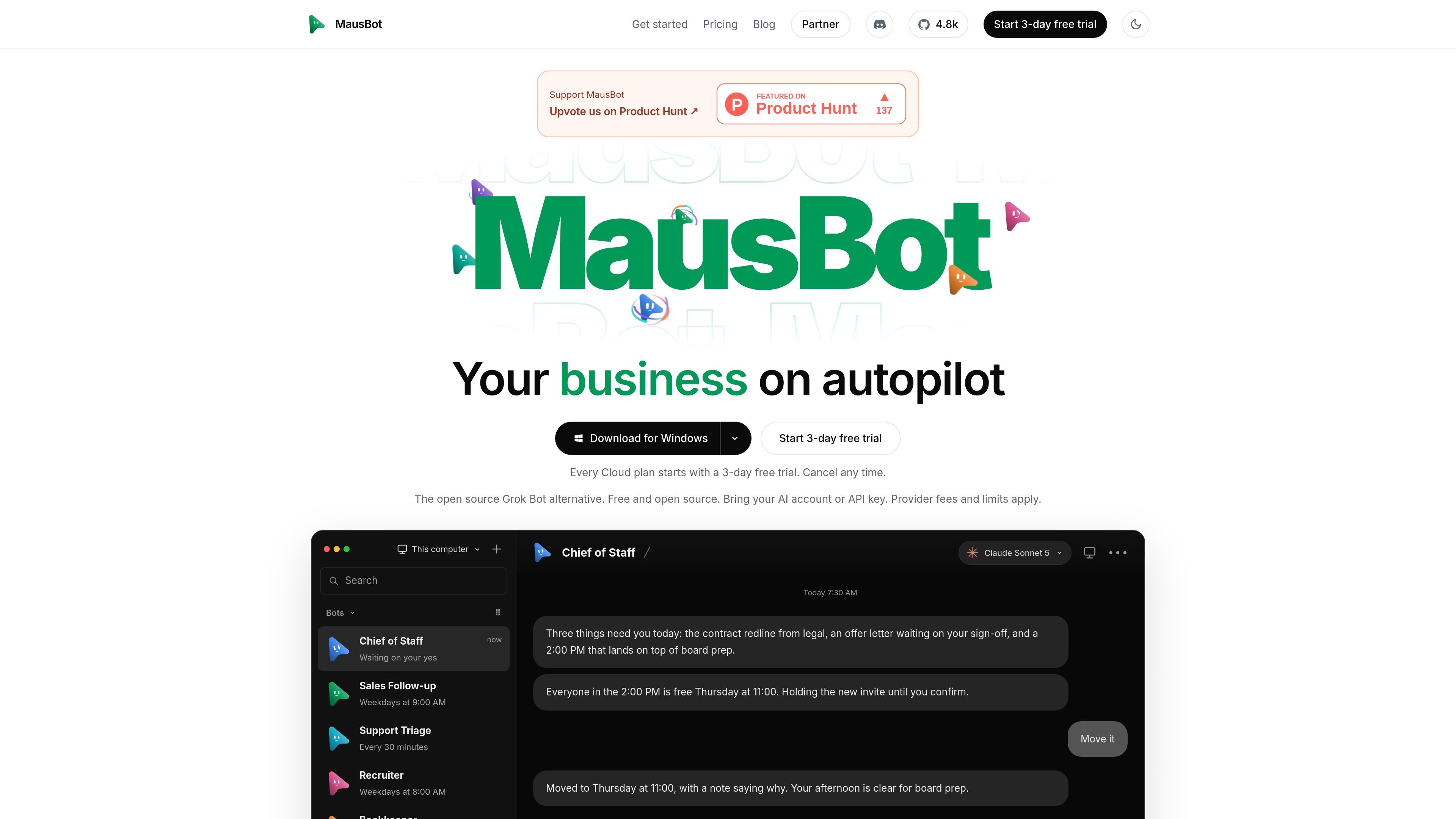
MausBot is a free, open-source AI bot workspace that presents multiple AI agents as contacts in a chat-style app. Users can connect supported agent engines and AI accounts or API keys, then give individual bots distinct jobs such as sales follow-up, recruiting, bookkeeping, support triage, or software work.
The free app runs locally and keeps transcripts, keys, and events on the user’s computer by default. Bots can use connected apps, browse the web, follow scheduled routines, and ask for approval before an action is sent. Optional Cloud plans provide an always-on workspace for bots, while team plans add shared workspaces and administrative features.
Run multiple bots in parallel on your own machine, with each bot assigned a job, provider engine, model, and optional working folder.
Connect supported agent engines such as Claude Code or Codex, and switch a bot’s model during a conversation. The site also shows Claude, Codex, Grok, and Kimi as provider options.
Create recurring routines for tasks such as inbox reviews, invoice follow-ups, recruiting checks, support triage, and SEO reporting.
Use connected apps through Composio, including examples such as Gmail, Slack, GitHub, Notion, Linear, HubSpot, Google Sheets, and Google Calendar. OAuth is used to connect apps.
Bots can browse the web, work with apps, draft actions, and return for approval before sending messages or making changes. Cloud plans add scheduled work while the computer is off.
The desktop app is available for macOS, Windows, and Linux, with Android and iOS companion apps that connect to a running computer or server.
A sales bot can review connected inbox and customer data, draft follow-ups for quiet deals, and wait for approval before anything is sent.
A chief-of-staff bot can review email, calendar, and team channels on a routine, then summarize what changed and what needs attention.
A bookkeeping workflow can find overdue invoices, draft reminders, maintain a tracking sheet, and return the messages for approval.
A recruiting bot can compare candidates with defined requirements and maintain a shortlist with the reason each person was included.
A support or engineering bot can turn customer questions into tickets, reproduce reported bugs, write tests, and prepare a pull request for review.
MausBot is a free, open-source desktop app for macOS, Windows, and Linux. Android and iOS companion apps are shared through the product’s Discord and pair with a running computer or server.
Download the installer for your platform, install and open the desktop app, then use App settings → Agent engines to install and sign in to a supported agent such as Claude Code or Codex. After the engine check succeeds, create a bot and choose its engine and model.
You can start with one bot and one provider without connected apps or a cloud computer. A working folder is only needed for tasks involving files.
The free app runs bots on your own computer while it is on. Paid Cloud plans add an always-on workspace, scheduled tasks while your laptop is closed, cloud computers, and other plan-dependent capabilities. AI usage generally requires your own Claude or ChatGPT account or API key; provider fees and limits apply.
Yes. The product supports shared bots, rooms, and roles on its Team plan, while Business plans add an admin console for people, activity, and usage. Team and Business plans are presented as contact-sales offerings.

Claude Overlay is a Windows desktop overlay for Claude Code that reads your screen so you can ask questions, inspect content, and request edits without leaving the current app. It runs on your existing Claude subscription through the Claude CLI, so no separate API key is required.

Macuse is a macOS app that lets AI assistants control native Mac apps through MCP and use Computer Use for any app. It works with clients like Claude Desktop, Cursor, and Raycast, and keeps automation on-device.

Goldfish is an AI memory app for macOS that helps you reply, write, summarize, and continue using the context already on your Mac. It stores memory locally and writes in your tone.

Lasso is an ecommerce product data platform for enriching catalog records, processing supplier files, generating product content, and monitoring competitors. It combines a web app with a REST API, SDK, and MCP server for teams and developers.

ArtDeck is a visual reference board app for iPhone, iPad, and Mac that lets artists collect mixed reference material on one canvas and study it with ToolBox lenses. It works offline, supports optional iCloud sync, and is sold as a one-time purchase with no account required.

Biji - это универсальная платформа, разработанная для повышения продуктивности с помощью инновационных инструментов и функций.