
Context-based drafting
Double-tap a hotkey with the cursor in a text field; Ghostwriter reads the surrounding thread, form, or unfinished sentence without requiring a written prompt.

MyHandler Ghostwriter is a Windows desktop assistant that reads the context around your cursor and drafts replies, continuations, and form responses in place. It helps people write across email, chat, browser forms, and comment fields without composing a separate prompt, while leaving review and sending to the user.
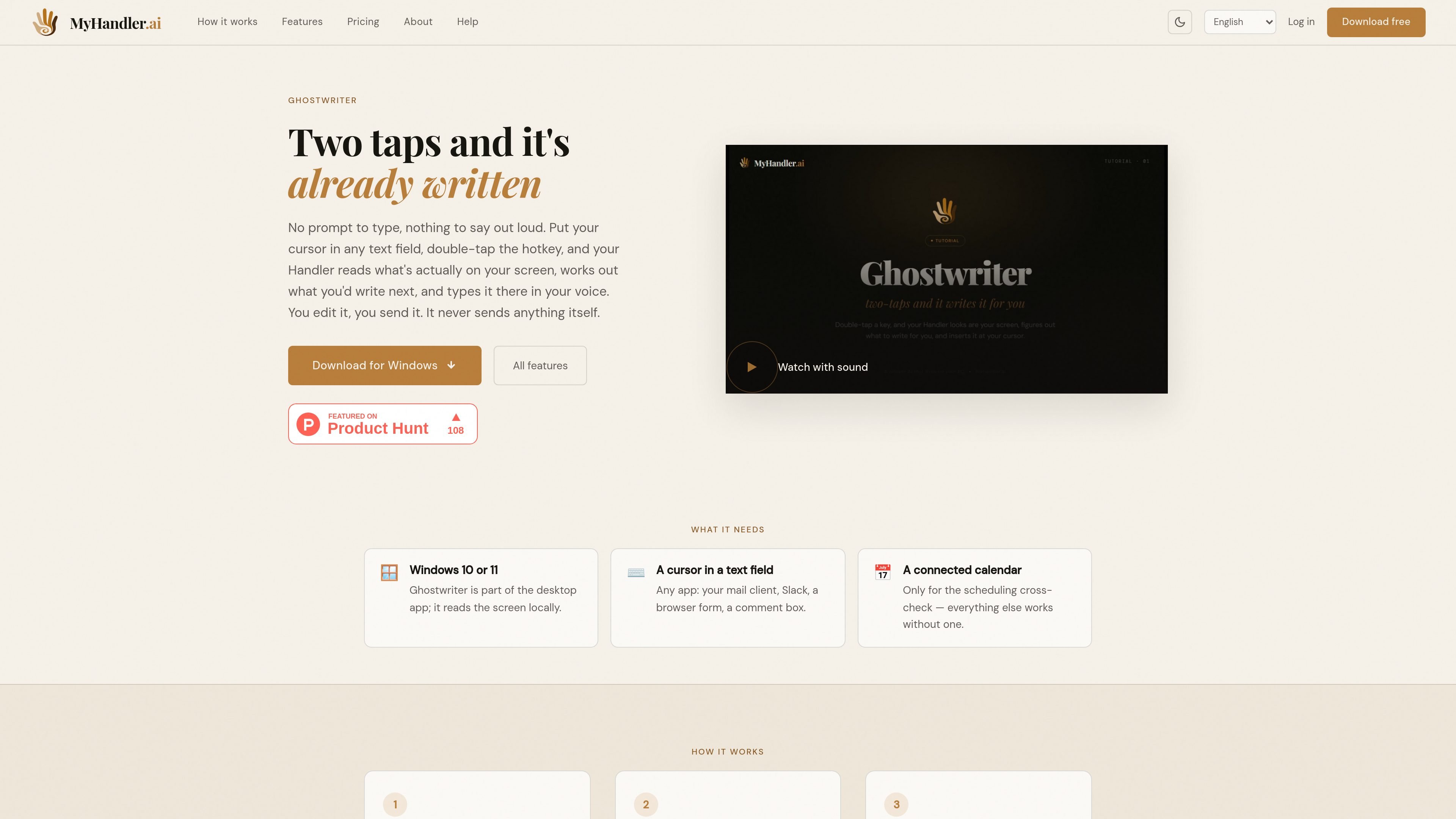
MyHandler Ghostwriter is a Windows desktop writing assistant that drafts text from the context already visible on your screen. Instead of asking you to describe the task, it uses a double-tap hotkey while your cursor is in a text field, reads the nearby thread or form, and inserts a suggested response or continuation in your voice.
It is designed for situations where the next message or sentence is clear from the surrounding context but writing the prompt would add another step. Ghostwriter leaves the final decision with you: the generated text appears at the cursor for review, editing, deletion, or manual sending.
Double-tap a hotkey with the cursor in a text field; Ghostwriter reads the surrounding thread, form, or unfinished sentence without requiring a written prompt.
The feature distinguishes among replying, continuing a sentence, answering a question, and composing a message from scratch before it writes.
Ghostwriter maps messages to their senders and identifies which account or handle is yours, helping it address the other participant instead of echoing your own text.
If a proposed reply includes a time, Ghostwriter checks it against the next two weeks of the connected calendar before drafting.
The draft appears in the focused text field, where you can review, revise, delete, or send it. Ghostwriter does not send the message itself.
The feature works in any app with a text field, including mail clients, Slack, browser forms, and comment boxes, according to the product site.
With an email or chat thread open, place the cursor in the reply field and let Ghostwriter infer the response from the exchange instead of composing a separate prompt.
When a sentence is unfinished or a browser form contains a question, Ghostwriter can continue the text or draft an answer based on the visible context.
For scheduling-related replies, Ghostwriter can check a proposed time against the next two weeks of a connected calendar before producing the draft.
Use the same double-tap workflow in a mail client, Slack, a browser form, or a comment box, provided the application has a focused text field.
Ghostwriter is part of the MyHandler desktop app for Windows 10 and 11. It requires a cursor in a text field; a connected calendar is needed only for scheduling cross-checks.
Place the cursor in a text field and double-tap the Ghostwriter hotkey. It reads the surrounding screen context, determines whether to reply, continue, fill in, or compose text, and inserts a draft at the cursor.
No. Ghostwriter inserts text for you to review. You can edit, delete, or send the draft yourself; the feature does not send messages on its own.
The screen capture occurs on the PC. The assembled context is sent to MyHandler's cloud model to generate the draft, and the site states that the cloud model has zero data retention.
Ghostwriter is currently available for Windows 10 and 11. The site says macOS and Linux are coming soon, but it does not provide a release date.

Dirac is an AI email assistant that prepares a morning brief, prioritizes important threads, and drafts replies in your voice. It is positioned for founders and other busy professionals who use Gmail and want to reduce morning inbox triage.

Goldfish is an AI memory app for macOS that helps you reply, write, summarize, and continue using the context already on your Mac. It stores memory locally and writes in your tone.

Liam is an AI copilot for managing inboxes, writing replies, prioritizing email, and scheduling meetings. It is offered free for individuals, with custom pricing for teams and enterprise.

ProWritingAid is a writing assistant for storytellers that offers grammar checking, style editing, paraphrasing, and story analysis inside popular writing apps. It includes a free plan, paid tiers, and tools for chapter critique, manuscript review, and collaborative editing.

SpeakoFlow is a free, open-source desktop voice-to-text app for Windows, macOS, and Linux. It supports dictation into any app, voice-driven writing with Flow, cleanup, translation, and a screen-aware assistant.

Paperpal 是一款面向学术写作的 AI 工具,提供文献阅读、语言润色、引用、查重、AI 检测和投稿前检查。它适合需要在英文论文和学术材料上进行写作、修改与合规自检的学生、研究人员和教师。