
Two-pane operation and Vim keys
Use j/k/h/l and Tab to move around and switch between the left and right panes while comparing them. Marking multiple files, copying, moving, and Undo are all handled primarily from the keyboard.

VeloFiler is a macOS two-pane file manager that combines keyboard-driven navigation, preview, editing, notes, SSH/SFTP, and cloud folder detection. It helps users handle local and remote file tasks in one workflow instead of switching between separate tools.
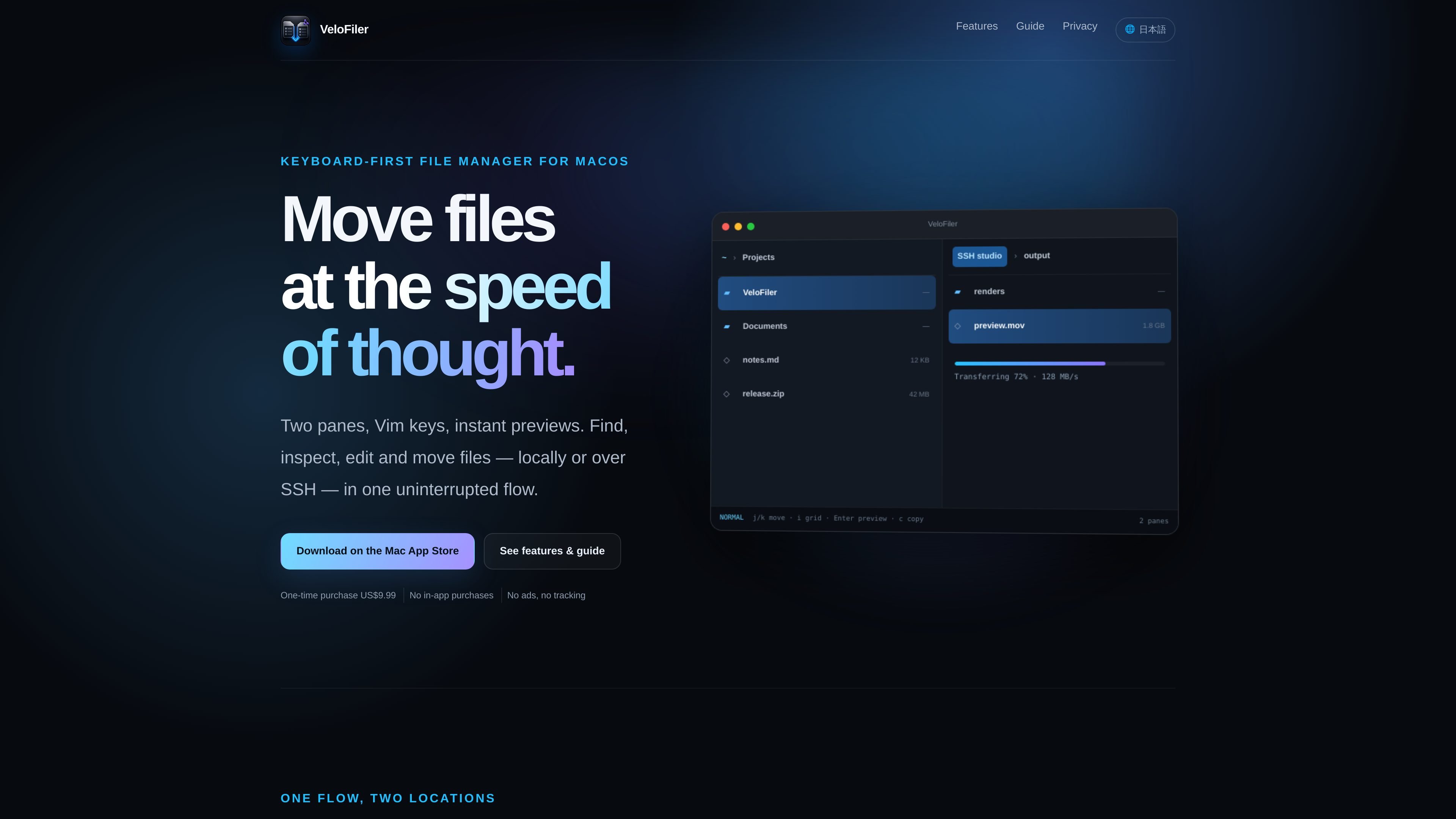
VeloFiler is a two-pane file manager for macOS. It combines movement with Vim keys, instant preview, grid view, a built-in editor, notes, SSH/SFTP, and cloud storage detection into one workflow model so you can handle local and remote file tasks in the same flow.
The homepage emphasizes that you can do more than just browse file lists: you can check items before opening them, then edit or transfer them on the spot. Supported locations include local files, SSH destinations, and synced folders such as iCloud Drive, Dropbox, Google Drive, and OneDrive.
Use j/k/h/l and Tab to move around and switch between the left and right panes while comparing them. Marking multiple files, copying, moving, and Undo are all handled primarily from the keyboard.
You can preview images, videos, audio, PDFs, Office files, and code before opening them. Markdown is rendered locally with GFM tables and task lists, footnotes, equations, Zenn format, and Mermaid.
Switch between list view and grid view with i, and browse JPEG, PNG, HEIC, WebP, and more as thumbnails. The view is saved per pane, and EXIF orientation is respected.
Includes a built-in editor that can switch between Standard and Vim, with support for Japanese IME, search, Undo/Redo, and syntax highlighting. You can edit not only local files but also text on SSH hosts.
Create, edit, rename, delete, and manage history for Markdown-based notes inside the app. It supports autosave and treats the first line as the title.
Connect using hosts from ~/.ssh/config and handle listing, previewing, editing, creating, renaming, deleting, and transferring with the same feel as local operations. After long remote operations, it automatically reconnects up to three times.
Compare folders in the left and right panes, mark multiple files, and copy or move them in batches. Because you can work mostly from the keyboard, including Undo, it suits people who want to reduce mouse use.
Handle SSH destinations for listing, previewing, editing, creating, renaming, deleting, and transferring with the same feel as local operations. Because it can use hosts from ~/.ssh/config directly, it is convenient when you want to reuse existing connections.
When you want to inspect image, video, audio, PDF, Office, Markdown, or code content before opening it, you can quickly judge what a file contains. Switching to grid view makes photos and thumbnails easier to scan at a glance.
Use the built-in editor for small fixes on the spot, and keep work notes or procedures in Markdown notes. You can stay in one place without switching between apps, including search and Undo/Redo.
Detect and open synced folders for iCloud Drive, Dropbox, Google Drive, OneDrive, and similar services. Because you can use the same pane operations as with local files, it also works for reviewing cloud-based documents.
Yes. The support page says you can set the notes storage location in the configuration file under [notes]. For example, you can use a folder under Dropbox as the storage location, but macOS permission is required the first time you access it.
Yes. Standard files use editor_mode, while notes can be configured separately with [notes].editor_mode. If you switch modes with Ctrl-Shift-V in the note editor, that setting is saved as the default for notes.
It currently supports SSH agent authentication or IdentityFile without a passphrase. Password prompts, passphrase entry, and ProxyJump are not supported.
The app checks the connection state and, if disconnected, automatically reconnects up to three times before the next operation. Read operations are automatically retried once after recovery, but interrupted writes or deletions are not automatically resent.
The guidance is to report issues through a review on the VeloFiler page in the App Store. When contacting support, it helps to include your macOS version, the last action you took, and whether the target was local or SSH.

Flunkey is a voice-first productivity layer for Windows that converts speech into text, AI-assisted outputs, and remembered context. It is built for users who want to capture ideas and actions without leaving the app they are working in.

ArtDeck is a visual reference board app for iPhone, iPad, and Mac that lets artists collect mixed reference material on one canvas and study it with ToolBox lenses. It works offline, supports optional iCloud sync, and is sold as a one-time purchase with no account required.

Codex Plugins bundle reusable skills, app integrations, and MCP servers into workflows you can install in the Codex app or use from Codex CLI. They help extend Codex with connected-service tasks, reusable instructions, and shared team workflows.

Yattayo: Slider To-Do Board is a productivity app that turns tasks into a physical-style slider board with sticky notes, widgets, reminders, and iCloud sync. It helps people who want a more tactile way to manage to-dos and, in Premium, recurring habits.

recall is an AI flashcard app that turns reading and notes into study cards through Claude, ChatGPT, or another MCP client. It uses one-time lifetime access pricing and spaced repetition review.

Snapmark is a VS Code extension that lets you annotate clipboard screenshots before pasting them into AI chats. It supports blur redaction, numbered callouts, and automatic resizing for large images.