
Real-time voice translation
Translates spoken language in real time and plays the result as speech, allowing live conversations to continue without relying on subtitles.

Speechka is an AI voice translation app that converts live speech into another language while preserving the speaker’s personal voice. It is designed for multilingual meetings, calls, presentations, conferences, and livestreams.
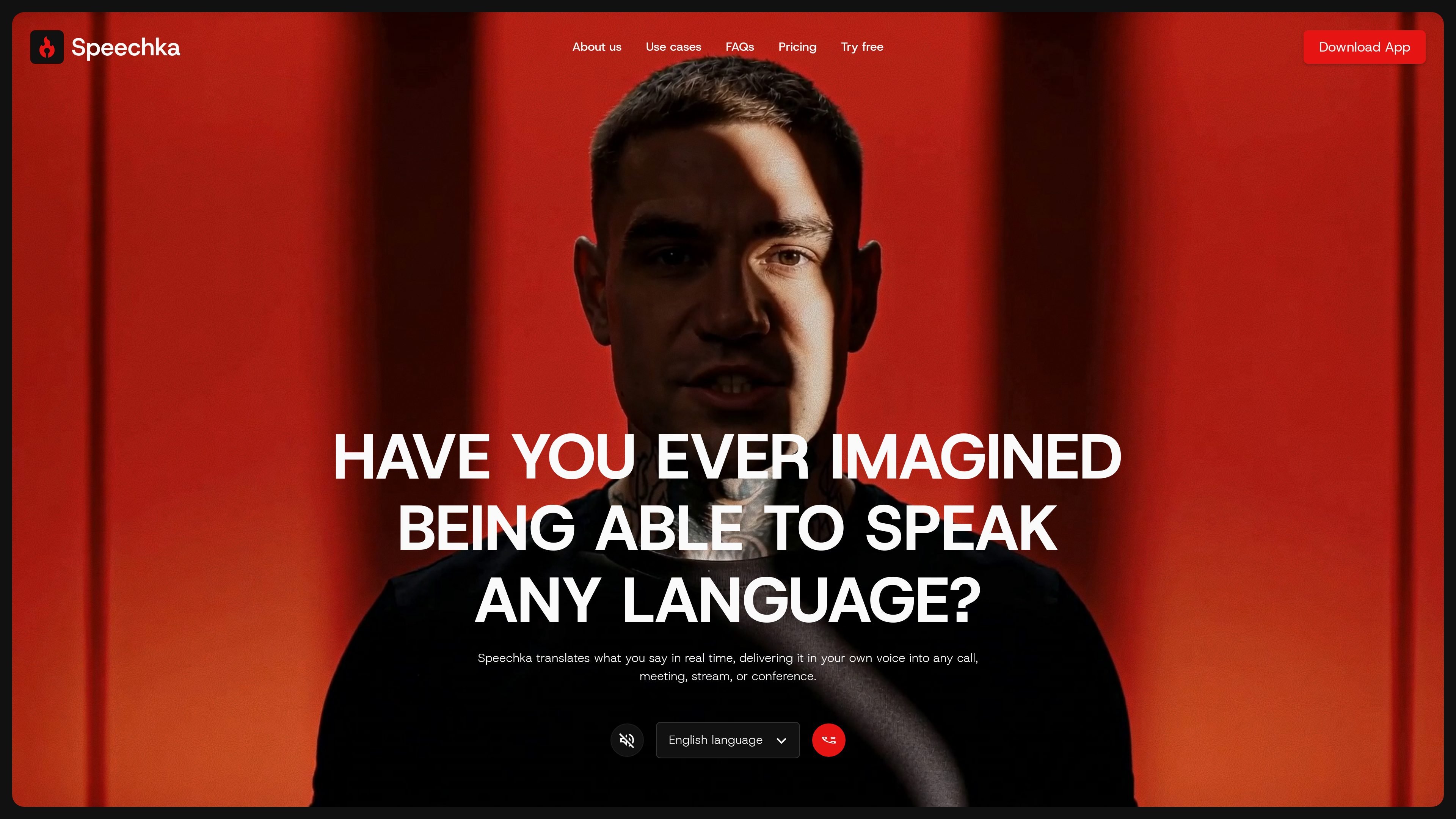
Speechka is a real-time AI voice translation app for live multilingual communication. It lets a speaker talk in one language while listeners hear translated speech in another, rather than following captions or reading a transcript. The product is positioned for meetings, calls, conferences, presentations, livestreams, and other live conversations.
Users choose source and target languages, record a short sample to create a personal voice, and start speaking. Speechka translates the speech as the conversation progresses and can either play the translation for the user or send it through microphone input to other participants, depending on the workflow. The site supports two-way translation between 44 languages and lists compatibility with common meeting, communication, and livestreaming applications.
Translates spoken language in real time and plays the result as speech, allowing live conversations to continue without relying on subtitles.
Uses a recorded voice sample for translated speech, preserving the speaker's identity, speaking style, and accent across supported languages.
Supports two-way translation between 44 languages, including English, Spanish, French, German, Chinese, Japanese, Arabic, and many others listed on the site.
Recognizes context, sentence structure, tone, and intent, while handling pauses, sentence boundaries, and playback timing for more natural output.
Keeps translated sentences in sequence so the output remains understandable during live conversations, including situations where multiple people are speaking.
Provides Faster and High quality modes, letting users prioritize lower latency or more natural voice generation and translation quality.
Use two-way voice translation for daily stand-ups, client calls, remote workshops, and other meetings where participants need to keep talking without pausing for manual interpretation.
Present or teach in your preferred language while translated speech reaches listeners in different languages during keynotes, workshops, classrooms, and international events.
Broadcast a live stream in one language while viewers hear translated speech, helping creators address multilingual audiences without preparing separate dubbed recordings or streams.
Use microphone-based translation in calls and browser meetings so participants can hear the translated output through the communication application they already use.
Choose the lower-latency mode for fast exchanges or the higher-quality mode for podcasts and professional communication where voice naturalness matters more.
Speechka translates spoken language in real time and delivers the result as speech rather than captions or transcripts. It is designed for meetings, calls, livestreams, conferences, and other live conversations.
Yes. You can record a short voice sample, and Speechka uses the resulting personal voice for translated speech across supported languages. The site says you must have permission to use the voice sample.
Listen Mode plays the translated speech only to you through headphones or speakers. Broadcast Mode sends the translated speech through your microphone so other participants can hear it while you continue speaking naturally.
Speechka accepts microphone input and is described as working with applications such as Zoom, Google Meet, Microsoft Teams, Discord, Slack, OBS, Webex, browser-based meetings, and livestreaming software. The site also mentions Twitch, YouTube, Kick, and TikTok for livestream use.
The Faster mode is intended for lower latency in fast conversations. High quality prioritizes more natural voice generation and translation and is positioned for presentations, meetings, podcasts, and professional communication.

蓝藻AI是一款在线AI配音与语音合成产品,可将文字转成语音,并支持自助声音克隆。页面信息显示它面向短视频、有声书等需要配音的内容场景。

CAMB.AI Streams dubs live audio in multiple languages in real time for broadcasts on platforms like YouTube, Twitch, and X. It plugs into existing live workflows using common streaming protocols and avoids a post-production step.

Official HeyGen API documentation for building AI avatar videos, translations, lipsync, and interactive video-agent sessions. It supports direct API use plus MCP and CLI-style workflows for developers and AI agents.

Talkpal is an AI-powered language learning web and mobile app for practicing speaking, listening, writing, and pronunciation. It offers guided courses, roleplays, and call-style conversation practice across 130+ languages.

Fylom is an AI podcast generator that turns a topic or question into a researched narrated episode. It supports typed or spoken prompts, voice selection, and recurring show-style listening.

Gemini 3.8 Text-to-Speech is Google’s pair of expressive audio models for turning scripts into customizable spoken audio. Creators, developers and enterprises can design voices, direct delivery line by line, and generate dialogue for content, dubbing and voice-agent applications.