
Structured text notes
Capture paragraphs, headings, checklists, bulleted lists, images, and code blocks in a single composer. Markdown-style slash commands and formatting controls support bold, italic, and strikethrough text.

Thoughts is a macOS menubar app for quickly capturing text, voice notes, and images. It helps individuals organize, search, export, and refine notes, with optional AI features connected to a user-provided provider key.
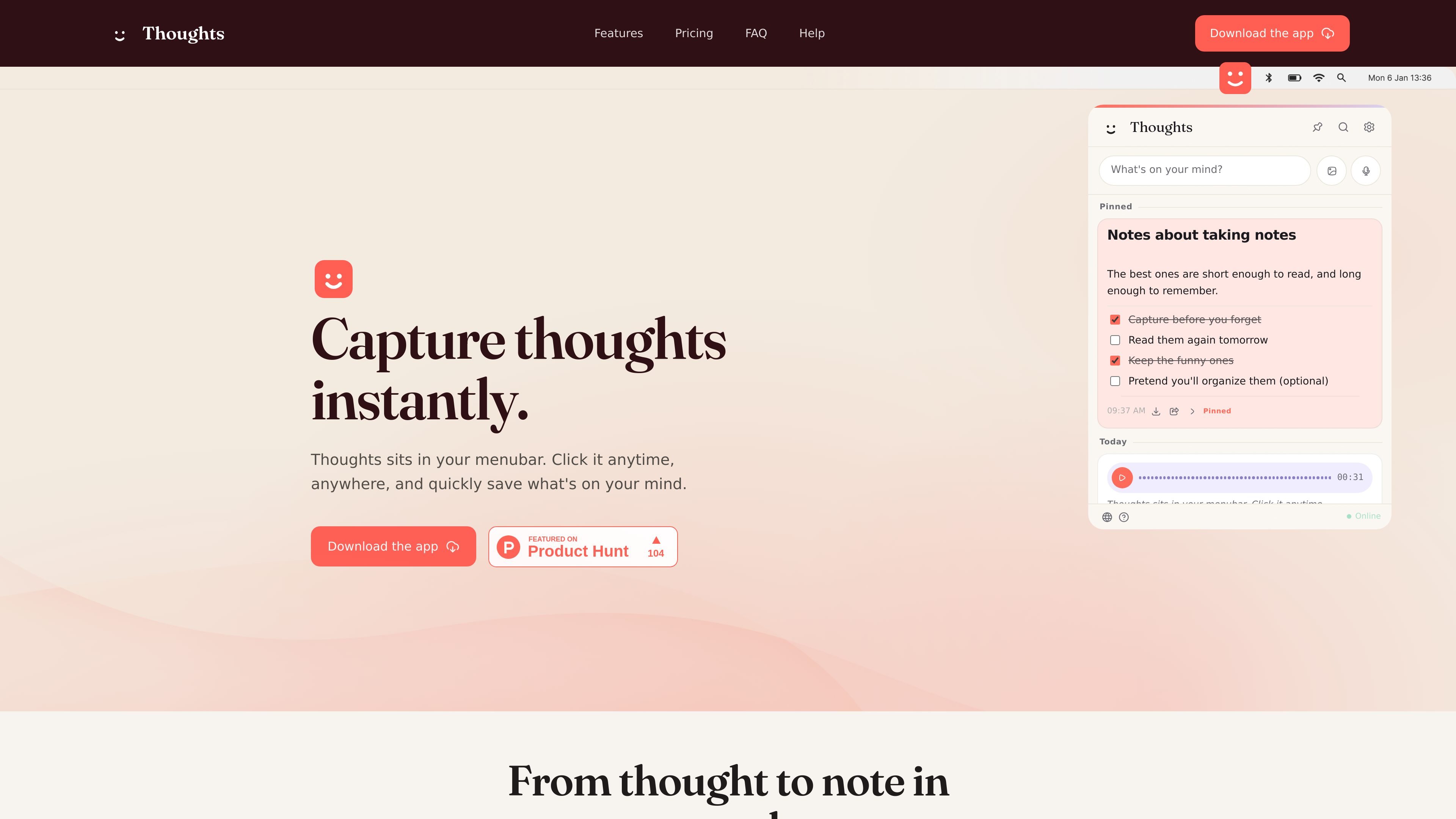
Thoughts is a macOS menubar note-taking app for capturing text, voice recordings, and images without opening a separate full-size workspace. Its popover is available from the menubar, and pinned mode keeps it floating above other windows for quick entry and drag-and-drop.
A note can remain in its original format or be refined with built-in actions. Text notes support editing and AI-assisted transformations, while image and voice notes can be converted into searchable, editable text when the relevant AI features are configured. Notes are organized in a daily feed, searchable, shareable through macOS targets, and exportable in several formats.
Capture paragraphs, headings, checklists, bulleted lists, images, and code blocks in a single composer. Markdown-style slash commands and formatting controls support bold, italic, and strikethrough text.
Hold or press the microphone control to record a voice note with a live waveform and timer. With an OpenAI or Gemini API key, audio can be transcribed automatically when the note is saved.
Drag an image into the composer or insert one as a block. Thoughts keeps the original image and, when AI is enabled, can extract its text, create an editable note, or summarize the extracted content.
Text notes can be shortened, lengthened, summarized, translated, spell-corrected, or converted between letter cases. Image and voice notes have actions for extracting text, transcribing, converting to notes, and summarizing.
Notes are grouped in a daily feed and can be found through instant search. Search covers note text, checklists, link previews, and filenames.
Pin the app so its popover stays above other windows, configure startup and theme settings, and assign a global keyboard shortcut for opening Thoughts.
Open the menubar popover, type an idea, and save it with Command-Enter before switching back to another task. Daily grouping and search make later retrieval practical.
Record a thought when typing is inconvenient, then use transcription or Convert to Note to turn the recording into editable text for review.
Drop a screenshot, scanned page, or other image into the pinned app and use Extract Text or Convert to Note to make its contents searchable and editable alongside the original.
Draft a message or rough piece of writing, then use spelling fixes, summaries, translations, or length adjustments to prepare the text for further use.
Download the Thoughts .dmg file, drag the app into Applications, and launch it. It appears in the macOS menubar as a smiley face icon; click the icon to open the popover.
Click the text field and type, or press the microphone button to record. You can also drag an image into the composer or use the image button. Press Command-Enter or click Save to save a text note.
AI features require an API key from your own OpenAI, Gemini, or Claude account. Add the key in Settings under AI; the key is masked and stored locally on your Mac. Voice transcription is supported with OpenAI or Gemini, while Claude is available for text rewrites but not voice transcription.
Saved notes can be searched from the magnifying-glass icon. Search matches note text, checklists, link previews, and filenames, and filters the feed as you type.
Individual notes can be exported as text, images, MP3, or PDF, depending on the note type. Text notes can also be shared to macOS share targets such as Notes, Messages, and Mail.

QuickQuill is a macOS dictation and transcription app that runs locally on the device. It helps users record meetings, transcribe audio, generate summaries, and export notes without using a cloud service.

Flunkey is a voice-first productivity layer for Windows that converts speech into text, AI-assisted outputs, and remembered context. It is built for users who want to capture ideas and actions without leaving the app they are working in.

CAKIE is a Mac app for recording your screen and voice for an AI agent. It adds a transcript and screenshot highlights, then lets you copy a prompt and paste or attach the context in another AI app.

SpeakoFlow is a free, open-source desktop voice-to-text app for Windows, macOS, and Linux. It supports dictation into any app, voice-driven writing with Flow, cleanup, translation, and a screen-aware assistant.

Notewarp is an AI note-taking tool that turns voice notes, uploads, or pasted text into cleaner notes, transcripts, summaries, and action items. It helps people capture rough ideas quickly and then edit, export, or share the result.

Tactiq is an AI note taker for Google Meet, Zoom, and Microsoft Teams that transcribes meetings live and turns them into summaries, action items, and follow-up outputs. It is built around a Chrome extension and supports team workflows through sharing and integrations.