
Translate selections in place
Select text in a browser, PDF, design tool, terminal, or other Mac app and translate it between supported languages. Results can be inserted in place or copied from the result bubble.

Jarq is a Mac productivity tool for translating, rewriting, shortening, and improving selected text directly in the app where you work. It also adds punctuated dictation at the cursor, including optional offline recognition on Apple Silicon Macs.
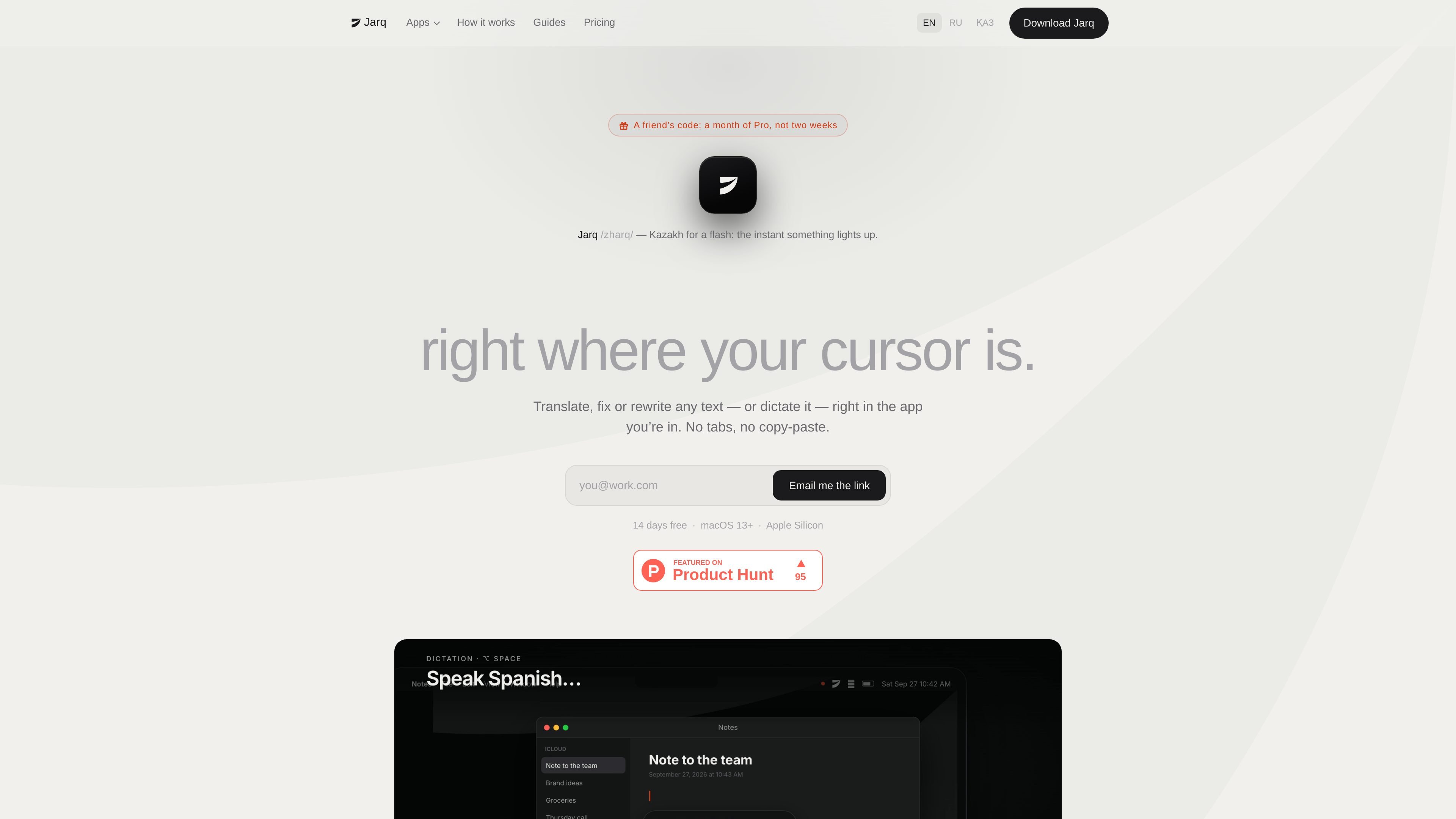
Jarq is a macOS writing and translation utility that works from the app where you are already reading or typing. Select text to translate, shorten, improve, formalize, or otherwise rewrite it, or use a keyboard shortcut to dictate finished text directly into the active field.
The app is designed to reduce copy-and-paste between a working document and separate language or writing tools. Results appear beside the selection or at the cursor, with options to insert, copy, or regenerate. It supports Mac apps including browsers, PDFs, Figma, terminals, Telegram, Mail, Slack, and IDEs, although the exact behavior depends on the app and whether it exposes a selection.
Select text in a browser, PDF, design tool, terminal, or other Mac app and translate it between supported languages. Results can be inserted in place or copied from the result bubble.
Run actions such as Improve, Short, Tone, and custom instructions on selected text. Jarq shows the result before insertion and preserves surrounding formatting, including headings, lists, to-dos, mentions, and fonts.
Press ⌥T to open Jarq when a visible selection dot does not appear, including in Figma, terminals, and Telegram. With no text selected, the shortcut opens Ask.
Press ⌥` to dictate into the active text field. Jarq adds punctuation and capitals, can translate as you speak, and supports a local speech model for offline dictation.
Create a button from an instruction written in your own words, such as shortening text or fixing grammar. Selected text is treated as the material for the instruction, not as a command.
Selection history remains on the Mac. Cloud processing handles translation, text actions, Ask, and cloud dictation in memory, while the optional on-device speech model keeps voice recognition local.
Translate an incoming message, read it alongside the original, and draft a response in your own language. Jarq can translate the reply as you write or speak it into the active field.
Turn a rough Mail, Slack, or document draft into a shorter, clearer, or more formal message without moving the text into another window.
Speak into a text field in an app such as Mail, Slack, or an IDE, then let Jarq place punctuated text at the cursor. The optional local model is suited to offline dictation in the language you speak.
Use ⌥T in Figma, a terminal, or Telegram when the normal selection control is unavailable, then apply a built-in or custom instruction to the selected text.
Jarq requires a Mac with Apple silicon, such as M1 or later, running macOS 13 Ventura or newer. Setup requires Accessibility permission, and microphone permission is needed only for dictation.
Install Jarq by opening its disk image, dragging the app into Applications, and opening it. The setup tour guides you through Accessibility and optional microphone permissions, language settings, and the trial. Jarq then runs from the menu bar.
Select text in an app and use the dot that appears beside the selection, or press ⌥T to open the text controls. Choose an action, then insert the result in place, copy it, or regenerate it. With no selection, ⌥T opens Ask.
Press ⌥` to start dictation and press it again when finished. Jarq places punctuated text at the cursor. You can also choose push-to-talk, change the shortcut, or dictate in one language while typing in another.
Jarq has a 14-day Pro trial without a card or account. Afterward, the free plan allows five cloud-based dictations or translations per day, while dictation through the optional on-device speech model remains free and unlimited. Paid plans remove the daily limit for normal use.

SpeakoFlow is a free, open-source desktop voice-to-text app for Windows, macOS, and Linux. It supports dictation into any app, voice-driven writing with Flow, cleanup, translation, and a screen-aware assistant.

Sanota is an app that turns spoken memories, reflections, and interviews into clear written stories. It supports personal storytelling, family history, and shared memories, with guided prompts and subscription pricing.

Goldfish is an AI memory app for macOS that helps you reply, write, summarize, and continue using the context already on your Mac. It stores memory locally and writes in your tone.

Tavus is an AI video platform for building real-time, face-to-face agents, digital twins, and AI companions. It combines APIs, custom replicas, and multilingual conversational workflows for developers and teams.

ProWritingAid is a writing assistant for storytellers that offers grammar checking, style editing, paraphrasing, and story analysis inside popular writing apps. It includes a free plan, paid tiers, and tools for chapter critique, manuscript review, and collaborative editing.

Paperpal 是一款面向学术写作的 AI 工具,提供文献阅读、语言润色、引用、查重、AI 检测和投稿前检查。它适合需要在英文论文和学术材料上进行写作、修改与合规自检的学生、研究人员和教师。