
Flexible screenshot capture
Capture a selected area, a window, the whole screen, or a repeated area from the menu bar. A 3- or 5-second delay helps capture menus and hover states.

KelpShot is a native screenshot and annotation tool for Apple silicon Macs running macOS 14 or later. It helps users capture, mark up, redact, extract text from, pin, and share still screenshots without cloud sharing or screen recording.
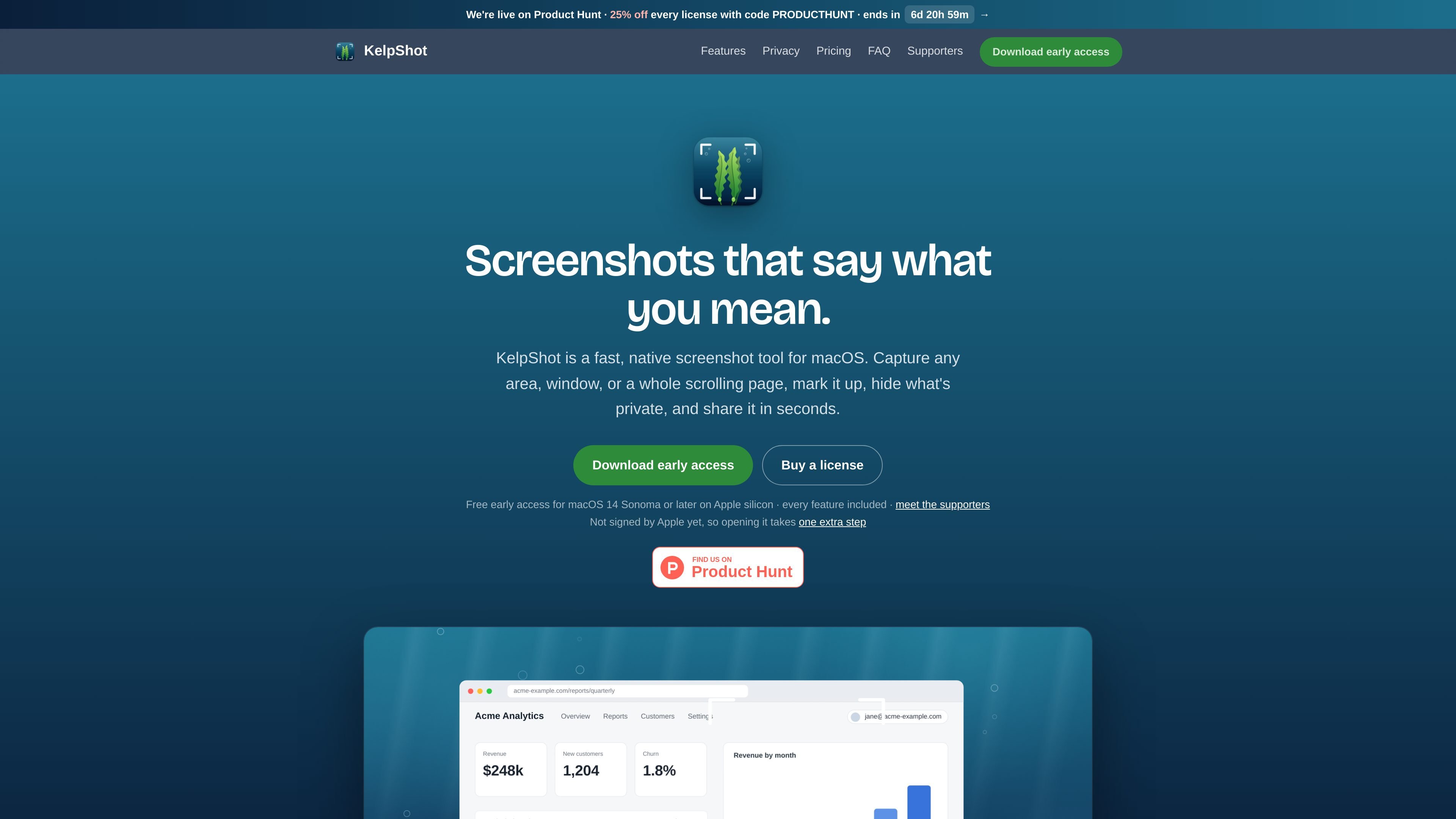
KelpShot is a native screenshot utility for Apple silicon Macs running macOS 14 Sonoma or later. It captures areas, windows, screens, and scrolling pages, then provides a focused editor for markup, privacy redaction, text recognition, and export.
The app stays in the menu bar and supports keyboard shortcuts for capture and editing. Screenshots remain on the Mac in the documented workflows: users can copy or save them, drag them into a chat, email, or document, or keep a pinned reference visible while working. KelpShot does not include screen recording or cloud share links.
Capture a selected area, a window, the whole screen, or a repeated area from the menu bar. A 3- or 5-second delay helps capture menus and hover states.
Select text in an image or on screen with Apple's Vision framework, then copy it locally. The tool can join lines and report QR-code or barcode contents without opening those codes.
Use arrows, shapes, text, numbered steps, highlights, spotlights, magnification, blur, pixelation, and curly braces in a keyboard-focused editor. The canvas expands when annotations extend beyond its edge.
Use Redact Text to find words and apply solid redactions, or draw them manually. Solid redactions remain hidden in exports, while blur and pixelation are presented as cosmetic effects rather than privacy guarantees.
Capture long pages by stitching scrolling frames into one image, with manual or automatic scrolling options. The site labels edge-dragging and auto-scroll as experimental and requiring Accessibility permission.
Copy or save captures, drag them into other apps, pin them above every window and Space, or apply backgrounds, padding, rounded corners, and shadows for presentation-ready exports.
Capture a menu, hover state, or a precise interface region with a delay, then add arrows, labels, numbered steps, or highlights before sending the image to a colleague or support thread.
Select words or data visible in an image, slide, PDF, or otherwise non-selectable app and copy the result as text. QR and barcode contents can be inspected without opening the encoded destination.
Choose sensitive words for solid redaction before exporting a screenshot that contains names, email addresses, keys, or similar private material. Use blur or pixelation only for cosmetic concealment.
Stitch a long webpage or application view into one tall image, using manual scrolling or the experimental automatic scroll modes when the content does not fit on screen.
Pin a screenshot above every window while writing, coding, or designing, or apply a backdrop and spacing before using it in slides, social posts, or other documents.
KelpShot currently supports Apple silicon Macs running macOS 14 Sonoma or later. The early-access build is not signed by Apple, so the first launch requires the appropriate macOS approval step; the installation guide explains the process for Sonoma and Sequoia or later.
The first capture prompts macOS for Screen Recording permission. Scrolling capture that uses edge dragging or automatic scrolling also requires Accessibility permission, requested only when those functions are used.
Yes. You can try KelpShot free for 30 days, and the comparison page says nothing locks afterward. The site also describes the product as a one-time purchase, but the supplied evidence does not establish a current license price or refund terms.
No. KelpShot does not record audio or video, and the comparison page lists screen recording as unavailable. It is intended for still screenshots and related editing workflows.
Text recognition uses Apple's Vision framework on the Mac. You can select text in screenshots or other visible content, copy recognized text, and inspect QR codes or barcodes without KelpShot opening them.

Pixelcut is an AI photo editor for creating and editing product images, social content, and video assets. It offers free and paid plans, plus mobile app and browser access for individual users and teams.
Petalica Paint is a web service for automatically coloring line art and tracing line drawings from photographed images. The home page says it can be used under the stated terms for commercial and noncommercial work, but it is scheduled to end on 2025-07-31 at 16:00 JST.
Wearvue AI generates personalized outfit previews from a photo, lets users refine the style for an occasion, and surfaces similar real products to shop. It is aimed at people who want to preview outfit ideas before buying and compare them with shoppable alternatives.

Upscale.media is an AI image upscaling and enhancement tool from Pixelbin that enlarges low-resolution or pixelated images and improves clarity in the browser. It offers free individual image use, paid credit plans, and team-oriented workflows such as bulk processing and API integration.

Letra is a menu bar OCR utility for macOS Sonoma 14 or later that copies text from screen regions, videos, PDFs, screenshots, and screen shares to the clipboard. It also supports on-device recognition, QR and barcode decoding, searchable capture history, and copied image or file input.

PhotoAid’s AI Image Enlarger is a free browser-based tool for upscaling images without a standard blur-heavy resize. It supports JPEG, WEBP, and PNG uploads and is described as working best for photos with faces.