
Browser-based desktop
A Chrome-based desktop is rendered in the browser, with tabs, windows, a dock, and the ruOS application available without installing a local desktop client.

ruOS is a browser-based agentic desktop with built-in AI helpers and development tools for research, writing, coding, and desktop automation. It is designed for users who want a persistent workspace accessible across supported devices without local installation.
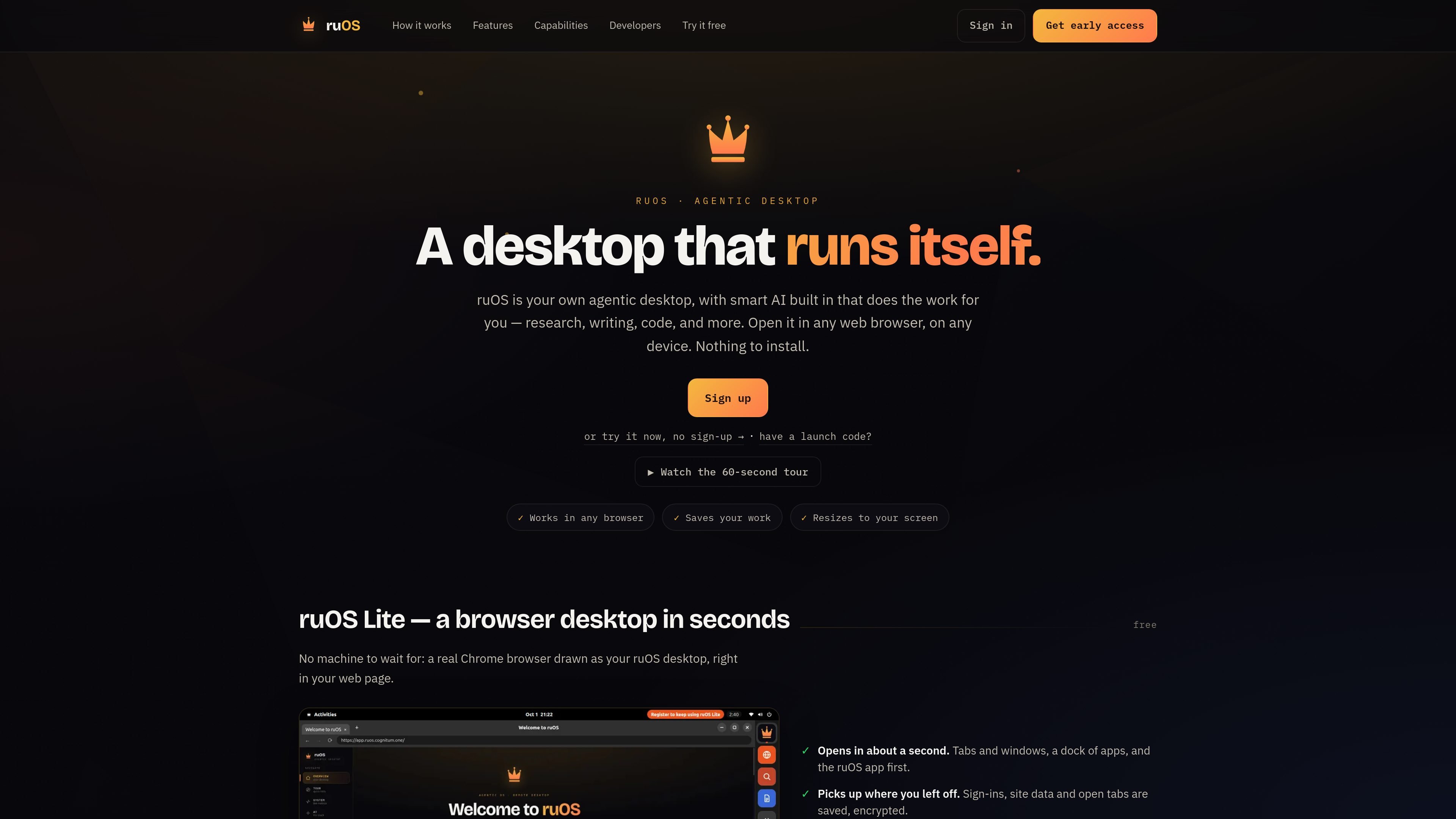
ruOS is a browser-accessible, agentic desktop that combines a streamed Chrome environment with built-in AI and development tools. It is designed to handle research, writing, and coding tasks from a private desktop associated with the user's account, without requiring local installation or manual configuration.
After sign-up, the desktop starts in seconds and opens in a browser on devices such as Macs, iPads, Chromebooks, and Linux laptops. Files, open tabs, site data, and project-related AI context are saved, allowing users to return to the same work from another device.
The product also supports programmatic control through its ruos-computeruse-mcp server. Compatible clients can view and operate the desktop, run shell commands, and trigger system actions; the documented connection method is stdio over SSH, while a hosted MCP endpoint is listed as planned.
A Chrome-based desktop is rendered in the browser, with tabs, windows, a dock, and the ruOS application available without installing a local desktop client.
The desktop includes Claude Code, ruflo, ruvector, ruview, Codex, and VS Code, giving the system tools for coding, orchestration, memory, screen understanding, and editing.
AI helpers can write and run code, research web sources, retain project context, and work together on a larger task while the user watches or returns later.
Files, open tabs, site data, and information the AI has learned about a project are saved so users can resume the same work later, including from another device.
The ruos-computeruse-mcp server lets compatible AI clients inspect and operate the desktop, including screen capture, pointer and keyboard input, shell commands, system actions, and resolution changes.
The interface reshapes to the available browser window and is intended for monitors, tablets, and laptops without manual zoom adjustments.
Give the desktop a change request, and the coding tools can edit files, run tests, and report when the task is complete. This suits developers who want an AI-assisted coding workspace that remains available in the browser.
Ask a question and let the AI browse the web, read sources, and return an answer. The persistent desktop provides a place to continue research without rebuilding the session each time.
Use several helpers on a larger assignment so research, writing, and coding can proceed side by side. The user can observe the work or leave and return to the completed task.
Start work on a laptop and continue on an iPad or another supported browser device, with files, tabs, and saved project context retained in the desktop.
Connect an MCP client such as Claude to inspect the screen, enter text, operate the pointer, run shell commands, or trigger system actions on the remote desktop.
ruOS provides a private desktop associated with your account. The site says there is no local setup or configuration: sign up, wait for the desktop to start, and open it in a browser.
The desktop opens in a web browser and is designed to fit Mac, iPad, Chromebook, and Linux laptop screens. The same session, files, open tabs, and saved AI context can be accessed from different devices.
The built-in helpers can write and run code, research the web, remember project context, and interpret the screen. The site also describes a workflow in which helpers work side by side on larger tasks.
The ruOS desktop exposes an MCP server named ruos-computeruse-mcp. An AI client such as Claude can use it over stdio via SSH to view the screen, move the mouse, type, run shell commands, trigger system actions, and change display resolution. A hosted MCP endpoint is described as being on the roadmap.

CreateOS Sandbox is an isolated compute environment for running code and agent workloads inside Firecracker micro-VMs. It is designed for workflows that need machine-level isolation, private networking between sandboxes, and programmatic control through SDK, CLI, or MCP.

GitBot is a local browser-based workspace for creating reusable coding bots powered by Claude Code, Codex, or OpenCode. It helps developers run those agents across repository folders with persistent threads and configurable permissions.

ByteAsk is a terminal-first AI coding agent for C and C++ that edits repositories and verifies changes with the real compiler, debugger, sanitizers, and tests before showing a diff. It offers a free tier plus paid plans, with editor connectors and zero-retention handling described in the source.

Epherem is a static security scanner for web apps built with AI coding tools such as Lovable, Bolt, v0, Replit, Cursor, and Claude Code. It checks source files and dependencies for common security mistakes, then provides categorized findings and suggested fixes without running the app.

Lasso is an ecommerce product data platform for enriching catalog records, processing supplier files, generating product content, and monitoring competitors. It combines a web app with a REST API, SDK, and MCP server for teams and developers.

Codex Plugins bundle reusable skills, app integrations, and MCP servers into workflows you can install in the Codex app or use from Codex CLI. They help extend Codex with connected-service tasks, reusable instructions, and shared team workflows.