
Shift-drag conversion
Hold Shift while dragging a file, then drop it to convert it without opening a separate online converter.

Tangerine is a local file-conversion and file-tools app for Apple silicon Macs running macOS 13 or later. It uses Shift-drag for conversions and supports image, media, document, text, subtitle, and archive workflows without uploading files.
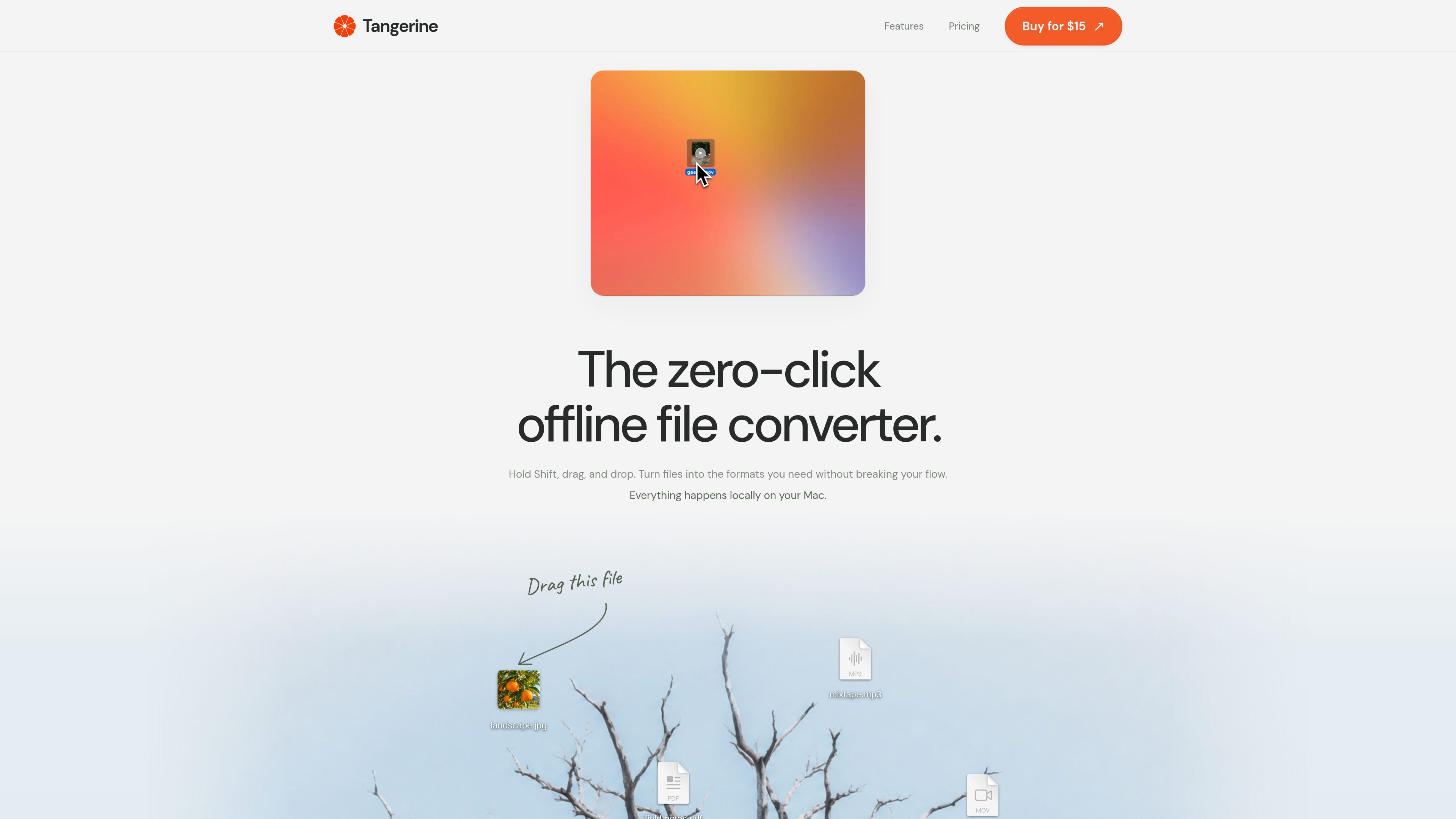
Tangerine is a local Mac file-conversion app built around a Shift-drag workflow. Users hold Shift, drag a file, and drop it to convert it into a needed format rather than uploading it to a web service. Adding Option makes advanced file tools available for tasks such as compression, cropping, trimming, splitting, and merging.
The app covers image, video, audio, document, text, subtitle, and archive workflows. Its listed capabilities include PDF and DOCX export, audio and video format conversion, PDF page rendering at 300 DPI, and subtitle conversion. The product page states that processing happens on the Mac and that files are never uploaded to Tangerine.
Hold Shift while dragging a file, then drop it to convert it without opening a separate online converter.
Convert across image, video, audio, document, text, subtitle, and archive workflows, with 188 conversion options stated on the product page.
Use Option with the workflow to access tools for compressing, cropping, trimming, splitting, merging, and other file operations.
Handle image conversions and image-focused tasks including PNG conversion, cropping, compression, and the listed image formats such as JPG, PNG, WebP, HEIC, TIFF, SVG, AVIF, and BMP.
Work with media formats including MP3, M4A, WAV, FLAC, OGG, Opus, AIFF, WMA, MP4, MOV, MKV, WebM, AVI, WMV, and GIF; the site also lists MP3 audio export.
Convert PDF files to DOCX, JPG, PNG, or TXT; turn TXT into PDF, JPG, or PNG; export all PDF pages as images at 300 DPI; and convert subtitle files between SRT, VTT, and TXT.
Convert camera or design assets between formats such as JPG, PNG, WebP, HEIC, TIFF, SVG, AVIF, and BMP from the Mac without sending the source files to an online service.
Change media between listed audio and video formats, or use the audio export option when a project or device needs a different file type.
Turn PDFs into DOCX, JPG, PNG, or TXT, render every PDF page as a 300 DPI image, or create PDF and image outputs from TXT files.
Compress files or trim, split, and merge media and other supported files when a simple conversion is not enough.
Convert SRT, VTT, and TXT subtitle files between the listed formats, or package and transform archive files such as ZIP, TAR, GZIP, and RAR.
Tangerine uses a Shift-drag workflow: hold Shift, drag a file, and drop it to convert it into a supported format. Adding Option exposes advanced file tools where available.
The site states that conversions and file tools run locally on the Mac and that files are never uploaded to Tangerine.
Tangerine supports image, audio, video, document, text, subtitle, and archive workflows. The listed formats include JPG, PNG, WebP, HEIC, TIFF, SVG, AVIF, BMP, MP3, M4A, WAV, FLAC, OGG, Opus, AIFF, WMA, MP4, MOV, MKV, WebM, AVI, WMV, GIF, PDF, DOCX, TXT, SRT, VTT, ZIP, TAR, GZIP, and RAR, with format-specific output options.
The product page specifies Apple silicon Macs running macOS 13 or later. The supplied information does not specify installation steps beyond obtaining the Mac app.
The site presents Tangerine as a one-time purchase with no subscription or recurring charges. The page displays a $15 USD offer marked as 50% off from $29.99, though purchase terms beyond those displayed are not detailed in the supplied content.

MacSpoof change ou randomise l’adresse MAC Wi‑Fi sur macOS pour reconnecter aux réseaux et limiter l’enregistrement de votre identité sur Wi‑Fi public.

DemoTV is an audience-ranked station for discovering and comparing independent product demos. Founders can submit videos, embed approved demos on their websites, collect viewer inquiries and optionally commission demo production or labelled promotion without buying ranking.

NomNak est une app iPhone gratuite pour découvrir des restaurants grâce aux recommandations d’amis, avec spots enregistrés, passeport food et recherche par ville.

Ctrl+Shift+3 is a calm, text-first community platform with a chronological feed, profiles, RSS, and private groups called Clicks. It is built for reading, posting, and joining smaller communities without algorithmic ranking or vanity counts.

Hexel Editor is a macOS hex editor for opening, searching, inspecting, and editing binary files. It is aimed at developers, reverse engineers, and security researchers who need structured byte-level analysis on the Mac.

TyeGit, client Git natif pour développeurs, offre un contrôle rapide et précis des stages, commits, branches et remotes sur Windows, macOS et Linux.