
WinUI 3 foundation
The WinUI 3 foundation is intended to improve responsiveness and resource efficiency, with early testing showing improvements in performance and memory usage.

Windows Search is the built-in Windows tool for finding apps, files, settings, and information from the taskbar. Its new Windows Insider preview adds a streamlined single-list interface, improved query matching, and selected inline actions for completing common Windows tasks.
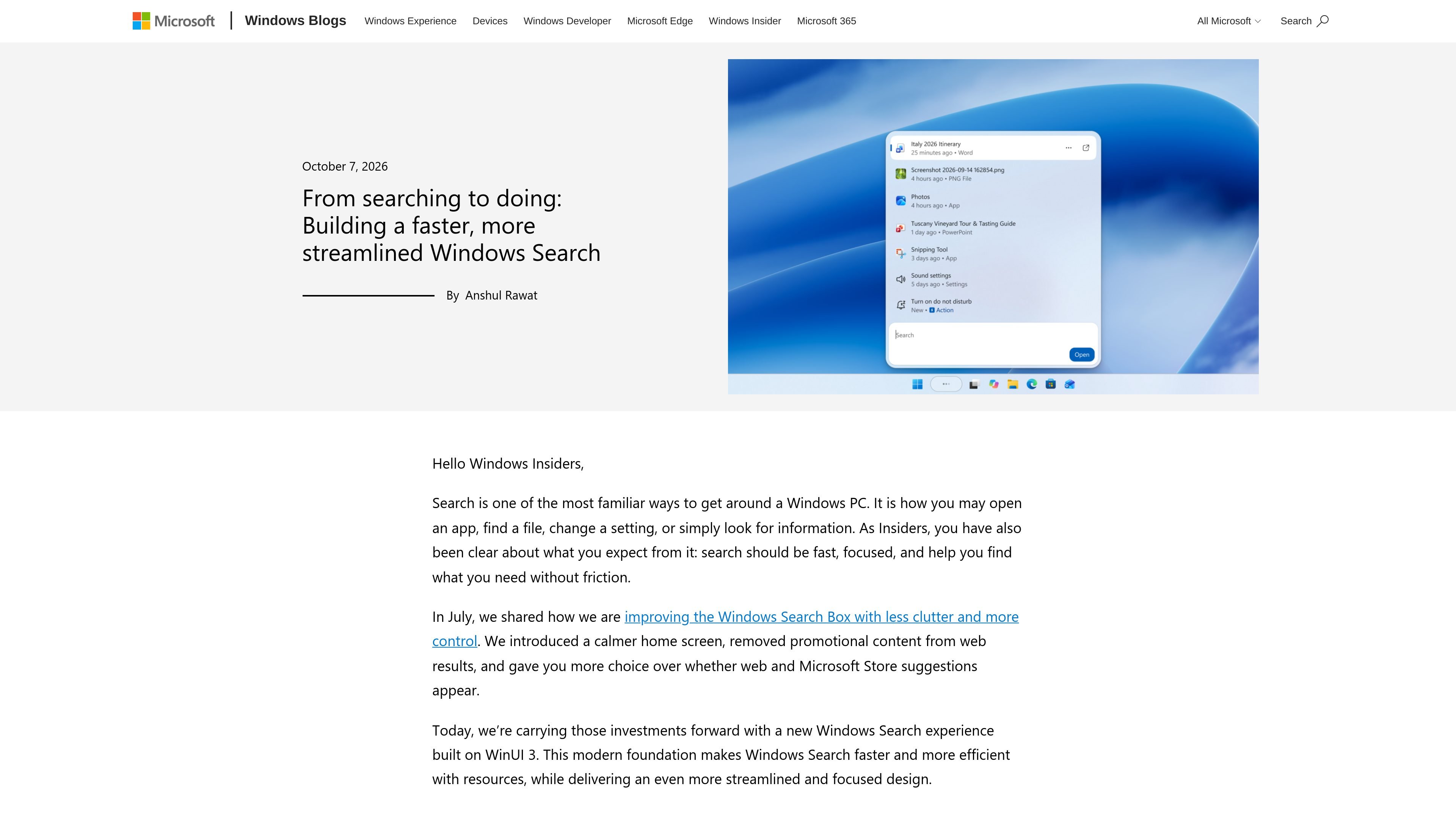
Windows Search is the built-in Windows search experience for finding apps, files, settings, and information. This preview updates the taskbar search interface with a WinUI 3-based foundation, a single-list results layout, improved matching for typos and synonyms, and inline actions for selected Windows tasks.
The experience is being developed as a staged Windows Insider preview. The current release is available through the Experimental channel in English, while richer file previews, web answers, category filters, Phone Link actions, and expansion to the Start menu are described as upcoming work rather than current general availability.
The WinUI 3 foundation is intended to improve responsiveness and resource efficiency, with early testing showing improvements in performance and memory usage.
Results are presented in a single list rather than a split results-and-preview layout, making the search view easier to scan and reducing visual clutter.
Matching is being improved for typos and synonyms, helping Search interpret queries that do not exactly match the wording of a result.
Inline previews and richer file details are planned to provide more context for similar files before they are opened. Category filters will also help narrow results such as files.
Rich web previews are planned for queries such as local weather, stock prices, and factual questions, keeping useful answers within Windows Search.
Natural-language commands can perform selected Windows tasks, including switching to dark mode, enabling Night light or Bluetooth, dimming the screen, muting audio, minimizing windows, and arranging windows on screen.
Open a recently used app or locate a file from the taskbar without manually browsing the Start menu, desktop, or File Explorer.
Search for a Windows setting and use a supported command such as “switch to dark mode,” “turn on night light,” or “turn on Bluetooth” to make the change from the search experience.
Use commands such as “dim my screen,” “mute,” “minimize all my windows,” or “arrange windows on screen” when adjusting the current work session.
Ask information-oriented questions such as the weather in San Diego or the height of the Eiffel Tower and, as rich web previews arrive, review the answer without leaving Search.
Search among similar documents or images and use upcoming inline previews, richer file details, and category filters to identify the right result before opening it.
The preview is rolling out gradually to Windows Insiders in the Experimental channel, with English supported for the initial release.
After upgrading to build 26340.9616 in the Experimental channel or build 28120.3181 in the Experimental (26H1) channel, select Check for updates in Windows Update and restart the device. The New Windows Search Experience feature flag can then be enabled through Settings > Windows Update > Windows Insider Program > Feature flags.
From the taskbar, you can search for apps, files, settings, and information. Supported inline actions can also change settings, adjust the display or audio, manage windows, and—coming soon—perform phone actions through a Phone Link connected device.
The initial preview uses English and is limited to Windows Insider rollout channels. The new experience is initially available from the taskbar; the existing search experience remains in the Start menu while Microsoft continues testing and refinement.

ClayHog è una piattaforma di visibilità nella ricerca AI per monitorare come i brand appaiono in ChatGPT, Gemini, Perplexity, Claude e Google AI Overviews. Un’unica dashboard per agenzie, marketing e SEO.

Grok è un assistente AI gratuito sviluppato da xAI, progettato per dare priorità alla verità e all'obiettività, offrendo al contempo capacità avanzate come l'accesso a informazioni in tempo reale e la generazione di immagini.

qbrin is an enterprise AI search and governed agent platform that turns company knowledge into cited answers and can abstain when evidence is missing. It is built for teams that need source-backed responses, policy controls, and traceable AI actions.

Octen is a search infrastructure product for AI applications that need live web context, structured answers, and retrieval tools for agents, copilots, and chatbots. It combines search, extraction, multimodal retrieval, and developer access paths such as API, SDKs, Skills, MCP, and CLI.

Scite è una piattaforma di ricerca AI per trovare articoli, verificare il contesto delle citazioni e ottenere risposte basate sulla letteratura scientifica.

Aggregatore di wiki guidato dall'IA creato per migliorare l'esperienza dell'utente su Wikipedia semplificando il consumo di conoscenza.