
Single-server MCP integration
Connect to one external MCP server through Streamable HTTP and choose either `MCP_URL` or `MCP_APPS_URL`, with runtime rejection if both are set.

chat is a general-purpose AI chat interface for MCP servers, with natural-language interaction, configurable deployments, persistent history, and optional bot-channel integrations.
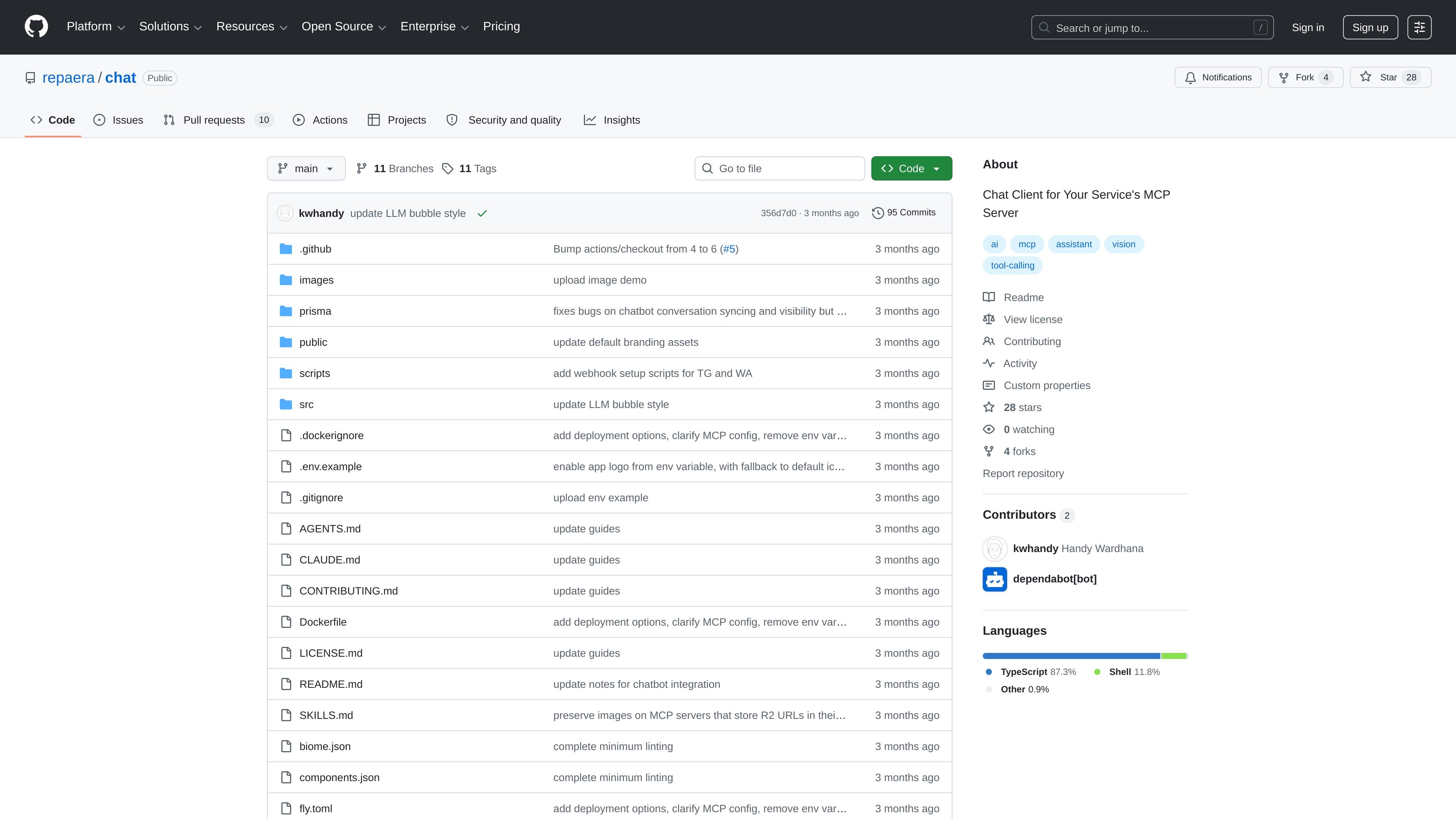
Chat is a general-purpose AI chat interface built for services that expose an MCP server. It is designed to let users interact with a domain-specific backend through normal conversation instead of a separate task form or dashboard.
The project is built with Next.js App Router, Vercel AI SDK v6, and Prisma v7. According to the README, it supports configurable branding and locale strings, streaming AI responses, image attachments, persistent conversation history, authentication, and optional integrations such as location sharing, weekly message limits, and background cleanup jobs.
Connect to one external MCP server through Streamable HTTP and choose either `MCP_URL` or `MCP_APPS_URL`, with runtime rejection if both are set.
Customize the app name, AI persona context, and locale strings so the same codebase can be deployed for different services.
Send and receive messages in real time with typing indicators, Markdown rendering, link detection, and optional LLM image output.
Attach images with a mandatory crop step, compress them on send, and upload them to Cloudflare R2 only when the message is sent.
Keep chat records in persistent history with cursor-based pagination and infinite scroll for older conversations.
Support Telegram, WhatsApp, Slack, Teams, Google Chat, Discord, GitHub, and Linear through Chat SDK when the relevant environment tokens are present.
A service team can expose its backend through MCP and give users a chat interface for common requests, such as delivery, booking, or task workflows.
An internal product team can reuse the same codebase across multiple deployments by changing the app name, persona context, and locale strings.
Operators can connect selected bot channels and serve the same LLM plus MCP workflow through messaging platforms such as Slack, Discord, Telegram, or GitHub.
Teams that need continuity can keep persistent conversation history with pagination and infinite scroll so older exchanges remain accessible.
Products that rely on visual context can let users attach images with cropping before send and have the assistant return image-based responses when needed.
It is a general-purpose AI chat interface that connects to a single MCP server and lets users talk to that service in natural language.
The README lists MCP_URL for any backend or MCP_APPS_URL for TypeScript plus embedded UI. It accepts one of those connection modes at a time; setting both is rejected at runtime.
The project includes email/password authentication with verification, password reset, email change, and Google OAuth, plus persistent conversation history and image attachments.
The repository supports optional per-user weekly message limits, and the README notes a warning banner when the limit is nearly reached and a 429 response when it is exhausted.
The README says it can be deployed as one codebase for multiple deployments, with configurable app name, AI persona context, and locale strings.

BookAI allows you to chat with your books using AI by simply providing the title and author.

Ably Chat is a chat API platform for custom realtime chat apps, with rooms, typing indicators, presence, reactions, message updates and usage-based pricing.

Gemma AI is a phone call reminder app that calls you with scheduled reminders instead of push notifications, with Google Calendar sync and natural voice interaction.

Claude Overlay is a Windows desktop overlay for Claude Code that reads your screen, so you can ask questions, inspect content, and request edits without leaving the app. Uses your existing Claude subscription via Claude CLI.

Grok is a free AI assistant developed by xAI, engineered to prioritize truth and objectivity while offering advanced capabilities like real-time information access and image generation.

Spotit is a macOS app that reads your screen and highlights exactly where to click, using voice questions and on-screen guidance.