Screen Awesome icon

Screen Awesome

Screen Awesome is a free Chrome screen recorder and screenshot extension that keeps captures local to the browser and does not use host permissions, accounts or cloud storage. It supports MP4/WebM/GIF export, annotations, auto-zoom to clicks and optional microphone, tab audio and webcam recording.

Screen Awesome

Overview

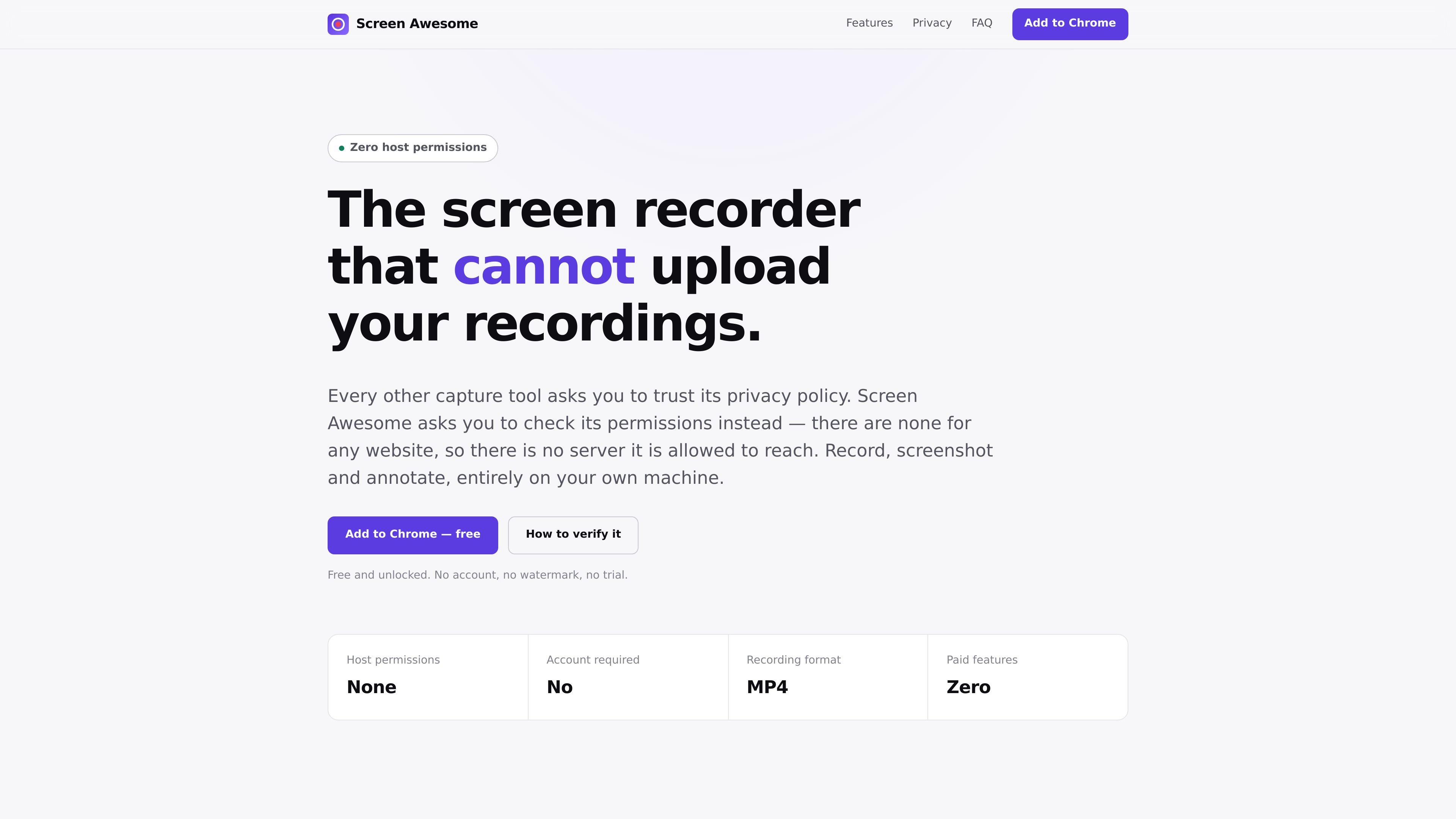
Screen Awesome is a Chrome screen recorder and screenshot extension built around local-only capture. Its central promise is that it cannot upload recordings because it requests no host permissions, keeps captures in the browser’s own storage, and does not use an account, analytics or cloud service.

The product covers both recording and screenshot workflows. It can record a tab, screen, window, application or camera, add microphone and tab audio, annotate captures, and export recordings as MP4, WebM or animated GIF. It also includes an auto-zoom workflow for tab recordings that replays clicks with a virtual camera so a screencast can be polished without external editing.


Features

No host permissions

The extension asks for no host permissions, so it has no standing access to websites you browse and no permission to contact a server. The site frames this as the reason upload is architecturally impossible rather than just disabled by policy.

Local-only storage

Captures are written to the browser’s own IndexedDB storage as soon as they are created. The product also says there is no account, no sync and no analytics.

Flexible capture modes

Screen Awesome can record a browser tab, a full screen, a window, an application, or just the camera. It can also combine microphone audio, tab audio and a movable webcam bubble.

Auto-zoom to clicks

The studio can auto-zoom to clicks by tracking click locations during a tab recording and replaying them with a virtual camera that pans between points.

Editable annotations

Editing tools include arrows, pen, highlighter, shapes, text, speech bubbles, step counters, emoji stamps, crop and image insertion. The page says every mark stays editable.

Multiple outputs

Export options include MP4 wherever Chrome supports it, with fallback to WebM, plus animated GIF. The product also supports screenshot capture for visible area, selected region, full-page stitched output, outside-browser capture and timed capture.

Use Cases

  • Polished tab demos

    Record a browser tab and let the studio automatically zoom into each click afterward. This is useful for product demos, walkthroughs and short tutorials where you want the viewer’s attention directed to specific interface actions.

  • Screen recordings with voice and camera

    Capture a full screen, individual window or application when the workflow extends beyond the browser. The recorder also supports microphone input, tab audio and a movable webcam bubble for narrated presentations.

  • Detailed screenshots and edge cases

    Take screenshots of a visible area, a dragged region or an entire page stitched together while scrolling. The tool also supports capturing outside the browser and timing a capture to catch temporary UI states.

  • Review and feedback markup

    Annotate a capture after recording with arrows, text, shapes, highlights, stamps and crop tools. Because the page says annotations remain editable, this suits workflows where feedback may change before export.

Pros and Cons

Pros

  • No host permissions, which means the extension cannot upload captures to a website.
  • No account, no analytics and no cloud storage, so recordings stay on the user’s machine.
  • Broad capture and editing toolkit in one extension, including screen, tab, camera, microphone, annotations and auto-zoom.
  • Outputs are practical for sharing and editing, with MP4 support where available plus WebM and GIF export.
  • The privacy policy explains where data is stored and how to verify the permission model in Chrome.

Cons

  • Chrome-only at the core; the site says it is built for Chrome Manifest V3 and uses Chrome-specific capture APIs.
  • The product page does not show a pricing page, so there is no separate pricing detail to compare beyond the stated free access.
  • Some capabilities depend on Chrome support, such as MP4 export wherever Chrome can encode it; otherwise it falls back to WebM.

FAQ

Is Screen Awesome really free?

Yes. The site states that Screen Awesome is free and has no paid tier to upgrade to. It also says there are no watermarks, no recording-length limits imposed by the product, and no account requirement.

Where are my recordings stored?

Recordings are stored locally in the browser on the machine where you made them, using IndexedDB. The privacy policy says they remain on your device until you delete them or uninstall the extension.

How can I verify that uploads are impossible?

The product says it has no host permissions, so it cannot make network requests to any website. The site also explains that you can confirm this in Chrome by checking the extension’s Site access line, which should read none.

Does it export MP4 or only WebM?

Screen Awesome records to MP4 wherever Chrome supports it, and falls back to WebM otherwise. The export options also include animated GIF.

Does it work on browsers besides Chrome?

Not yet. The site says Screen Awesome is built for Chrome’s Manifest V3 and uses Chrome-specific capture APIs, but it should also install on Chromium-based browsers such as Edge, Brave, and Opera, though those browsers are not the primary test target.

Quick Facts

Category
Screen recorder and screenshot extension
Platform
Google Chrome; also works on Chromium-based browsers such as Edge, Brave and Opera
Pricing
Free; no paid tier listed
Storage
Local browser storage (IndexedDB) on the user’s device
Export formats
MP4, WebM, animated GIF
Company
Independent developer Nitinbhai Viras