
Three-bar drag-and-drop arrangement
Organize icons across Menu bar, Hidden, and Always hidden bars. Drag an icon between bars or to a new position, with the other icons moving aside to show its landing place.
Tuck is a free menu bar manager for macOS 27 or later that lets users arrange, hide, search, and conditionally reveal Mac menu bar icons. It helps keep frequently used controls visible while preserving the layout across restarts and software updates.
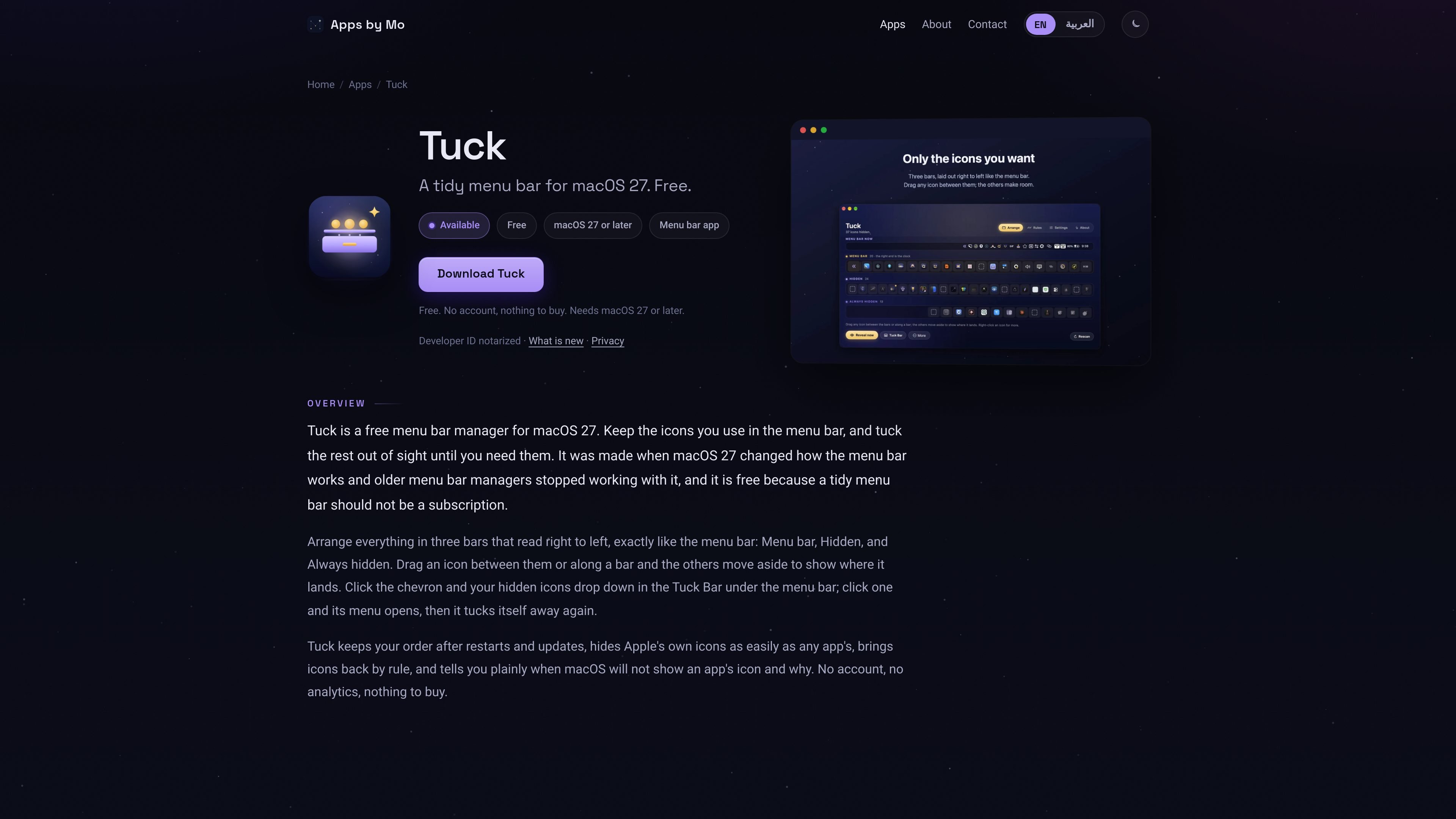
Tuck is a free menu bar manager for Macs running macOS 27 or later. It lets users keep frequently used icons in the menu bar while moving less-used icons into Hidden or Always hidden, with both sections arranged in the same right-to-left direction as the macOS menu bar.
The app is designed around maintaining a stable arrangement through restarts and software updates. Hidden icons remain available from the Tuck Bar, keyboard search, or rules that temporarily bring them back when conditions such as battery use, a running app, an external display, or disabled Wi-Fi apply.
Organize icons across Menu bar, Hidden, and Always hidden bars. Drag an icon between bars or to a new position, with the other icons moving aside to show its landing place.
Click the chevron to reveal hidden icons in a bar below the menu bar at the right edge. Selecting an icon opens its own menu and then hides it again; an app that is not running is launched first.
Use Control-Option-Command-F to search for an icon by name, then press Return to open it regardless of which bar contains it.
Bring icons back when conditions are true, including battery use, a specified charge level, an app being in front or running, an external display being connected, or Wi-Fi being off.
Save the arrangement and restore it after restarts, macOS updates, and app updates. Tuck can also detect a single icon moved with Command in the menu bar and correct an unseen reshuffle.
Tuck is Developer ID signed and notarized, runs natively on Apple silicon and Intel Macs, and includes built-in updates. It reports when macOS will not display an app's icon and identifies the stated fix.
Keep only the controls used throughout the day in the visible menu bar and move occasional utilities to Hidden, reducing the number of icons competing for space.
Use the Tuck Bar when a hidden control is needed: click the chevron, choose the icon, use its menu, and let it tuck away again afterward.
Use rules to expose relevant controls automatically, such as showing an icon on battery power, below a chosen charge level, while a particular app is in front or running, or when an external display is connected.
Find an icon without remembering which bar contains it by invoking the shortcut, typing a few letters, and pressing Return.
Rebuild a carefully arranged setup once and rely on Tuck to restore it after a restart, macOS update, or app update.
Yes. Tuck is free, with no trial, account, or paid unlock mentioned on the product page.
Tuck requires macOS 27 or later. It is built for the menu bar behavior introduced in macOS 27 and is not presented as a utility for earlier macOS releases.
Yes. Wi-Fi, battery, Bluetooth, sound, Control Center, and other Apple menu bar items can be moved to Hidden like app icons. The clock remains at the right end because macOS keeps it there.
Yes. Tuck saves the arrangement and restores it after a restart, macOS update, or app update. It can also learn a single icon moved in the menu bar with the Command key.
Tuck needs Accessibility access to read the menu bar and open icons. Screen Recording is optional and is used only to show Apple's icons as they appear on screen.

Goldfish is an AI memory app for macOS that helps you reply, write, summarize, and continue using the context already on your Mac. It stores memory locally and writes in your tone.

ArtDeck is a visual reference board app for iPhone, iPad, and Mac that lets artists collect mixed reference material on one canvas and study it with ToolBox lenses. It works offline, supports optional iCloud sync, and is sold as a one-time purchase with no account required.

Biji é uma plataforma versátil projetada para aumentar a produtividade por meio de ferramentas e recursos inovadores.

Malyatko is a baby tracker for logging feeding, sleep, growth, teething, and milestones in one app. It works on iPhone, Apple Watch, and widgets, with no sign-up, offline use, and family sharing through iCloud.

Redline is a budgeting tool for Claude Code that paces sessions to stay within time, token, cost, or plan-percentage limits. It uses Claude Code’s native hooks and statusline to help sessions finish with a usable result instead of stopping abruptly.

Claude Overlay is a Windows desktop overlay for Claude Code that reads your screen so you can ask questions, inspect content, and request edits without leaving the current app. It runs on your existing Claude subscription through the Claude CLI, so no separate API key is required.