
Capture text from any screen region
Press ⌘⇧2 or a custom shortcut, select a region with the crosshair, and receive the recognized text in the clipboard without managing a separate OCR window.

Letra is a menu bar OCR utility for macOS Sonoma 14 or later that copies text from screen regions, videos, PDFs, screenshots, and screen shares to the clipboard. It also supports on-device recognition, QR and barcode decoding, searchable capture history, and copied image or file input.
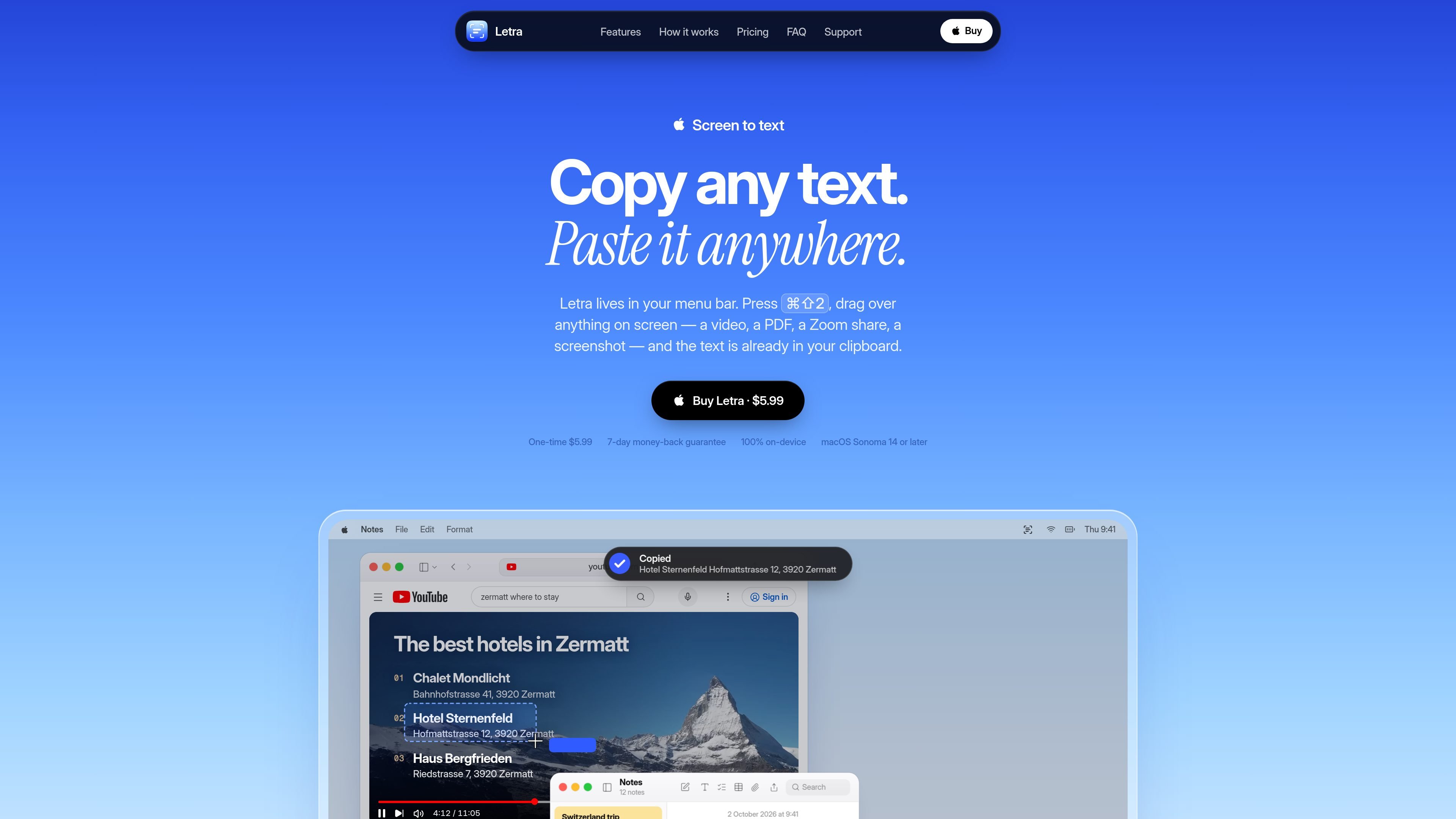
Letra is a menu bar screen-OCR utility for Macs running macOS Sonoma 14 or later. It turns text that cannot be selected normally—such as text in a paused video, PDF, screenshot, video call, or screen share—into clipboard text. The basic workflow is a shortcut, a screen-region selection, and paste.
Recognition runs on the Mac using on-device OCR. Alongside screen capture, Letra can read copied images and PNG, JPEG, or PDF files, decode QR codes and barcodes, and retain captures in a searchable history. It is intended for short, immediate extraction tasks rather than large-scale document OCR or batch processing.
Press ⌘⇧2 or a custom shortcut, select a region with the crosshair, and receive the recognized text in the clipboard without managing a separate OCR window.
Recognition runs locally on the Mac, so selected screen content does not need to be uploaded to a server and can work with Wi-Fi switched off.
Read text from screenshots, paused videos, screen shares, PDFs, copied images, and PNG or JPEG files. Language detection is automatic, with support for around 20 languages stated on the product page.
Decode QR codes and barcodes from screen content or images. QR links can open automatically when enabled, and detected URLs are grouped in history.
Keep captures in a searchable menu bar history with filters for Text, Links, and QR Codes, then click an item to copy it again.
Choose accurate or fast recognition, control line-break handling, launch Letra at login, and trigger captures through its URL scheme for Raycast, Alfred, or Shortcuts workflows.
Select text from a paused tutorial, online course, or demonstration when the video player does not expose selectable text, then paste code or notes into an editor.
Capture clauses, headings, or values from scanned pages and PDFs that do not allow normal text selection, while keeping the extracted passage in notes.
Read a URL, error message, or configuration value shown during a Zoom, Meet, or Teams screen share without asking the presenter to send it separately.
Decode a QR code from a slide, poster, or photo and open its payload on the Mac; this is useful when the phone or camera is not immediately available.
Collect text from screenshots, copied images, whiteboards, recipe cards, or handwriting and return to earlier captures through the searchable history.
Letra runs as a macOS menu bar app. Press ⌘⇧2, or a shortcut you set, drag over the text on screen, and paste the resulting text from your clipboard.
The selected screen region is processed with on-device OCR, and the recognized text is placed on the clipboard. A small toast displays a preview after capture.
Yes. Letra can decode QR codes and barcodes, and QR links can be opened automatically when that option is enabled. URLs detected in captures can also be found in searchable history under Links.
Letra supports macOS Sonoma 14 or later. It is designed for screen OCR rather than large document-processing jobs such as batch-converting a 200-page scan into a searchable PDF.
Letra costs $5.99 as a one-time purchase and includes a 7-day money-back guarantee. The source describes it as having no free trial.
KlutterAI is an AI-powered expense tracker that helps people capture receipts, categorize spending, and monitor budgets from iOS or Android. The product also surfaces recurring charges, spending alerts, and exportable reports.

SlimSnap is a Mac app that turns screenshots into JSON for CLI coding agents such as Claude Code, Aider, and Codex CLI. It keeps capture and OCR local, and the site says the app is free with no registration required.

Munch is a social app for food and recipes that lets people discover, share, and organize recipes in one place. It also includes AI-assisted recipe formatting and ingredient scanning for quick meal ideas.

UglyPDF is a web-based AI PDF creator that turns prompts or uploaded files into editable documents. It helps people create, revise, and export common business and personal documents without design software.
LabelLens сканирует фото или загруженные упаковки продуктов и показывает оценку питания с простым разбором ингредиентов, добавок и ключевых значений.
Capecho is a Mac app for capturing unfamiliar words in context and reviewing them with spaced repetition. It helps readers save vocabulary from articles, PDFs, subtitles, and images without building flashcards by hand.