
Select a region quickly
Drag out the exact part of your screen you want to present, or start instantly with a saved region using a global keyboard shortcut.
RegionMirror is a macOS screen-sharing app that lets you present a selected region of an ultrawide or large display in Zoom, Teams, Slack, Discord, and similar apps. It is designed for people who want a readable shared view without giving up access to the rest of their desktop.
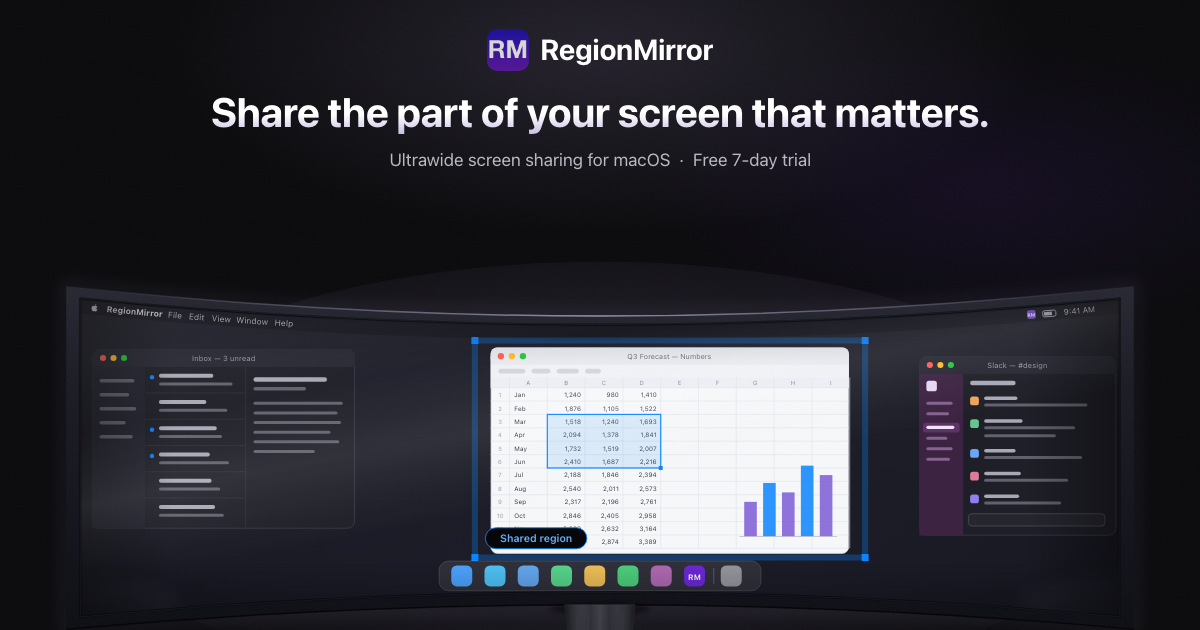
RegionMirror is a native macOS app for sharing a selected region of an ultrawide or large display instead of presenting the entire screen or a single window. It is aimed at people who need to keep a large desktop available while showing only the part of the screen that matters to an audience.
The workflow is intentionally simple: select or save a region, keep working across the rest of your desktop, then share the RegionMirror window in a conferencing or collaboration app. The product adds built-in presentation tools such as annotations, blur, and a whiteboard so the same shared region can support demos, teaching, and walkthroughs without switching tools.
Drag out the exact part of your screen you want to present, or start instantly with a saved region using a global keyboard shortcut.
Save a default region for each display and trigger it with a customizable shortcut such as ⌃⌥⇧+1, so you do not need to redraw the area every time.
Keep working normally while presenting: move windows into and out of the shared area, resize the region, or switch apps without stopping the share.
Use the RegionMirror window like any other macOS app window in Zoom, Teams, Slack, Discord, and similar tools that support window sharing.
Annotate the shared area with arrows and text, blur it when you need to type sensitive information, or switch to a built-in whiteboard for live explanation.
See a compact live preview of what your audience sees from Presenter View, so you can check framing while staying on your own desktop.
Present code, terminal output, and documentation in a single readable frame while leaving the rest of the IDE and reference material visible on the same monitor.
Move between a product demo, slides, and browser tabs without stopping the share, while keeping private notes off-screen.
Teach with arrows, text, and the built-in whiteboard while switching among reference material and live examples.
Show dashboards or reports at a readable size, then blur the shared view briefly when entering credentials or other sensitive data.
Use one workflow across meetings: choose a region, share the RegionMirror window, and continue working in whatever app your meeting invite uses.
Yes. RegionMirror shows the selected region in a normal macOS window, which you can share in Zoom, Microsoft Teams, Slack, Discord, or other apps that support window sharing.
No. The product is most useful on large and ultrawide displays, but it also works on any Mac display running macOS 13.5 or later.
Yes. Anything placed inside the selected region is shared, so you can arrange multiple windows in that area and move apps in or out while presenting.
Yes. Only the selected region is shared, and the app provides an on-screen outline plus a blur control for moments when you need to enter sensitive information.
RegionMirror is free to download and unlocks every feature for 7 days or 10 sharing sessions, whichever comes first. After the trial, sharing continues with a 1080×720 region, and a one-time in-app purchase of $19.99 unlocks custom region sizes, annotations, blur, and the whiteboard.

MacSpoof — смена MAC-адреса в macOS: меняйте или рандомизируйте Wi‑Fi MAC, чтобы переподключаться и меньше светить идентификатор в публичных сетях.

NomNak — бесплатное приложение для iPhone, где находят рестораны по рекомендациям друзей, сохраняют места, ведут food passport и ищут по городам.
TyeGit — нативный Git-клиент на Rust и Tauri для точного управления staging, коммитами, ветками и remotes в Windows, macOS и Linux.

Loomal is a payments layer for agentic commerce that lets developers add paywalls to APIs, MCP tools, or hosted files. It settles agent payments in USDC on Base and is aimed at services that want per-request payment from AI agents.

idmly converts self-contained HTML designs into editable Adobe InDesign (.idml) files. It is built for designers and teams that need browser-made or AI-generated layouts turned into InDesign without rebuilding them by hand.

Rokoko is a motion capture software and hardware ecosystem for body, finger, and face animation. Rokoko Studio processes capture data, lets creators clean and retarget it, and streams or exports it to 3D tools.