
Selection translation and AI dictionary
Select text in an app to display a translation, or select a word for phonetics, definitions, examples, inflections, and etymology in a dictionary card.

Trancy Air is a shortcut-driven translation and writing assistant for macOS and Windows. It helps people translate selected or on-screen text, draft and replace text in other languages, dictate content, and practice pronunciation across desktop applications.
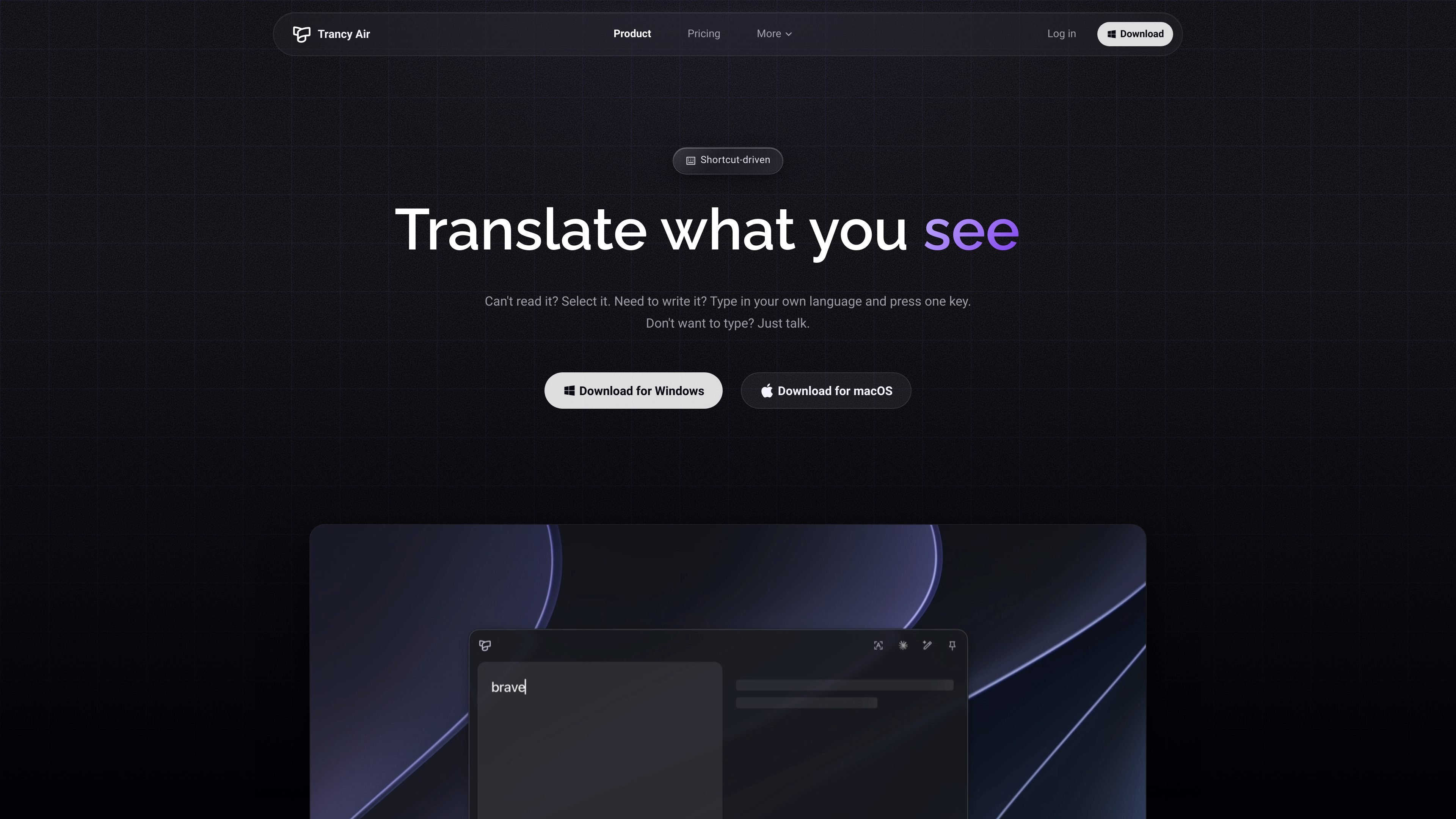
Trancy Air is a shortcut-driven desktop translation and writing assistant for macOS and Windows. It is designed to work across applications: users can select text to translate it, replace text in an input field with a translated version, or dictate text instead of typing.
Beyond basic translation, Air provides word lookup, translation comparison, sentence alignment, grammar analysis, screenshot OCR, natural-sounding AI voices, and translation history. It also connects with the wider Trancy service for saved words, sentences, and pronunciation practice in the Trancy Learning Center. Core translation works without an account, while account-based AI and synchronization features require sign-in.
Select text in an app to display a translation, or select a word for phonetics, definitions, examples, inflections, and etymology in a dictionary card.
Send a sentence to as many as five translation engines and compare the results side by side; long passages can be aligned sentence by sentence.
Open a compose window to translate text, or replace text directly in an input field after writing in your own language. AI can flag grammar, spelling, and wording issues.
Hold a shortcut to dictate text into a field, optionally translate it, remove fillers, and rewrite the result into clearer paragraphs.
Drag across images, video frames, or interface text to extract and translate text that cannot be selected normally. Screenshot translation uses screen-recording permission when first enabled.
Save words and sentences, search translation history, and sync saved material to the Trancy Learning Center. Pronunciation practice provides an overall score and per-word feedback.
Select unfamiliar text in a desktop application to see a translation immediately, or inspect a single word's pronunciation, definitions, and usage examples without opening a separate dictionary.
Draft a message in your native language and use in-place replacement to produce the target-language version. Grammar, spelling, and wording analysis can help refine the result before sending.
Dictate when typing is inconvenient, then have the text translated, cleaned of fillers, or reorganized into clearer paragraphs for use in an input field.
Extract text from an image, video frame, or interface element that does not support normal selection, then translate it through the screenshot workflow.
Save unfamiliar words and sentences, revisit prior translations, and practice reading aloud with an overall pronunciation score and word-level feedback in the Learning Center.
Trancy Air supports macOS and Windows, with the same features on both platforms. The source does not specify minimum operating-system versions.
No account is required for the built-in free engine. Selection translation, compare translation, and in-place replacement are available without signing in. An account is needed for AI engines, synchronized saves, and pronunciation scoring.
Trancy Air requests accessibility permission when it first needs to read selected text or write a translation back into an input field. Microphone access supports voice input, and screen-recording permission supports screenshot translation; these permissions can be skipped if the related features are not used.
Core translation is free. Premium features include AI definitions, grammar checking, voice input, and pronunciation scoring. The pricing page also lists paid plans with additional AI and language-learning features, but it does not provide usable price figures in the source content.
Trancy Air uses the same account as Trancy's browser extension, sharing saves and settings. The extension is intended for immersive bilingual reading on web pages, while Air handles translation workflows outside the browser.

SpeakoFlow is a free, open-source desktop voice-to-text app for Windows, macOS, and Linux. It supports dictation into any app, voice-driven writing with Flow, cleanup, translation, and a screen-aware assistant.

Sanota is an app that turns spoken memories, reflections, and interviews into clear written stories. It supports personal storytelling, family history, and shared memories, with guided prompts and subscription pricing.

Talkpal is an AI-powered language learning web and mobile app for practicing speaking, listening, writing, and pronunciation. It offers guided courses, roleplays, and call-style conversation practice across 130+ languages.

Goldfish is an AI memory app for macOS that helps you reply, write, summarize, and continue using the context already on your Mac. It stores memory locally and writes in your tone.

LangPanda is a browser extension for learning languages from streaming video and other supported sites. It combines instant subtitle lookup, flashcard creation, vocabulary tracking, and spaced-repetition review for 36 languages.

Wallie is an open-source AI streamer that watches your screen, hears chat, and generates live commentary in a configurable persona. It runs locally on your machine with your own keys and is aimed at faceless content, autonomous streams, and real-time reactions.