
Dual-pane file browser
Work with a two-panel interface that shows local files on one side and remote servers on the other, making navigation and transfers easier to follow.

Upstream is a native macOS FTP and SFTP client for transferring files, managing servers, and editing remote content. The App Store listing describes a free core app plus a one-time paid upgrade for sync, comparison, and other advanced workflow tools.
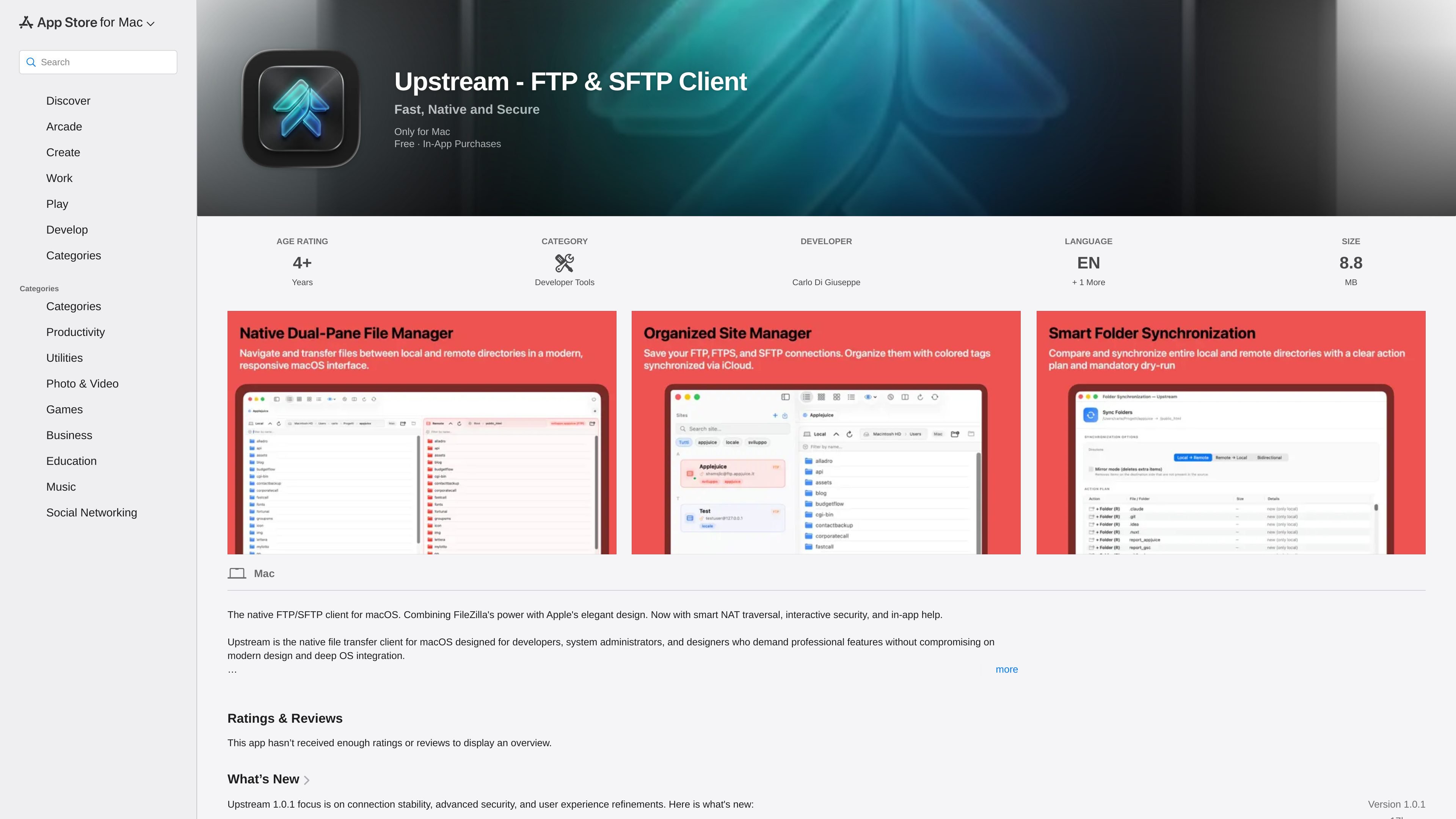
Upstream is a native FTP and SFTP client for macOS. It is positioned as a file transfer app for developers, system administrators, and designers who need remote server access without giving up a Mac-style interface.
The App Store listing highlights a free core app with unlimited connections to FTP, FTPS, and SFTP, plus a paid Upstream Full upgrade for advanced workflow features such as folder synchronization, visual directory comparison, synchronized browsing, and command-palette navigation.
The app emphasizes deep macOS integration, app sandbox compliance, Swift-based implementation, and support for macOS 15 Sequoia. Its transfer tools include concurrent and recursive transfers, an advanced queue, and drag-and-drop between Finder and the app.
Security-related features called out in the listing include credentials stored in the system Keychain, SSH key authentication for SFTP in the paid version, and interactive TOFU-style warnings for FTPS certificates and SSH host keys. The app also notes smart NAT traversal and an in-app help center.
Work with a two-panel interface that shows local files on one side and remote servers on the other, making navigation and transfers easier to follow.
Use the free tier to connect to FTP, FTPS, and SFTP servers, with password-based SFTP and a saved Site Manager for repeated access.
Run concurrent and recursive transfers, plus a multi-threaded queue with automatic resume and retry logic for interrupted jobs.
Inspect remote content quickly with Quick Look previews, instant search, filters, breadcrumbs navigation, and a full command log for protocol activity.
Edit remote files in external apps and let Upstream watch for changes and upload them automatically on save.
Move configurations between tools using FileZilla site exports and SSH config import, then sync saved sites through iCloud on multiple Macs in the Pro version.
Browse local folders and remote servers side by side, then move files with drag and drop or through the transfer queue.
Store server profiles in Site Manager, reuse credentials from the system Keychain, and return to the same hosts without re-entering setup details.
Preview and edit remote files, then upload changes automatically from external editors such as VS Code, TextMate, or Xcode.
Compare local and remote directory structures, synchronize folders, and review dry-run actions before making changes in the paid upgrade.
Import settings from FileZilla or SSH config files and use multiple tabs or command-palette actions to move faster across servers.
Upstream is a native macOS file transfer client for FTP, FTPS, and SFTP. It provides a dual-pane interface for working with local files and remote servers, plus transfer and site-management tools.
The free version includes unlimited connections to FTP, FTPS (explicit and implicit), and SFTP using password authentication, along with Site Manager, transfers, search, filters, and remote file management.
Upstream Full is a one-time in-app purchase. The App Store listing says it is bought once and owned forever, with no subscriptions.
Yes. The listing says Upstream supports importing site configurations from FileZilla’s sitemanager.xml and SSH configs from ~/.ssh/config.
The listing describes Upstream as a Mac app and says it fully supports macOS 15 Sequoia. It is not presented as a cross-platform client in the available source text.

MacSpoof ist ein MAC-Adressenwechsler für macOS: WLAN-MAC ändern oder randomisieren, um Verbindungen zu erneuern und die Protokollierung auf öffentlichem WLAN zu reduzieren.

NomNak ist eine kostenlose Restaurant-Discovery-App für iPhone, mit der du Orte über Empfehlungen von Freunden statt über anonyme Bewertungen findest.

TyeGit ist ein nativer Git-Client auf Basis von Rust und Tauri für schnelle, präzise Kontrolle über Staging, Commits, Branches und Remotes unter Windows, macOS und Linux.

Loomal is a payments layer for agentic commerce that lets developers add paywalls to APIs, MCP tools, or hosted files. It settles agent payments in USDC on Base and is aimed at services that want per-request payment from AI agents.

idmly converts self-contained HTML designs into editable Adobe InDesign (.idml) files. It is built for designers and teams that need browser-made or AI-generated layouts turned into InDesign without rebuilding them by hand.

Rokoko is a motion capture software and hardware ecosystem for body, finger, and face animation. Rokoko Studio processes capture data, lets creators clean and retarget it, and streams or exports it to 3D tools.